Recording
Description
Recording allows users to record scenario elements in order to create test cases.
Recording Process Model - Ticking record checkbox
-
Click on "Test current element" button on the right panel.
-
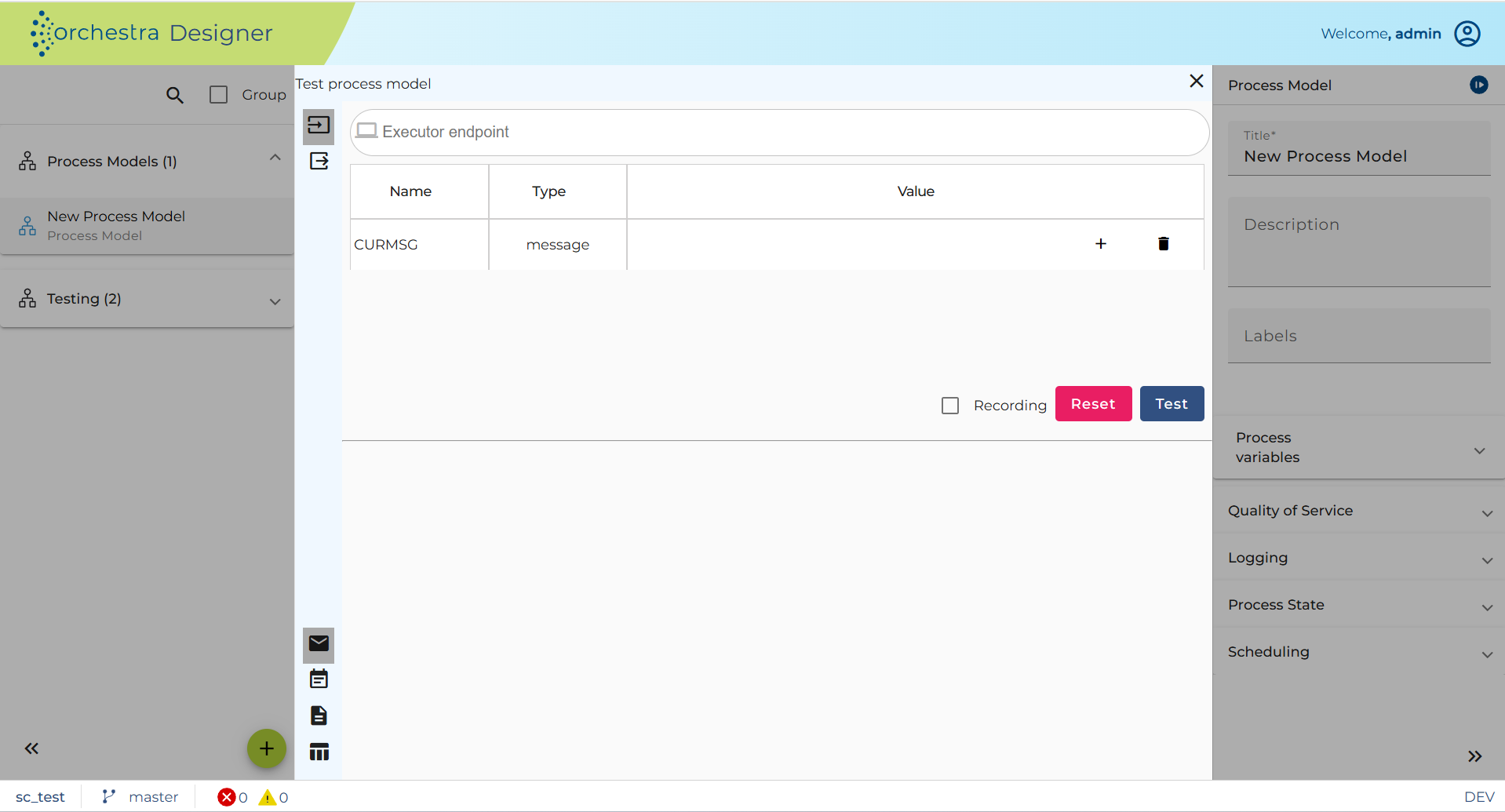
The "Test process model" dialog is shown.
-
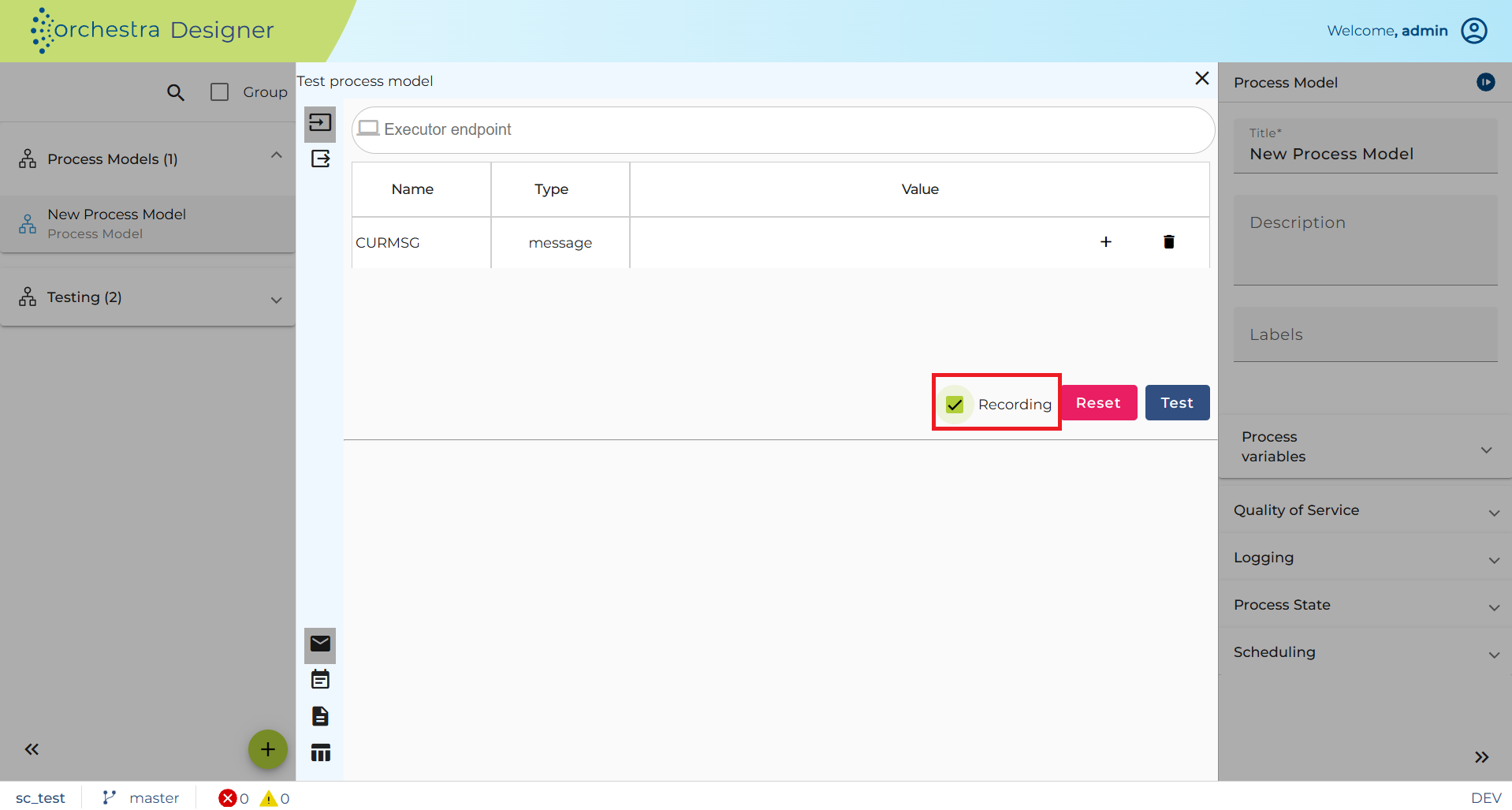
There is a "Recording" check box under the table. Tick the checkbox and then click on the "Test" button to start recording the adapter.
-
The test cases of the process model are created under "Test case".
Recording Adapter
-
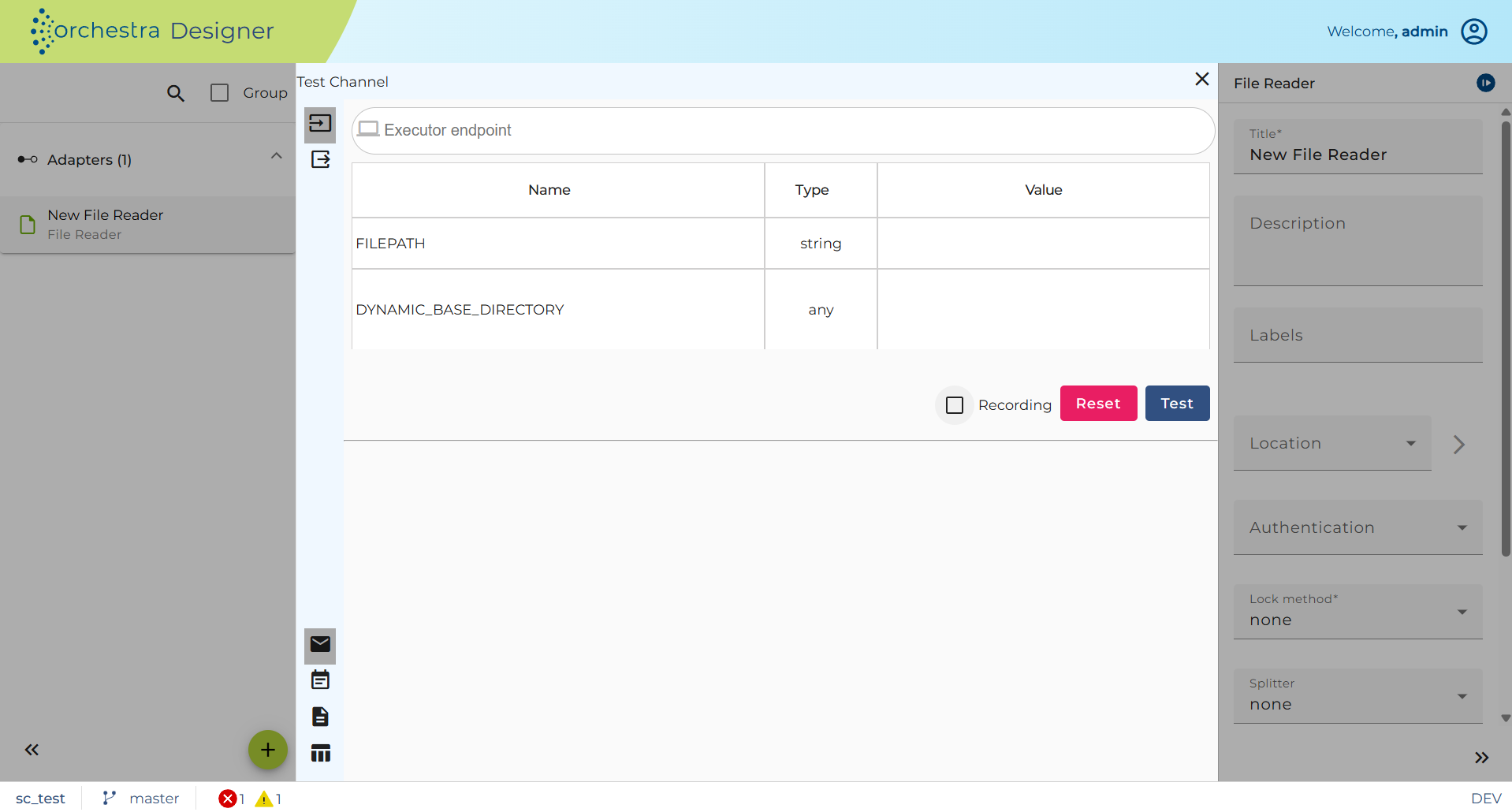
Open adapter.
-
Click "Test current element" button on the right panel.
-
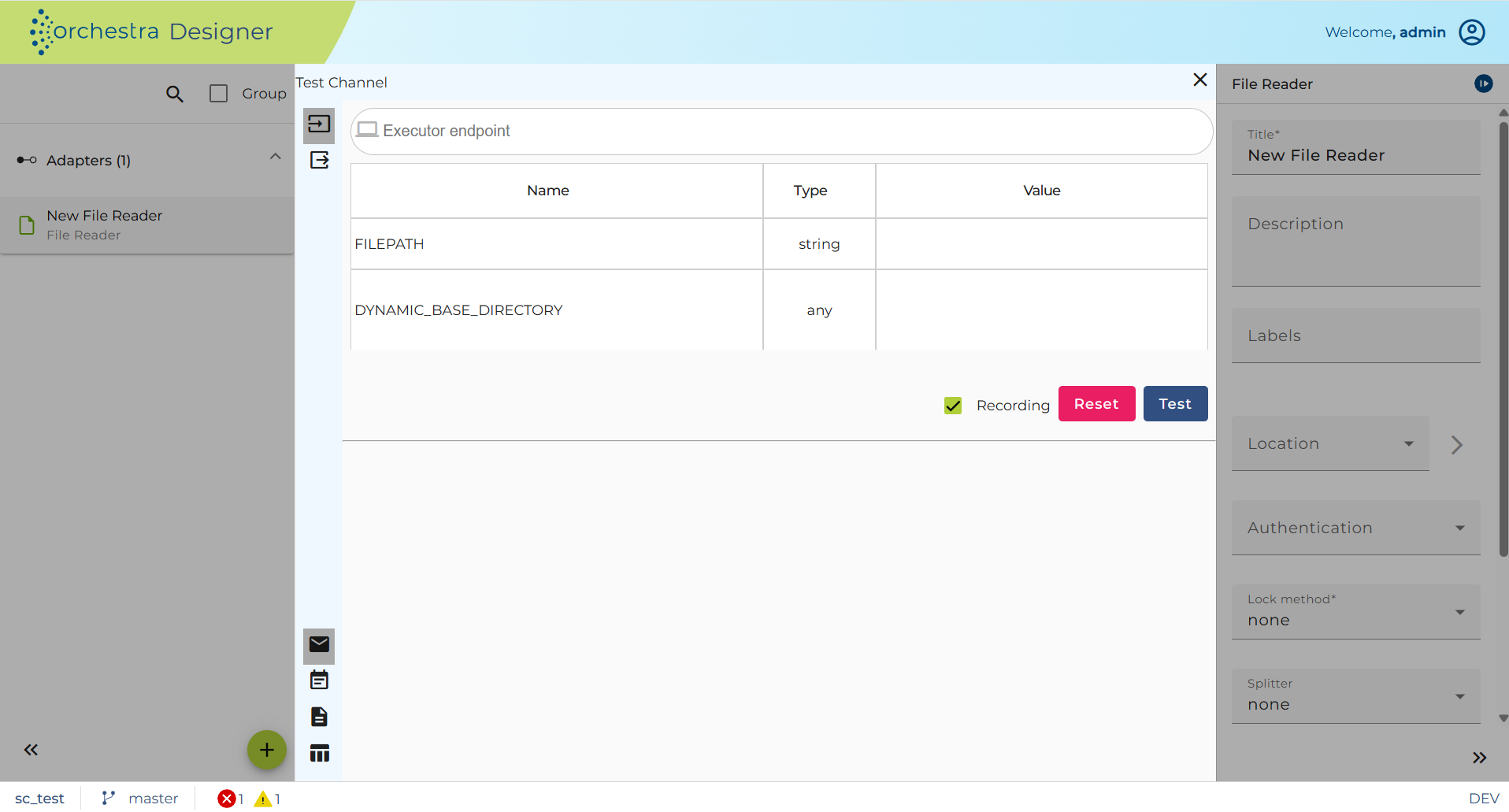
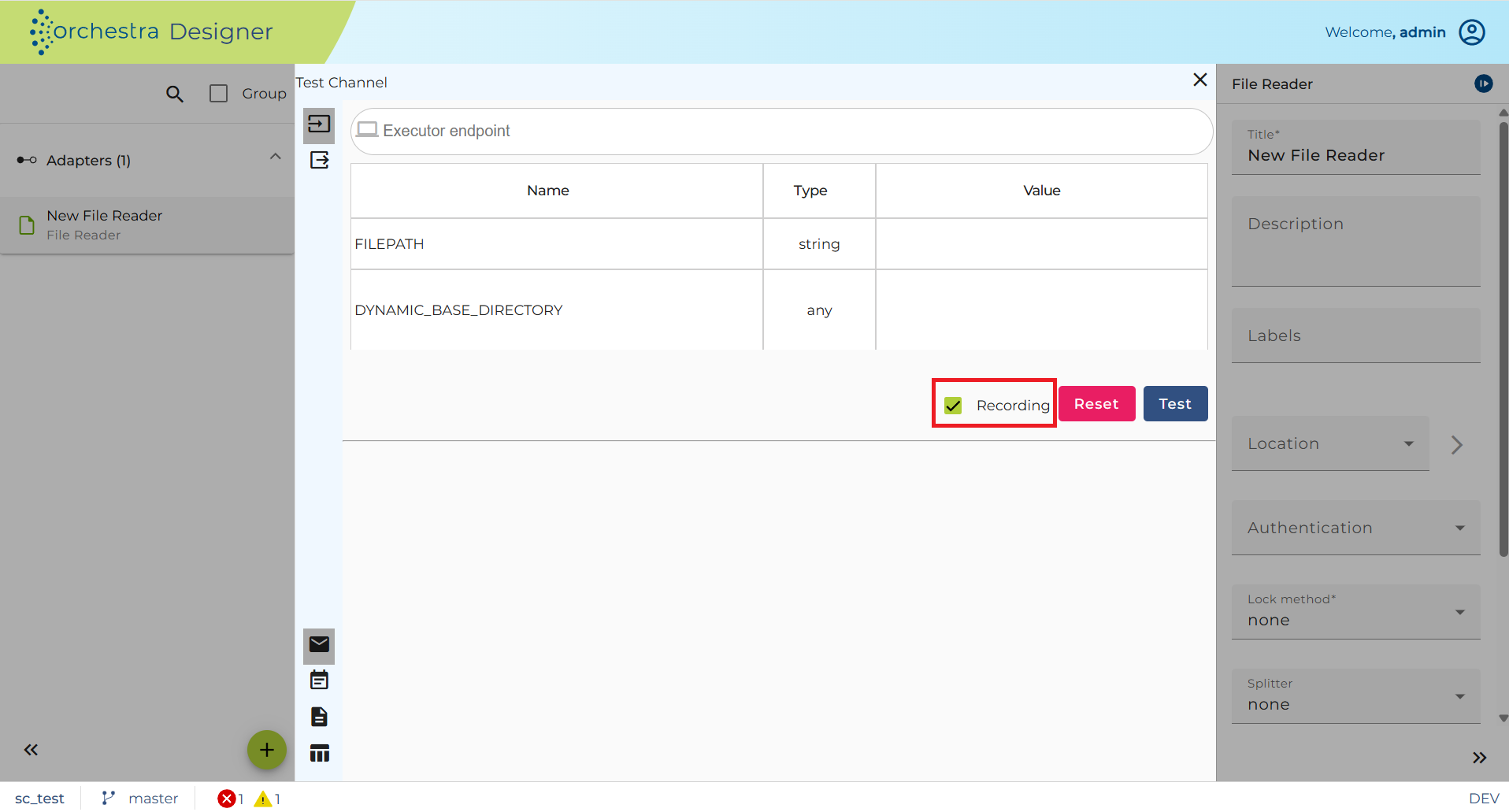
The "Adapter test" window is shown. There is a "Recording" check box under the table. Tick the checkbox and then click on the "Test" button to start recording the adapter.
-
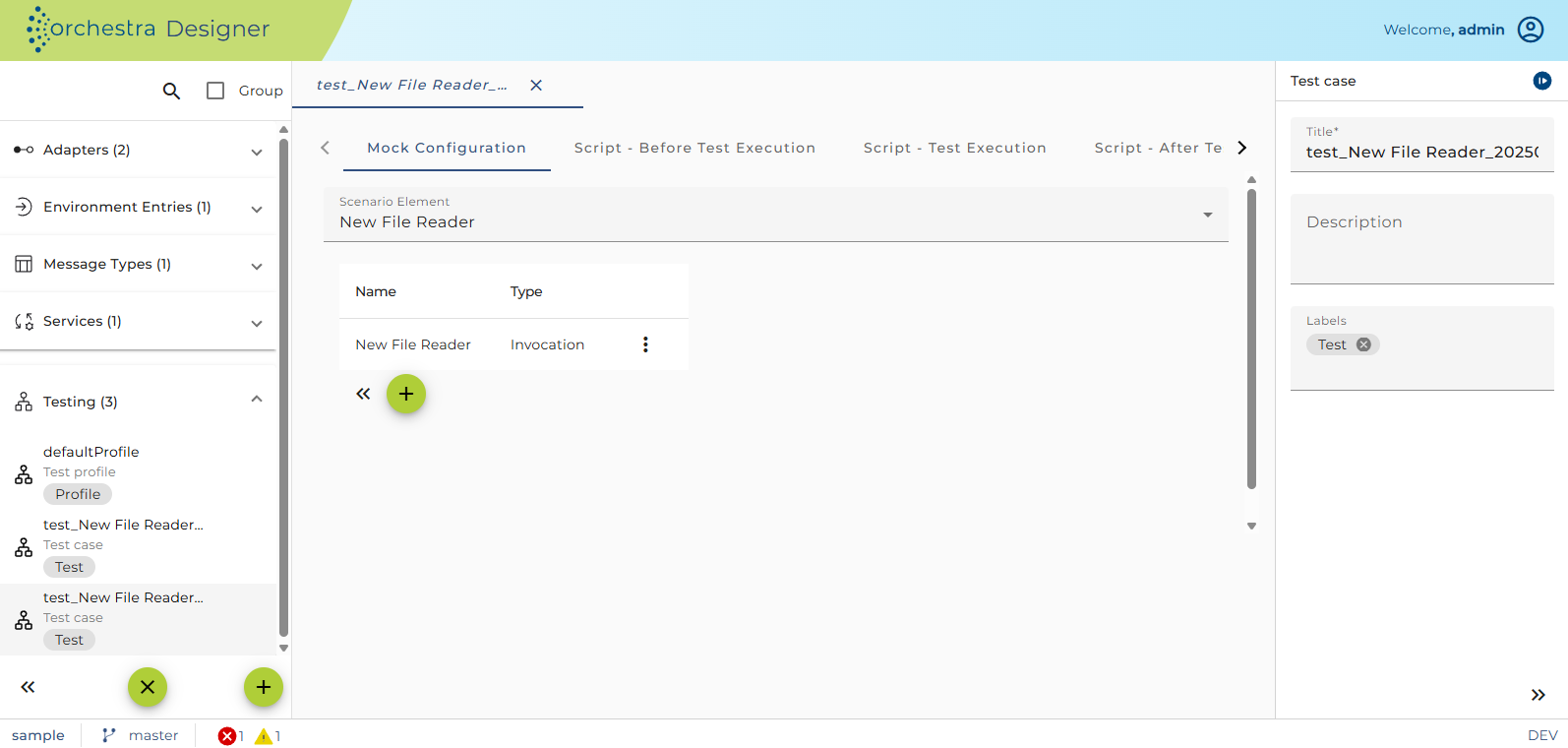
The test case for the adapter is created under "Test case".
Recording Mapping
-
Open Message mapping.
-
Click "Test current element" button on the right panel.
-
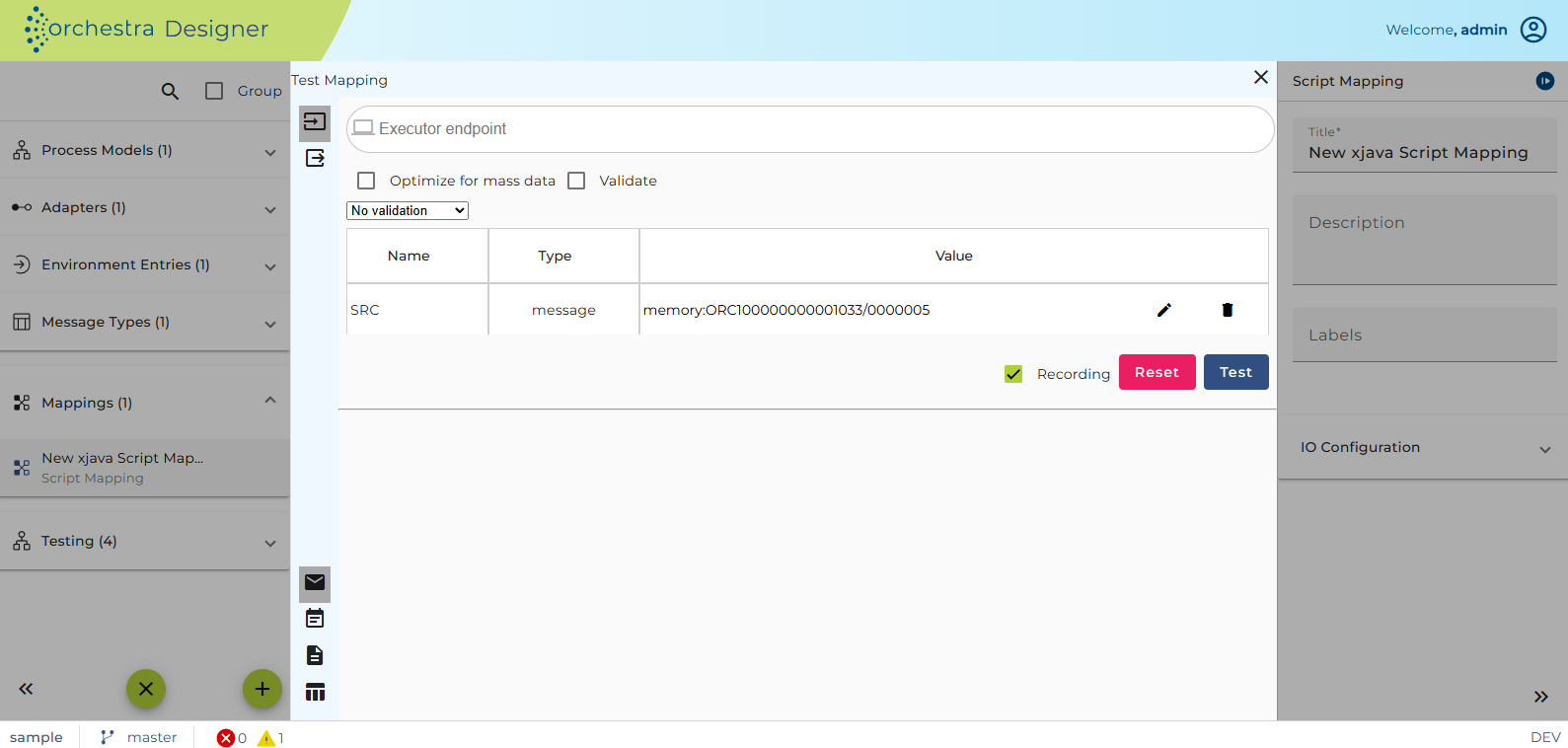
The "Test message mapping" window is shown. There is a "Recording" check box under the table. Tick the checkbox and then click on the "Test" button to start recording the adapter.
-
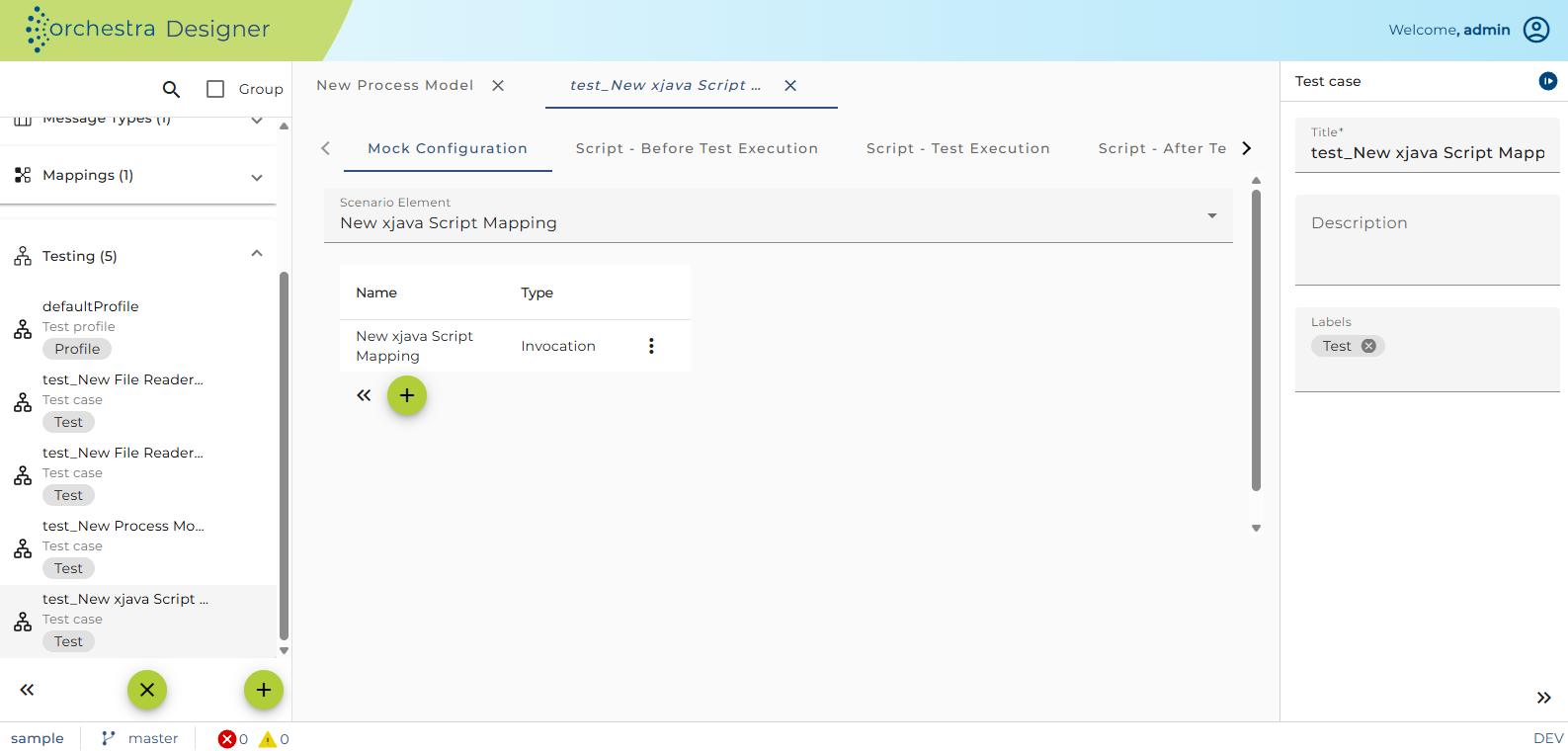
The test case for the Message mapping is created under "Test case".
Recording REST Service Client
-
Open REST Service Client
-
Click "Test current element" button on the right panel.
-
The "Test service client" window is shown. There is a "Recording" check box under the table. Tick the checkbox and then click on the "Test" button to start recording the adapter.
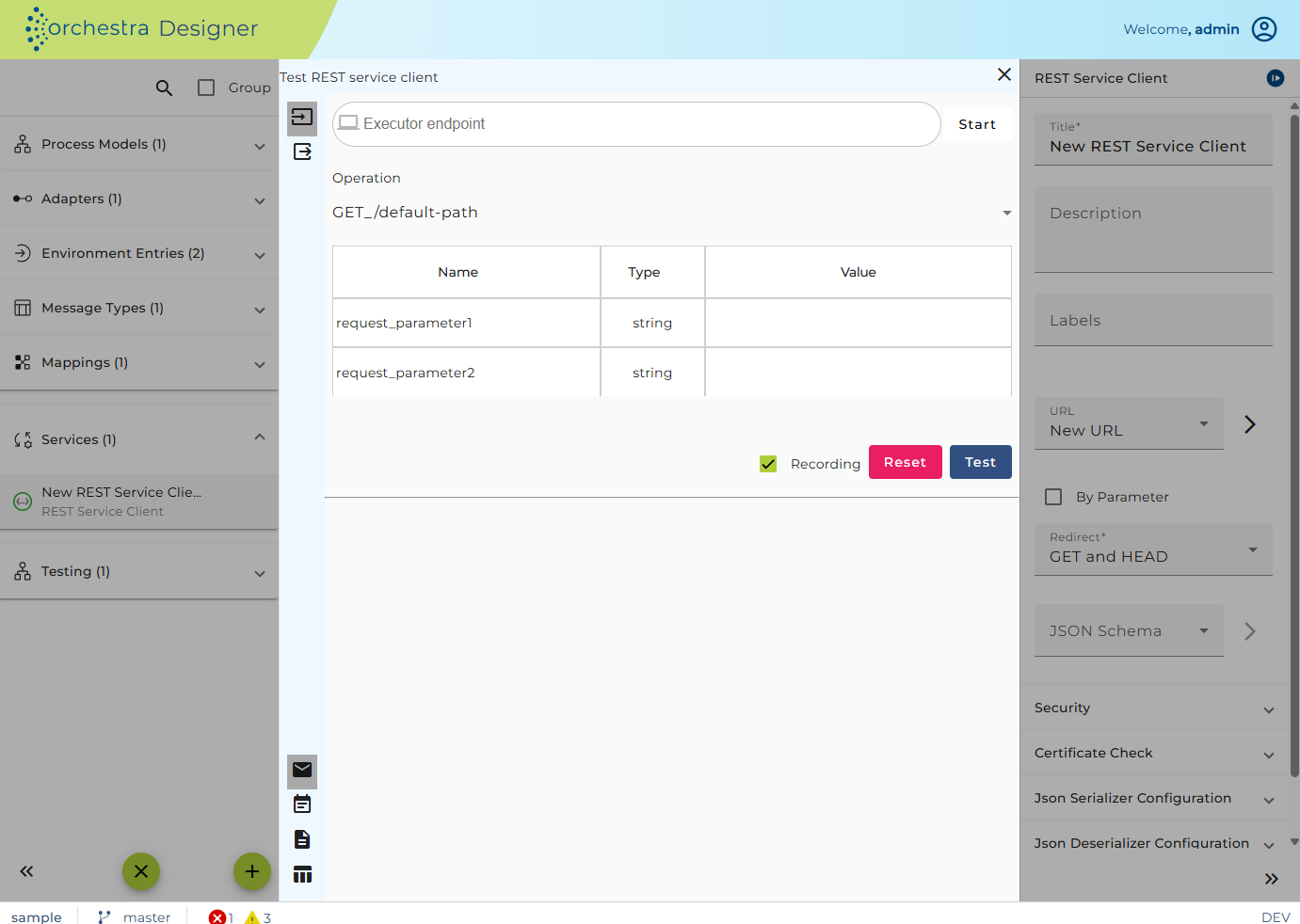
-
The test case for the Service client is created under "Test case".