AS2 Server
Description
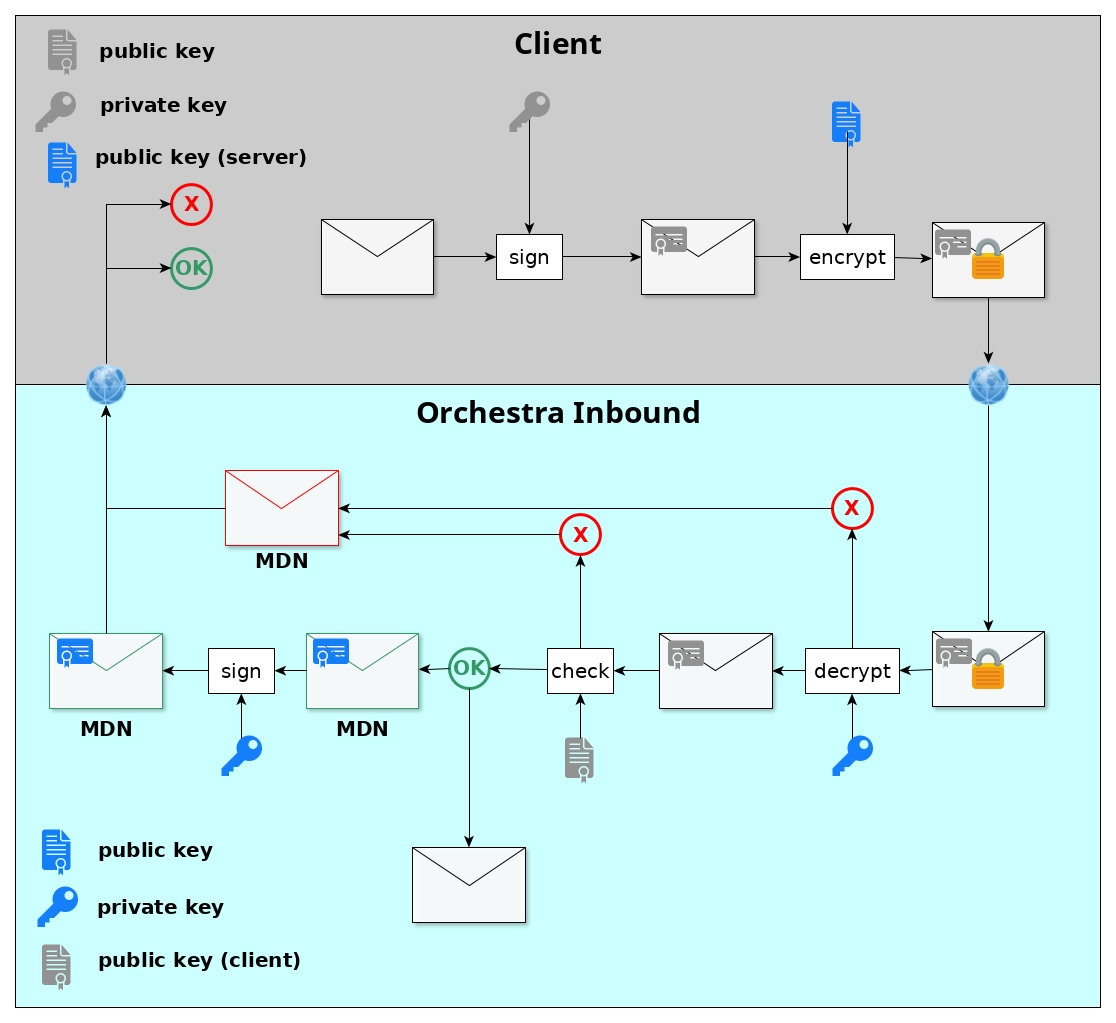
The AS2-Server is an inbound channel for receiving AS2-messages from AS2-Clients. If a AS2 inbound channel is created and the runtime is started the channel is registered at the service and is available under the configured ports. This Inbound Channel has to be connected to a Message-start-event.
Port configuration from the monitor
The AS2 Server itself is registered as a service inside Orchestra. The service listens on either an HTTP or TLS port which can be configured inside the monitor under
-
Settings → Environment Settings → HTTP → AS2ServerPort
-
Settings → Environment Settings → HTTPS → AS2ServerPortTLS
AS2 Server Configuration
The AS2 Server Channel is configured with help of the AS2 Server Configuration.
The configuration panel of that environment entry is divided into two parts:
- Partnership configuration
- Security configuration
Partnership
-
Partnership
This name is the name the user gives the partnership between this client and the server.
The name for the partnership can be freely chosen. -
Client ID
Each AS2 “system” has a unique identifier called the AS2 System Identifier (or AS2 ID for short).
The AS2 ID must be comprised of 1 to 128 printable ASCII characters and is case-sensitive.This ID has to be exactly the one which is configured on the client side.
Otherwise, the sent messages will not be received. -
Server ID
Unique ID of the server, which is configured on the receiving server.
Each AS2 “system” has a unique identifier called the AS2 System Identifier (or AS2 ID for short).The AS2 ID must be comprised of 1 to 128 printable ASCII characters and is case-sensitive.
You can choose this ID freely, but it has to match the one which is configured on the client side.Both IDs have to be configured correctly, since an AS2 server can have more than one ID.
Security Configuration
-
Private Key of Server
The private key, imported as a PKCS#12 keystore, is used to decrypt the messages sent from the client.
The messages are encrypted with the server’s public key.- To upload the PKCS#12 keystore file, create a credential of type Technical Login
- Under the Authentication tab, select Key-Pair (PKCS12)
- The selected file (file extension is normally
.p12or.pck) must contain a private–public key pair
Attention
Ensure that the uploaded keystore contains only one private key and its public key, and no other certificates or keys. -
Client’s Public Key Certificate
The client’s public certificate is used for validating the message’s signature.
The message is signed with the client’s corresponding private key.- Create a credential of type Trusted Server
- Under the Authentication tab, choose Public Key Certificate
- Certificate files usually have the extension
.cer
-
Decryption Algorithm
Type of encryption algorithm used for encrypting the message.
Ensure the same type is configured on the server side. -
Signature Algorithm
Used for checking the signature.The signature is a hash sum created using a private key and the selected algorithm on the client side.
It is verified using the client’s public certificate.If NONE is selected, the server expects unsigned messages.
Known Issue: NoSuchAlgorithmException
When the following error message appears in Orchestra:
NoSuchAlgorithmException: unrecognized algorithm name
This is caused by an update in:
- OpenJDK version 8u292
- JDK 11.0.11
These updates improve verification of JARs but cache only a subset of enabled SecurityProviders.
If an algorithm is requested by SunJCE or BouncyCastle and is not present in the cached list, the algorithm table is not updated and a NoSuchAlgorithmException is thrown.
Resolution
Update the JDK to one of the following versions (or higher):
- 8u302
- 11.0.12
Export Documentation
A large number of parameters can be configured within AS2 Environment Entries.
These parameters can be exported directly from the web designer.
Users can click on the button denoted by three dots on the AS2 Environment Entry and select Export AS2 Config:
- Documentation will be exported into a
.docxfile - The document will be zipped together with the channel’s public key certificate
- The archive will be saved to the local filesystem
Throttling
This channel supports the throttling limit feature as described in the Throttling chapter.