Security
Credentials
Credentials are used to provide identity of a party (either machine or human) in security operations. Based on the usage, Orchestra distinguishes three types of Credentials:
- Trusted server;
- Client login;
- Technical login.
Trusted server
The trusted server type of credential refers to the identity of a machine that Orchestra communicates with. Typical Credential of trusted server type is Digital Certificate (Public Key Certificate), and it is used in the HTTPS protocol as server side authentication.
Client login
Client login is similar to trusted server, but with difference that it is used to authenticate the client side, rather than the server side identity. Typical usage is when Orchestra acts as a server side (e.g. by providing a Web Service or REST Service) and client wants to connect to it with HTTPS.
Technical login
The technical login is actually a client authentication of Orchestra to other parties (for example WebService declaration or REST declaration). Therefore, this credential will need a secret artifact, such as a password or a private key.
Credential configuration
To add a new credential navigate to the green "+"-button and add a new credential under the Security tab.
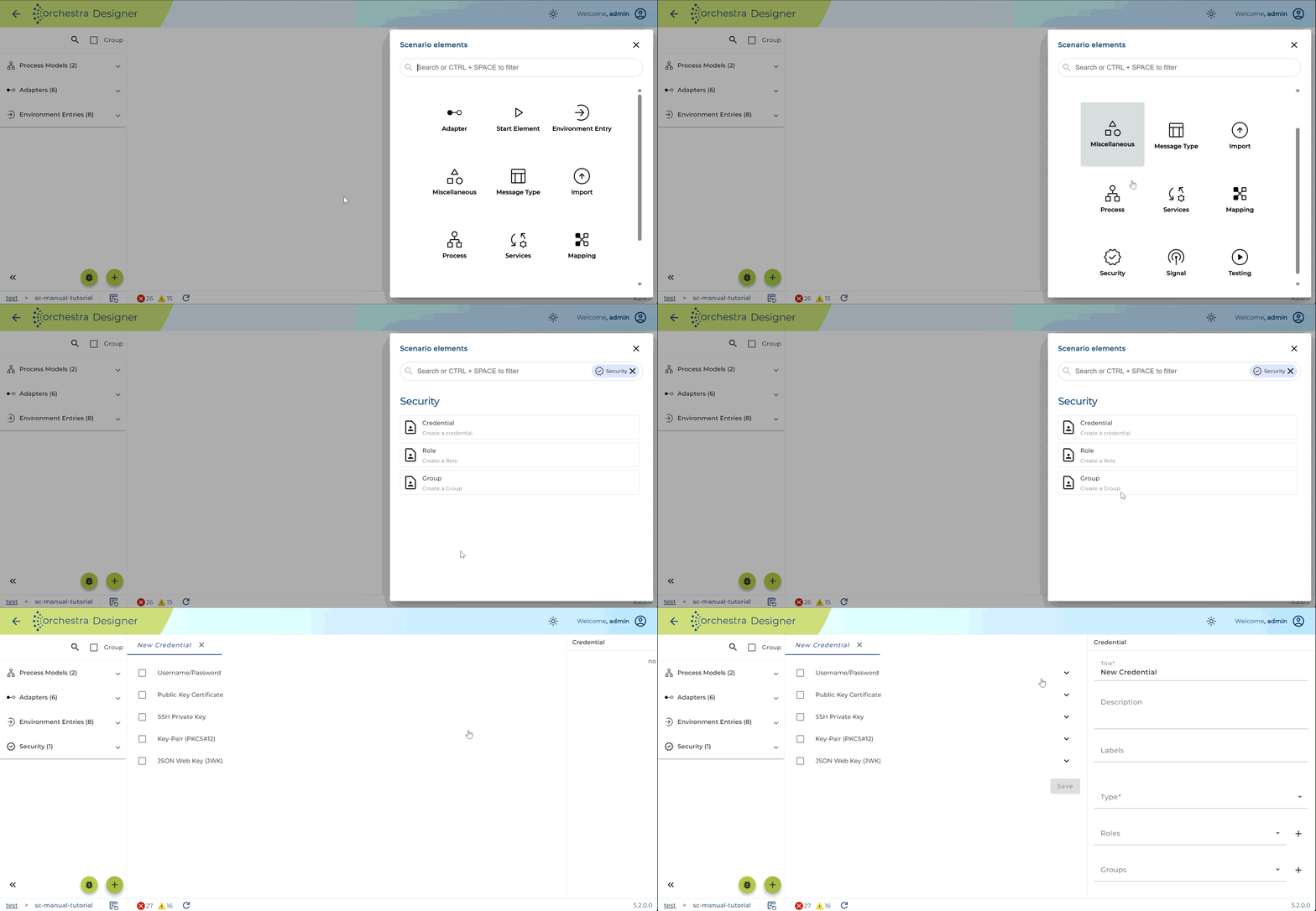
The following types of authentication objects are supported:
- Username/Password
- Public Key Certificate
- SSH Private Key
- Key-Pair (PKCS#12)
- JSON web key (JWK)
Setting up credentials
- Username/Password In cases where authentication requires providing Username and Password (e.g. Basic authentication) you should use Username/Password authentication object type. Click on Username/Password tab and enter the username and password.
Passwords that are used for authentication are stored encrypted in the scenario content. However, when transmitting credentials in communication, password is sent in open text. Therefore, it is recommended to use this type of authentication only when TLS is used.
-
Public key certificate When a third party trust is required you can use Public key certificate authentication type. It allows explicit trust to a digital certificate of either a client or server host. Clicking on Public Key Certificate Tab and click on
Import Certificate. This opens the dialog to import your certificate. -
SSH Private Key If SSH channel has to be established SSH Private Key authentication type has to be used. Since Orchestra is always client in SSH protocol, it requires a private key in SSH format.
the credential name is the username needed to authenticate to the ssh server
- Please click on the SSH tab in the SSH private key row in the Credential configuration
panel to open the SSH Private Keys importing dialog:
Importing SSH Private Key - Please click on
Import Private Keybutton to select a key file and insert password in Password field.
After confirming by clicking the OK button you will have the SSH Private Key imported in the authentication list for the desired credential.
Only the key types "DSA PRIVATE KEY" and "RSA PRIVATE KEY" are supported. If you import a file with another type you will get an error message:
Unsupported type: OPENSSH PRIVATE KEY
-
Key-Pair (PKCS#12) : This authentication type is typically used in cases when Orchestra has to own private key in order to authenticate to the third parties, e.g. in TLS protocol. Also, it is used for asymmetric cryptography operations, such as digital signature, encryption/decryption etc. Key pair has to be in PKCS#12 format (i.e.*p12 file). In order to import PKCS#12 key pair, please click on the
Import key pair button -
JSON web key (JWK)
A JSON Web Key (JWK) is a JSON data structure that represents a public key as a JSON object. They are used for verifying JSON Web Token.
- Algorithm:
Used algorithm to verify a JWT. This is only needed if an OAuth-Key is given.
Supported algorithms are:
- RSA: RS256, RS512
- OCT (HMAC): HS256, HS512
- EC: ES256, ES256k, ES512
- OAuth-Key: Key to validate JWT. Supported keys are: JWK (Json Web Key), Base64 to String encoded X509 Certificates and Public-Keys.
- Settings JSON web key If necessary, you can also configure Roles and Groups for specific credentials. If you did not create Roles and Groups please do so. Adding a role is done in Roles tab by selecting the specific role you want to assign:
- Algorithm:
Used algorithm to verify a JWT. This is only needed if an OAuth-Key is given.
Supported algorithms are:
Adding roles to credential
If you want to use grouping concept switch to Groups tab and select desired group(s): Adding groups to credential
Role
Roles are used for authorization purposes that might be required to access Orchestra services from third parties. You can manage different roles based on requirements your system has when it comes to authorization and user management.
Creation
To create a new Role navigate to the green "+"-button and add a new Role under the Security tab.
Here you can enter the role name and
Group
A Group is a helper concept that enables grouping of roles in one scope. E.g. Admin group might refer to create, read, update and delete roles. Afterward, when configuring Credentials you can simply assign the Group to it, instead of adding all mentioned Roles.
Creation
To add a new Group navigate to the green "+"-button and add a new Group under the Security tab.
Configuration
The configuration allows Description change, as well as Role assignment. When you want to assign specific role to the group, simply select check box on the left side.
Optionally you can also add labels to the groups here for better search.