Test Case
Description
Orchestra is able to create test cases for its scenario elements. For this purpose, existing scenario elements can be recorded, and then tested.
Creation
-
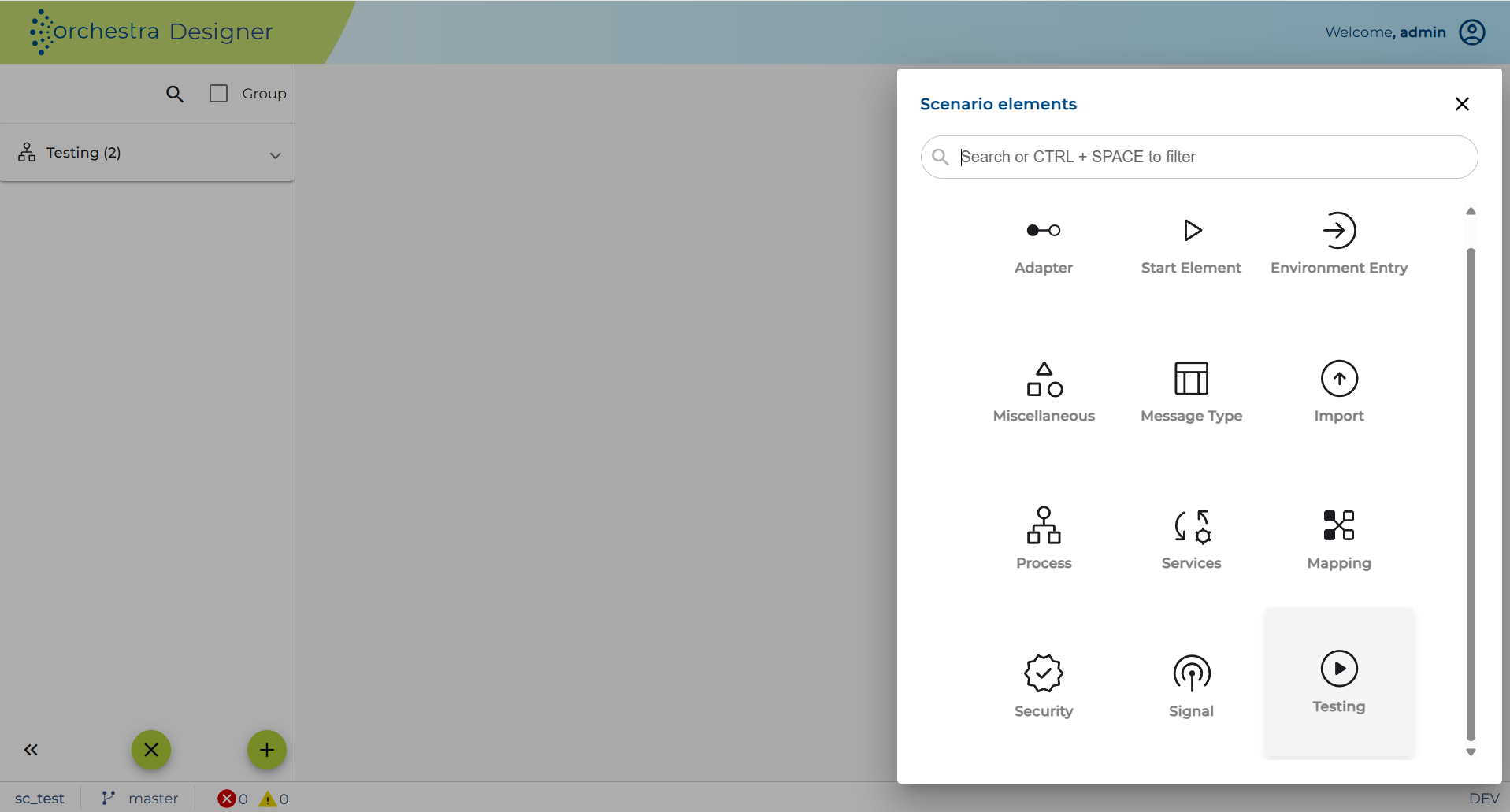
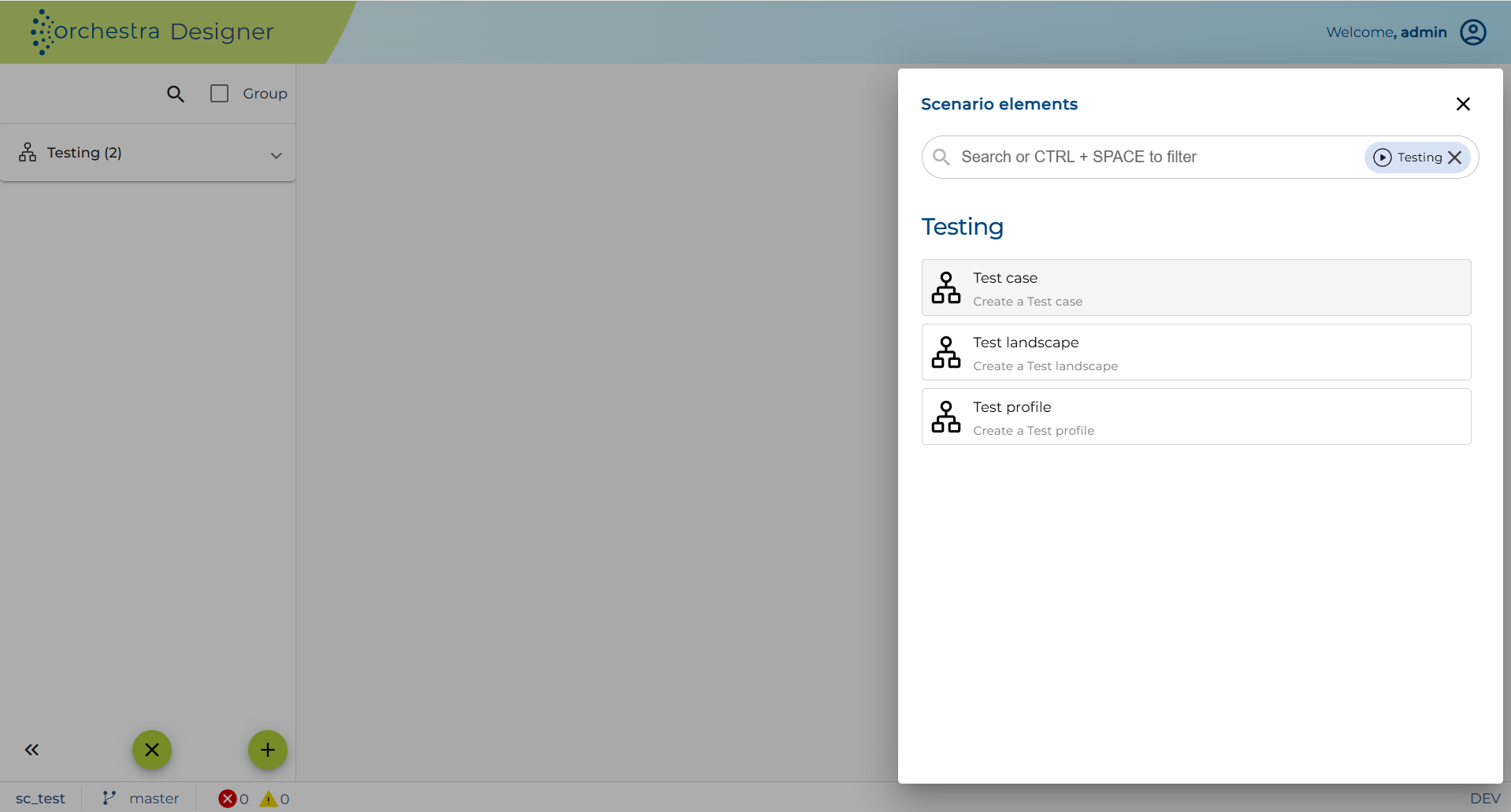
To create a test case, click on the plus icon located on the bottom left of the screen and click on 'Testing' and select "Test case".
-
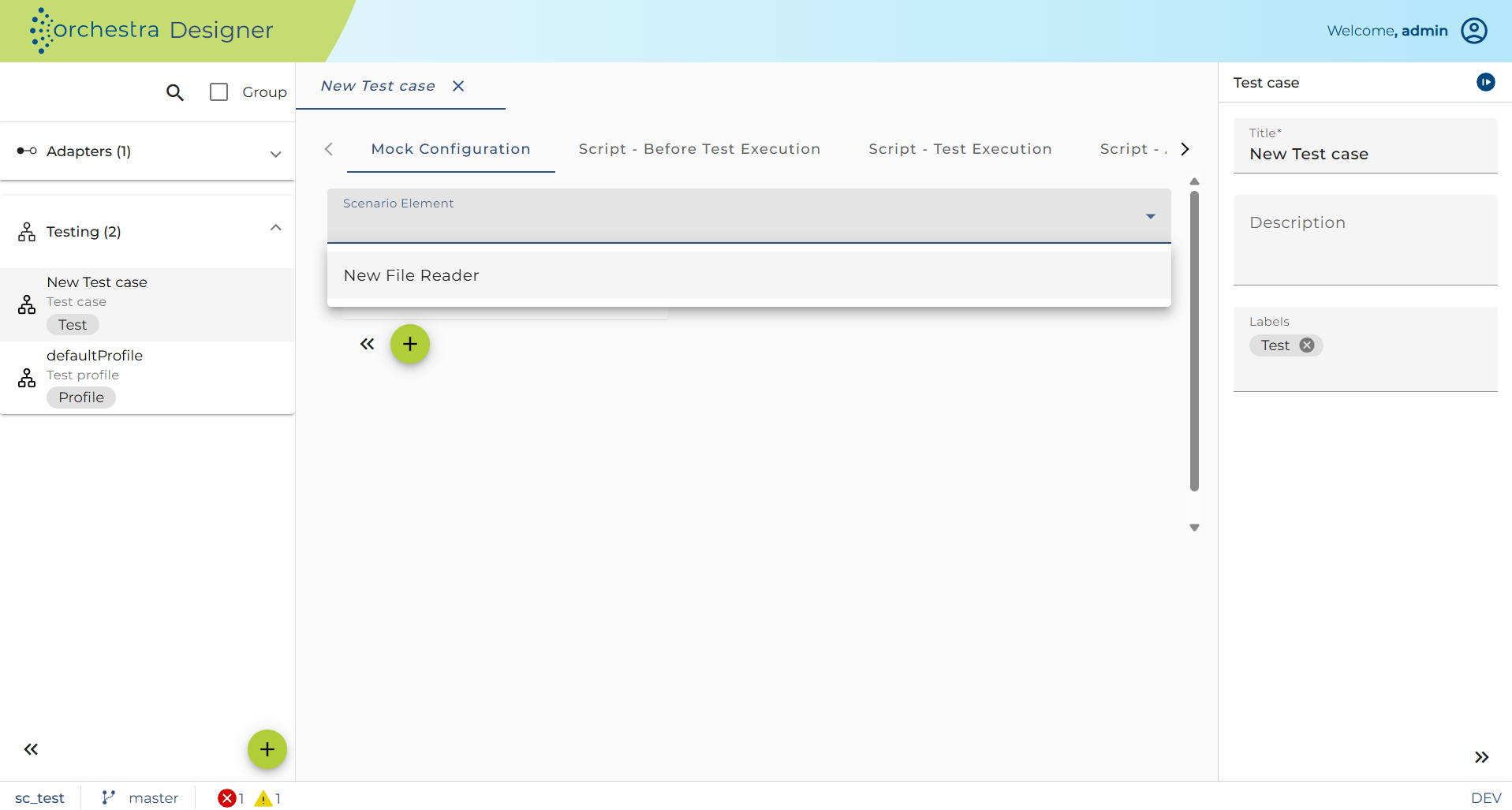
On the right panel, type a name for the new test case and add a description if needed. You can also add any labels to if if needed.
-
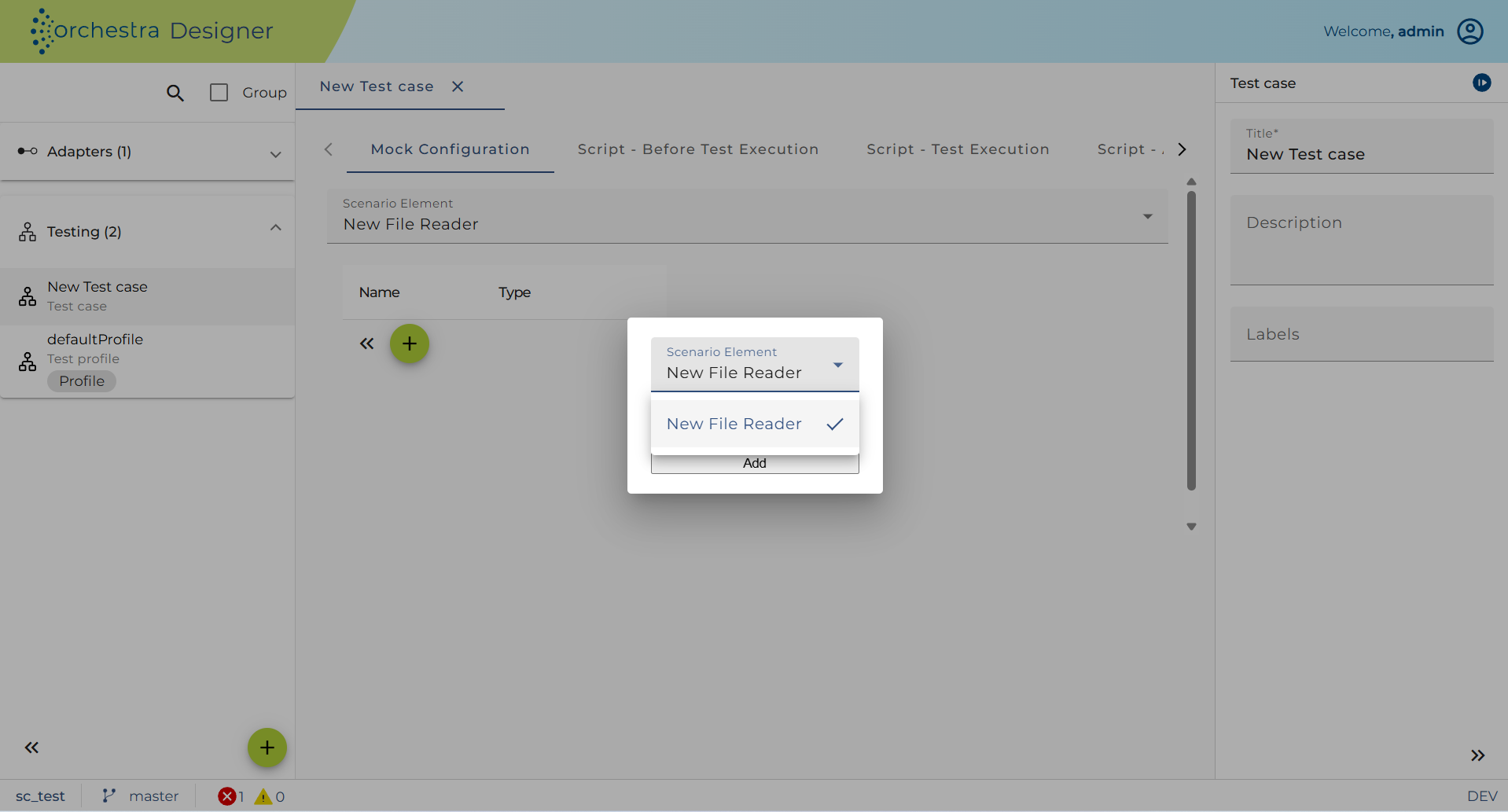
Select the "Scenario Element" for testing from the drop-down. Only process model, channel, mapping, service client and REST service client are supported in this.
-
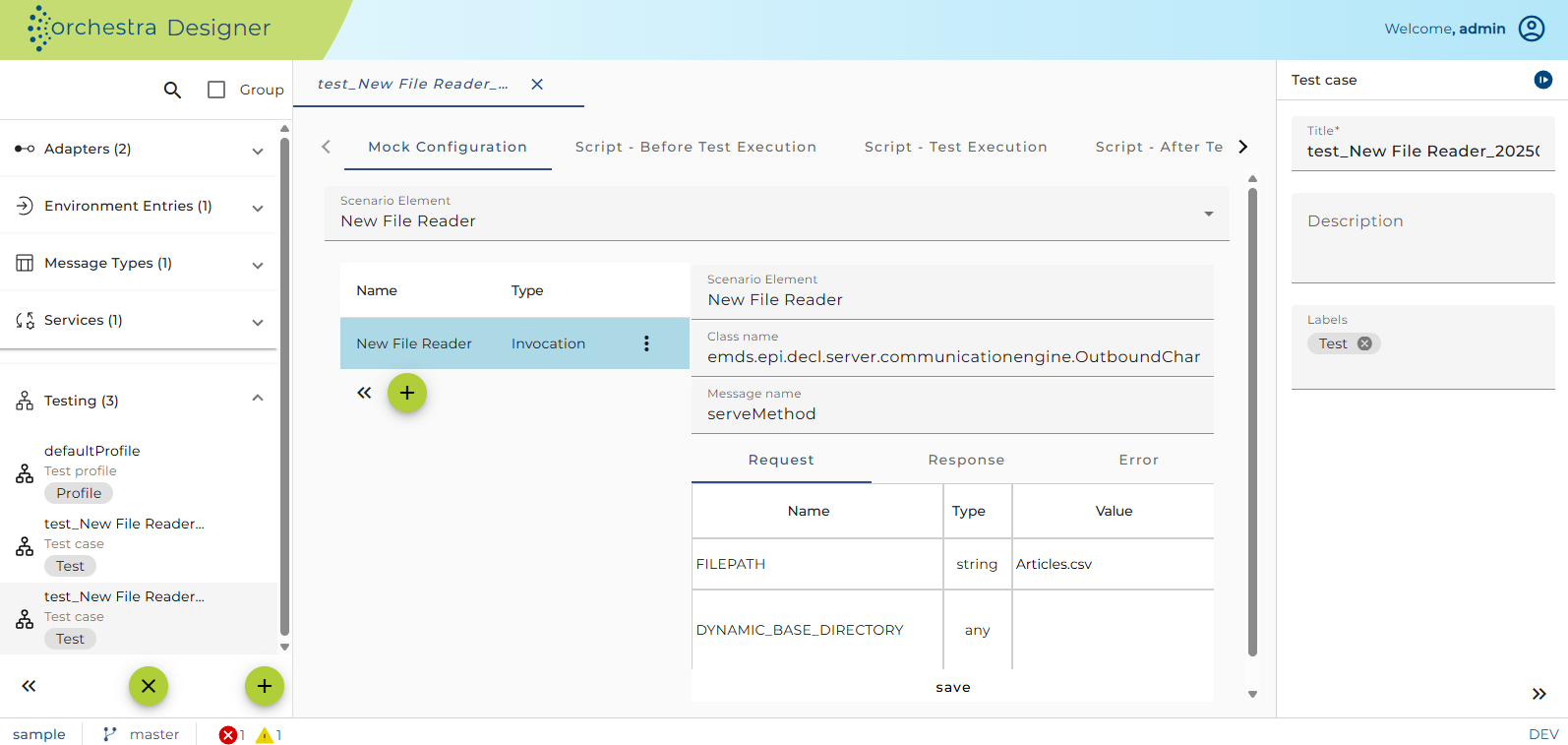
To add a new mock configuration, click on the plus icon located under the drop-down.
-
Select a scenario element to be mocked and click "Add". You can then define the invocation of mock configuration.
- If the parameter is message or message list, click "..." button to assign the value. Click bin button to clear the value of the parameter.
- For message list assignment, the following dialog will be used to edit the message list:
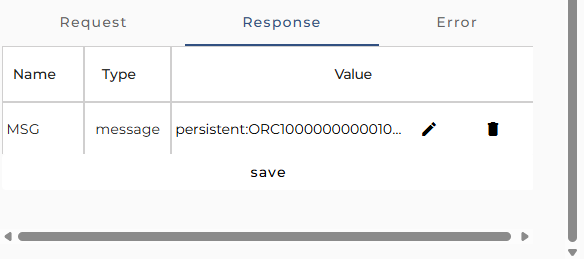
Click "..." button to insert a new message. Press "delete" key to remove the selected message.
- If you want to mock an error, tick the "enabled" check box and input "Error code", "Error message", "Message" ass needed.
-
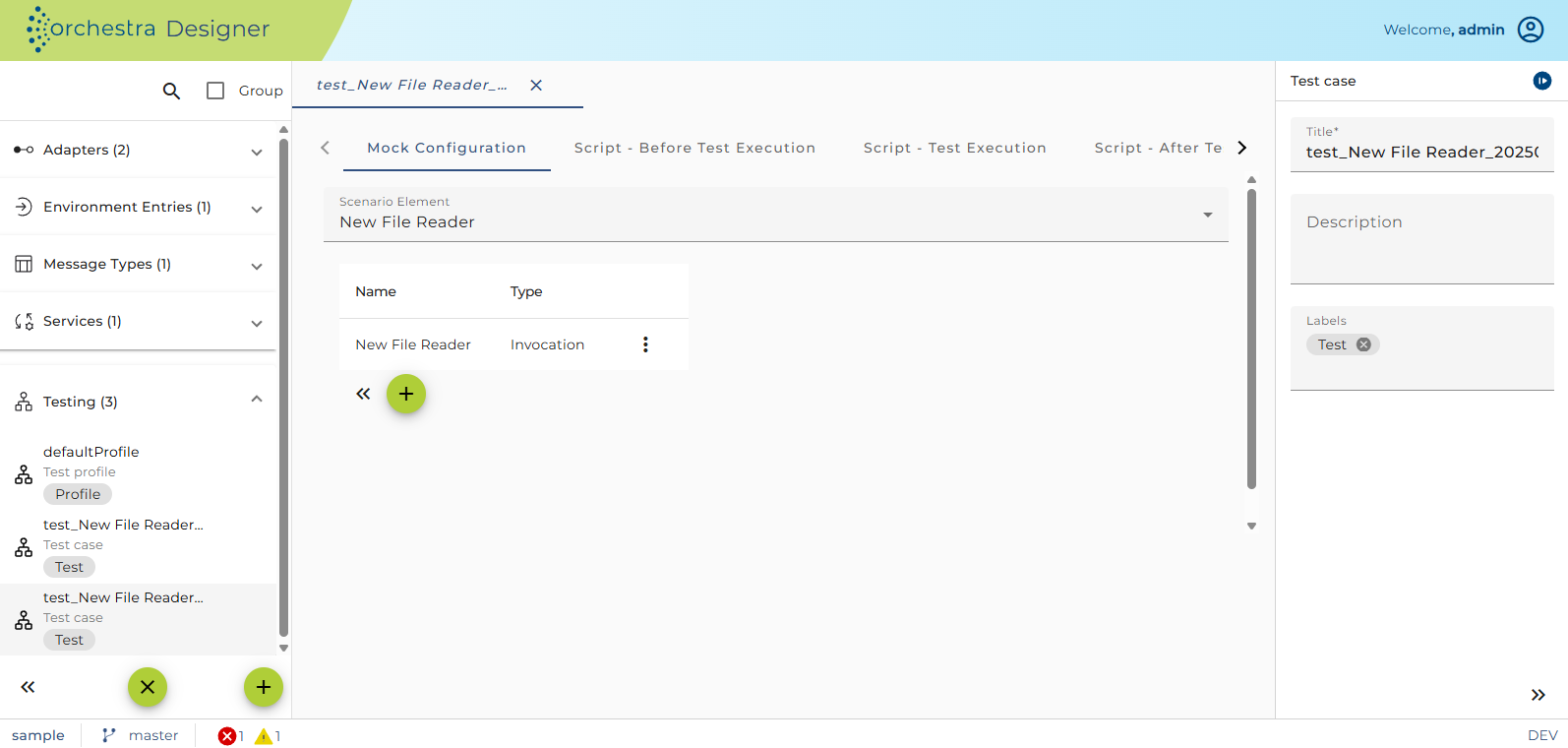
Click finish, then the new mock configuration will be shown in the table.
-
To change the value of mock configuration, click "Edit"
-
To delete the mock configuration, click "Del".