Resource
Description
In the context of REST services, a Resource defines the URL path to a certain Entity. The path may contain variables whose values are used to create the URL to the Entity. For each Resource, a set of different REST methods can be defined. These methods are finally invoked when calling the REST Client from a process model. You can define many Resource elements in order to be able to execute different API calls of the desired REST web service.
Creation
To create a new Resource:
- Click on your REST service client to open the configuration panel.
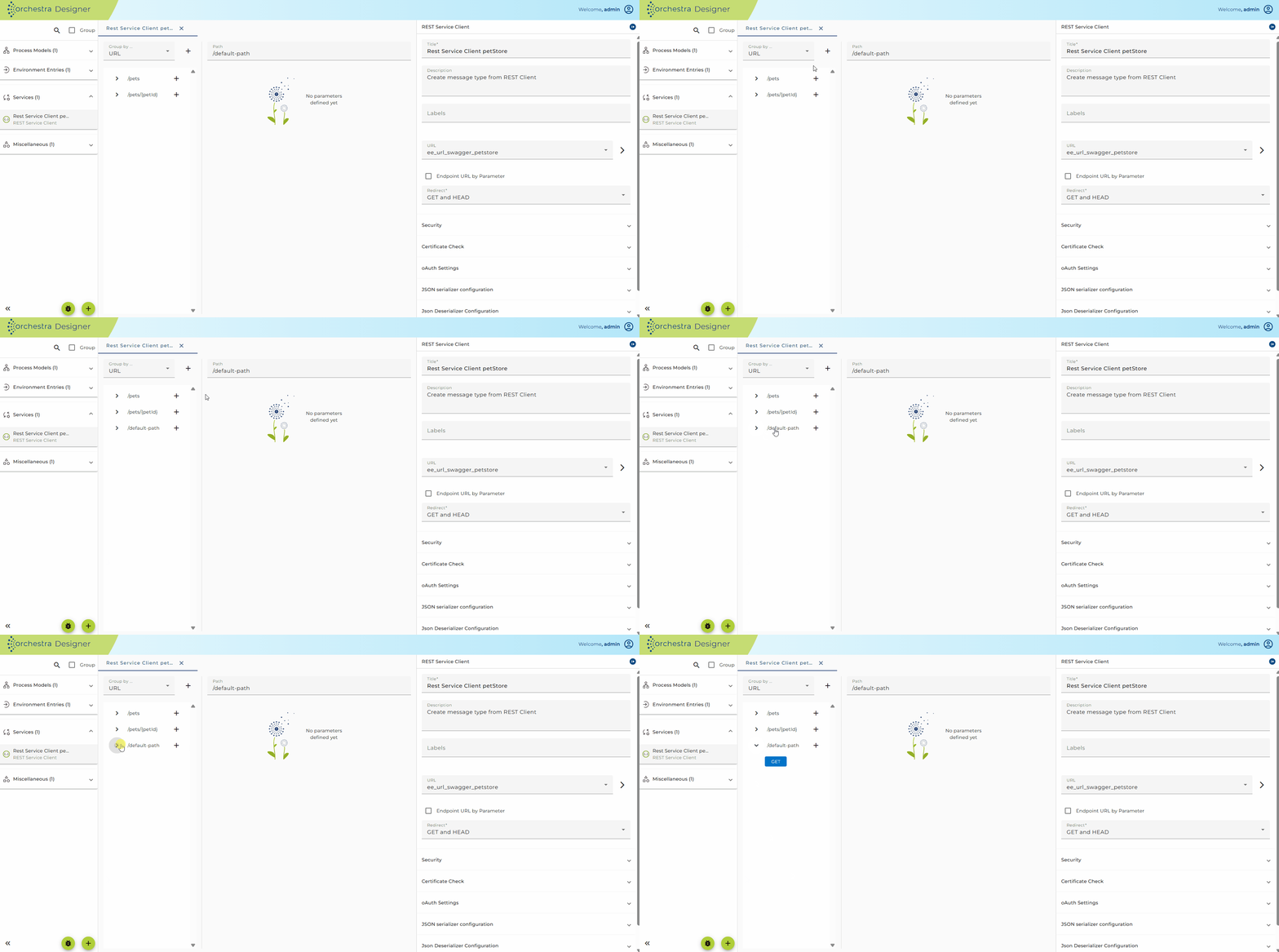
- Click on the plus icon located in the resource configuration panel to create new Resource
- To delete resource right click on resource and press delete
Configuration
- Click on your REST service client to open the configuration panel.
- Click on the previously created Resource element.
- The configuration panel for the selected Resource element will be shown.
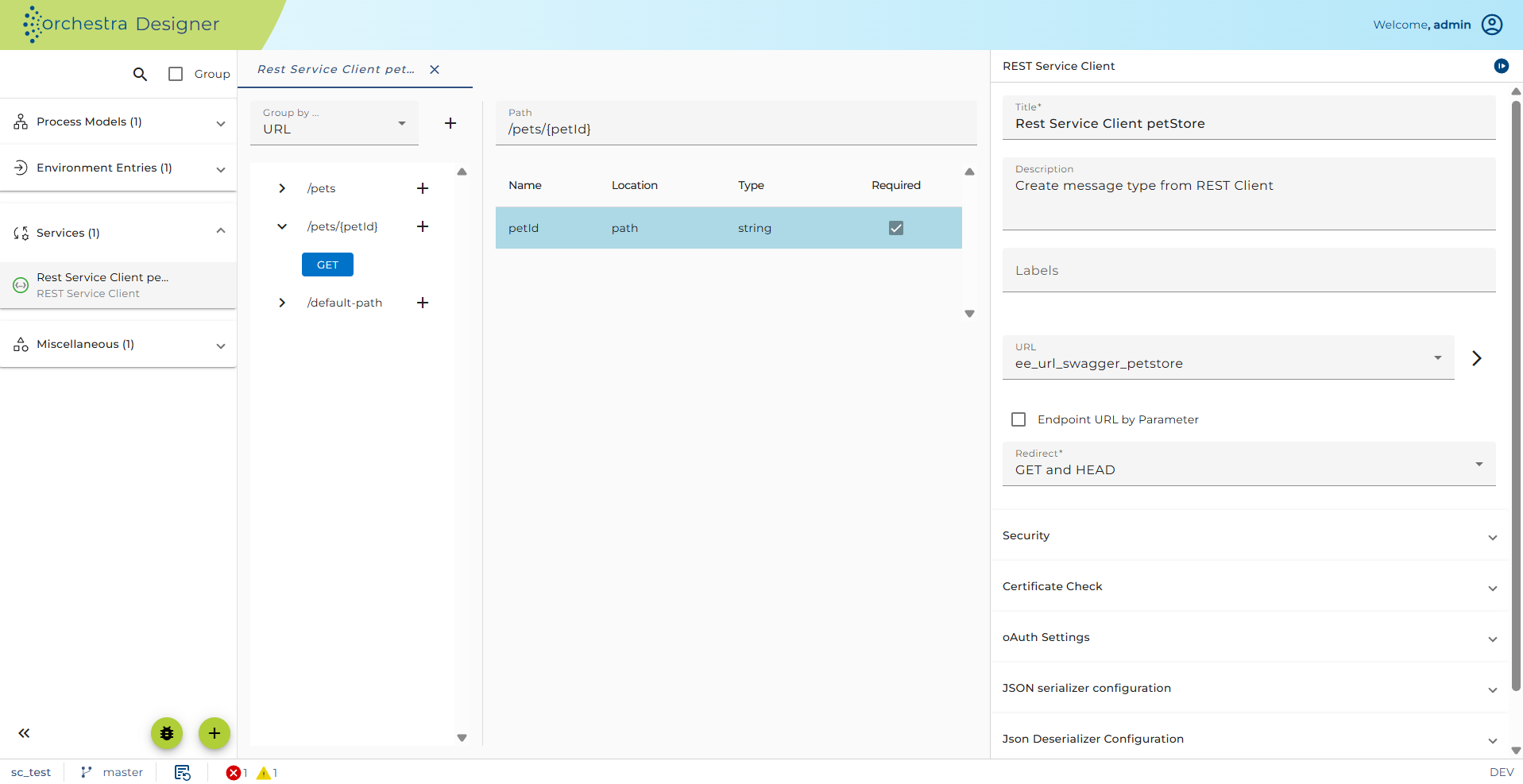 REST client - Resource configuration
In addition to previously configured values of the parent element Resources, here you can find the following configuration settings:
-
Resource description: The description of the Resource. You can add a more detailed description in Markdown using the Details button. This text will then be exported when exporting the service as OpenAPI specification.
-
Path: The value of the request URL. Here you can also define parameters of your web service request using curly brackets inside the path value. Orchestra uses the standard URI Template (RFC6570) to describe the embedded variables.
For example, if you enter a Path like/book/{bookid}, then in the parameter table automatically a template parameter with the given name appears. Note that you cannot add Resource parameters in the table; you always have to enter it in the URI template. A resource might be identified by query parameters, so for example, the path could also look like/book/{?bookid}to denote a query parameter.
If you double-click on the type of the parameter within the parameter table, the parameter editor is opened where you can change the type of the parameter :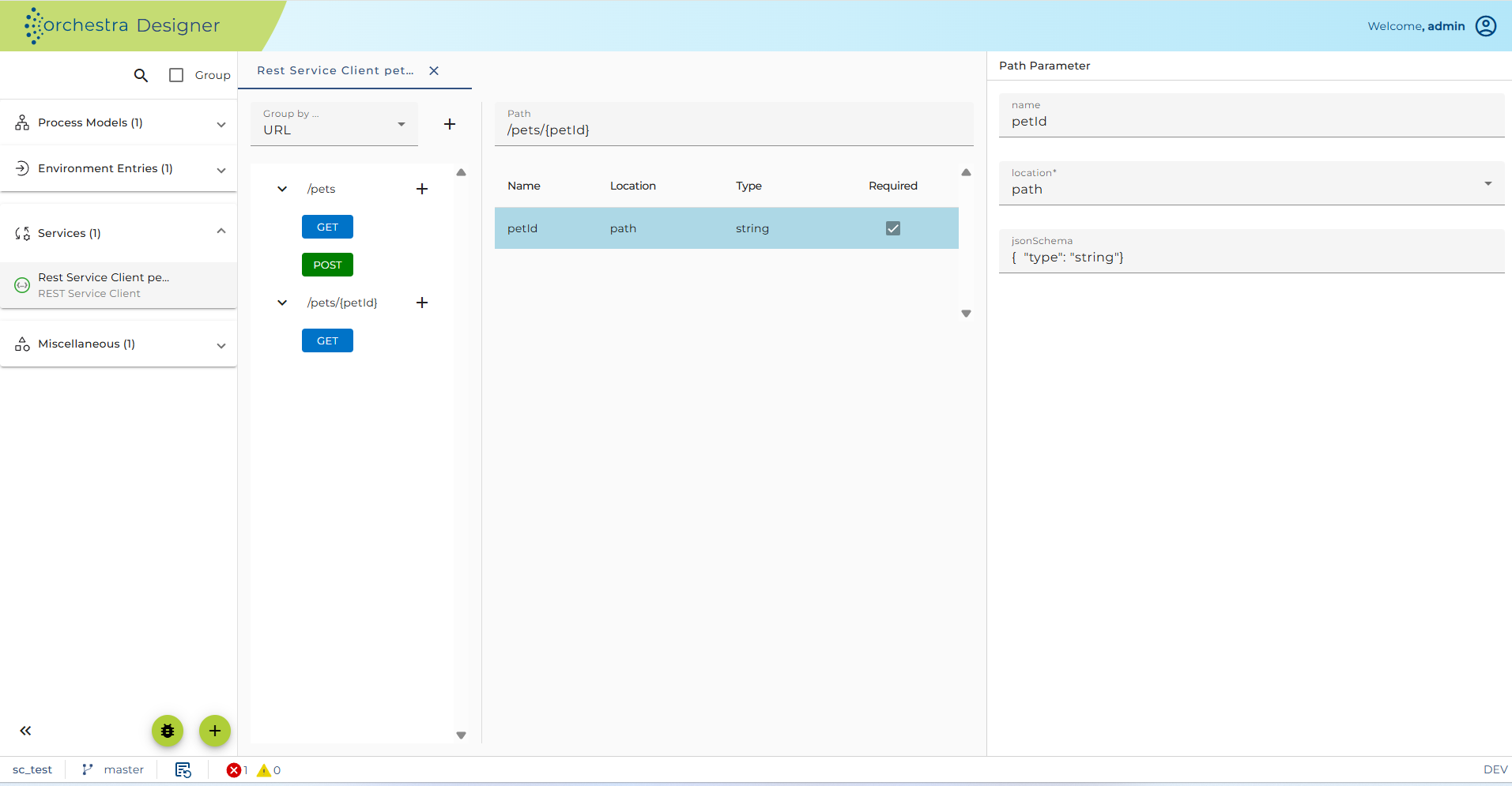
Note that you cannot edit the style nor the explode flag because these properties are set in the template itself. For example, if you want to define a matrix parameter, you would write {;petId} in the template.
Note also that there are two views for the parameter: the simple view showing the three basic Type properties and the JSON schema view. These two views are synchronized. If the JSON schema contains more properties than the basic properties, then the simple view is not editable anymore.
After setting up the Resource element, you will need to add method objects in order to configure actual REST request method calls
See also
- Connecting to an external REST web service
- Method Configuration
- REST Service Client Configuration