Request
Configuration
For each method, the user can define a corresponding Request.
Adding a Request
To create a Request:
- Click on a Method and add a request under the Request section.
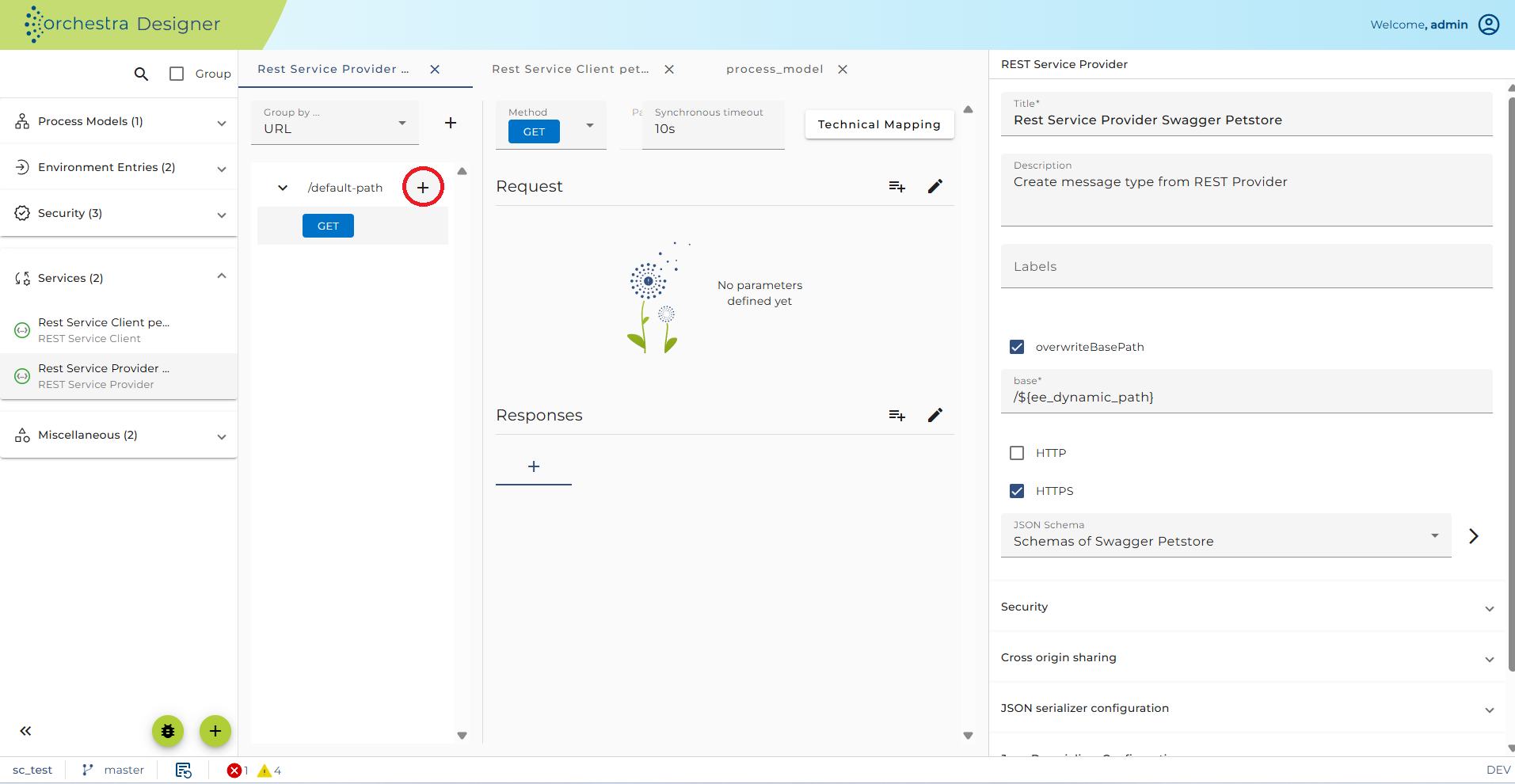
Display and Configure a Request
To configure a Request, click on the Request to open the configuration panel:
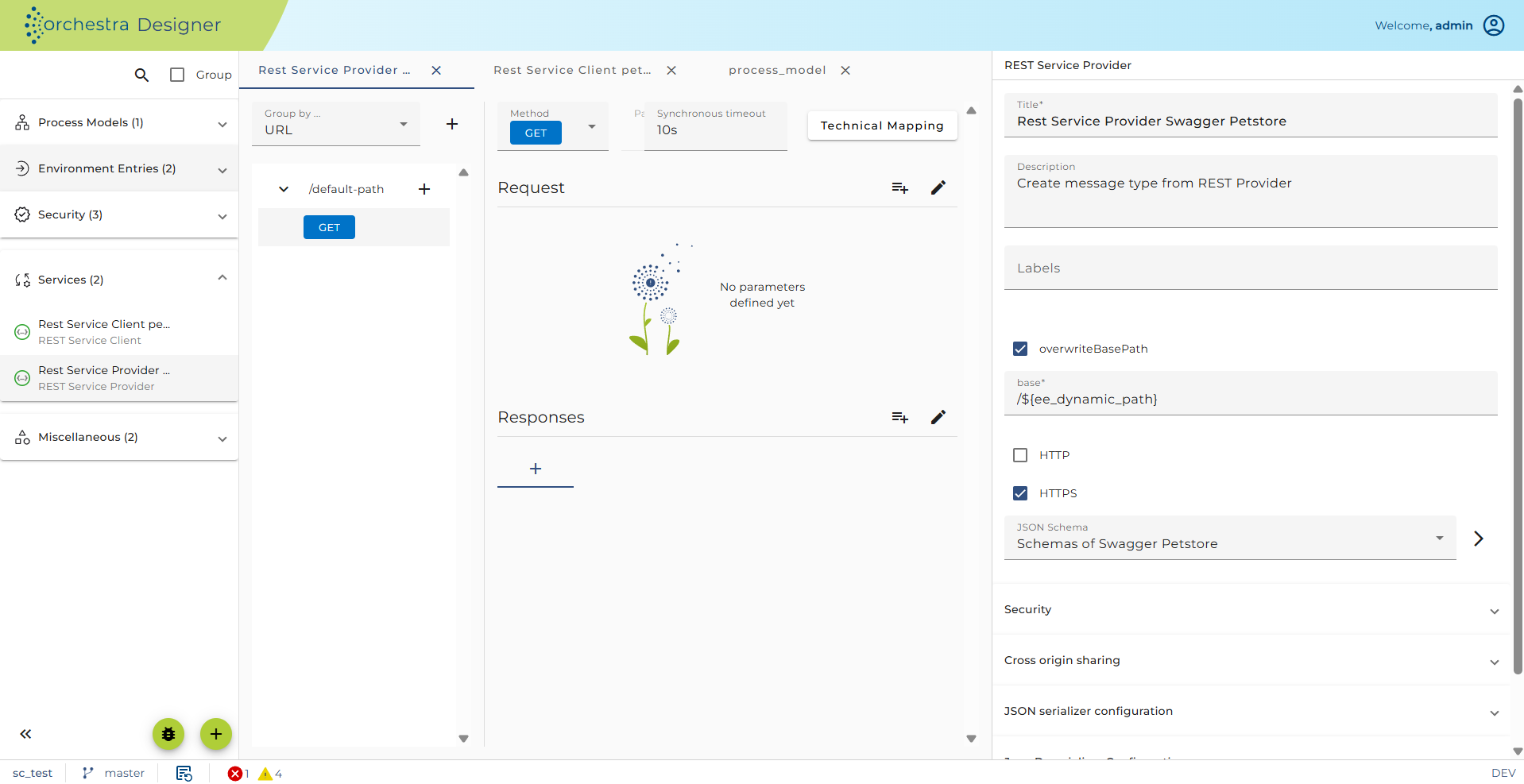
Here the user can configure the properties of the Request:
-
Request: The description of the request object. Can be edited as Markdown text by clicking on Details. If the Service is exported as OpenAPI, this text will be added to the OpenAPI specification.
-
Media Type: Defines the format of the request data (if any). You may edit the selected type and create a pattern, e.g.,
*/xmlto denote thatapplication/xmlandtext/xmlare acceptable. If you click on the Example button, you can add an example for the request message, which will be added when exporting the service as OpenAPI specification. -
Require content: Normally, the REST service provider returns an HTTP status code 400 (bad request) if a client sends a
Content-Typebut no data. If this checkbox is unchecked, the process model simply gets no message (MSG = null). -
Native content: If the media type is
text/xml,application/xml, orapplication/json, the data is automatically deserialized using the appropriate deserializer. If the media type isapplication/json, then the checkbox Native content is selectable. If selected, the data is not deserialized to a structured DOM message, but instead, a native JSON message is created. If the media type isapplication/x-www-form-urlencodedormultipart/form-data, a checkbox Transfer parameter in content appears. If selected, query parameters are transferred in the HTTP content using the selected format. If not selected, query parameters are transferred in the URL, and the HTTP content is written to the result message (MSG). The message is structured according to the message type form-data-type. -
Message Type: Defines the internal Message Type to use for the Request. This information is used to configure the JSON reader with the appropriate message type. In the configuration of the serializers, you must select
<configured type>to ensure that this message type will be used in the JSON reader. If Native content is selected, this field has no effect. -
JSON schema: In OpenAPI, the content of a Request is defined by a JSON schema. You can display and edit this schema by clicking on the edit schema button. Typically, the schema of a Request is a reference to a JSON schema contained in a scenario element of type Resource. If an OpenAPI specification is imported, all the schemas contained in the components part of the specification are imported into a new Resource.
-
Method parameters: Define the request parameters such as headers, query parameters, etc.
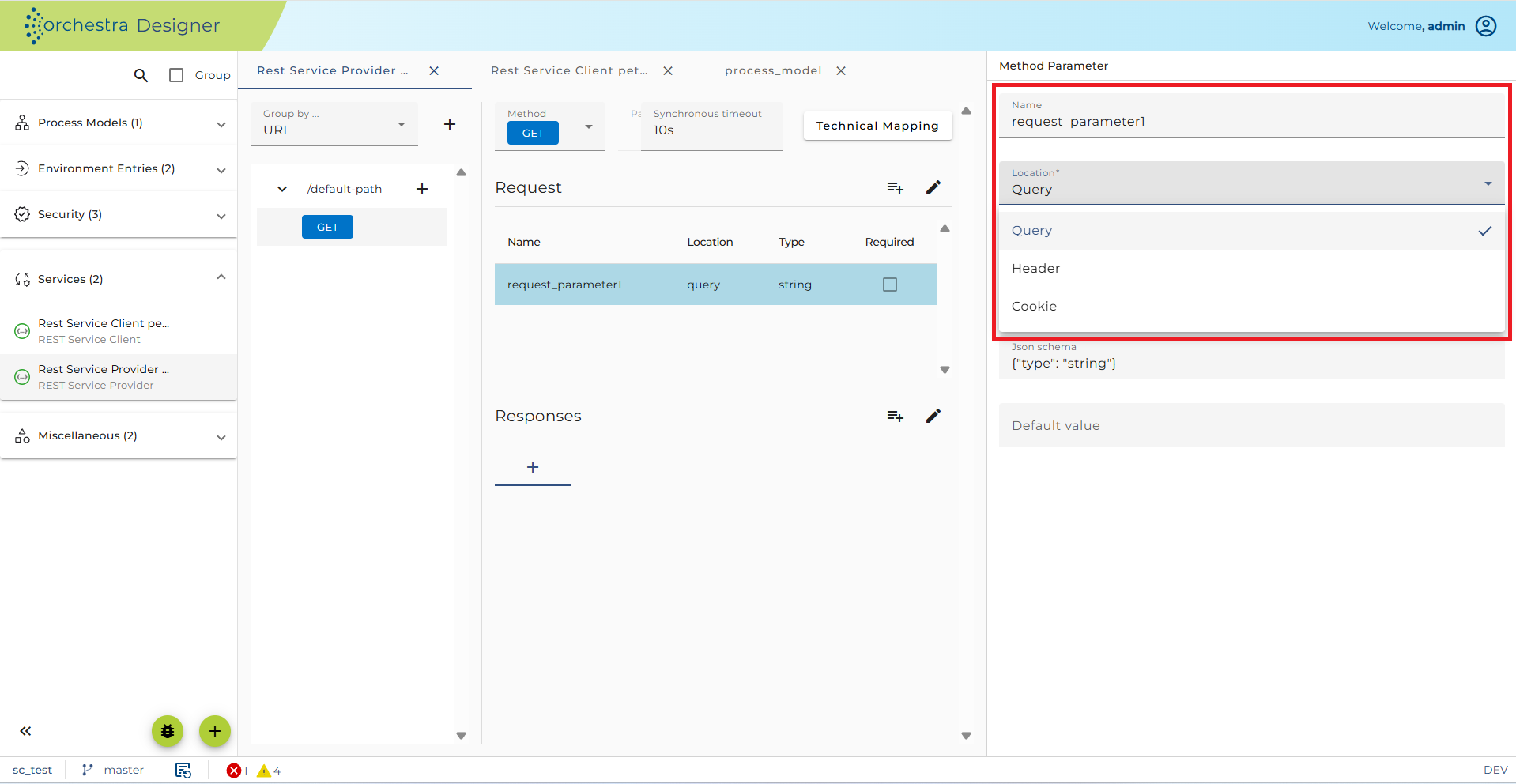
Actually, there are three locations where a parameter value can be transferred. You may choose query, header, or cookie as the parameter location. For every parameter, an input variable will be generated. In the technical mapping of the REST service method, you can assign these variables to variables in the process model.
-
If a parameter is defined as Required but not delivered by the sender and no Default value is defined, Orchestra returns an HTTP 400 (Bad Request) to the client.
-
If you click on the Type of the parameter, the Parameter editor is opened, where you can modify the serialization style of the parameter (form, pipe delimited) and its type. The type is defined by a JSON schema.
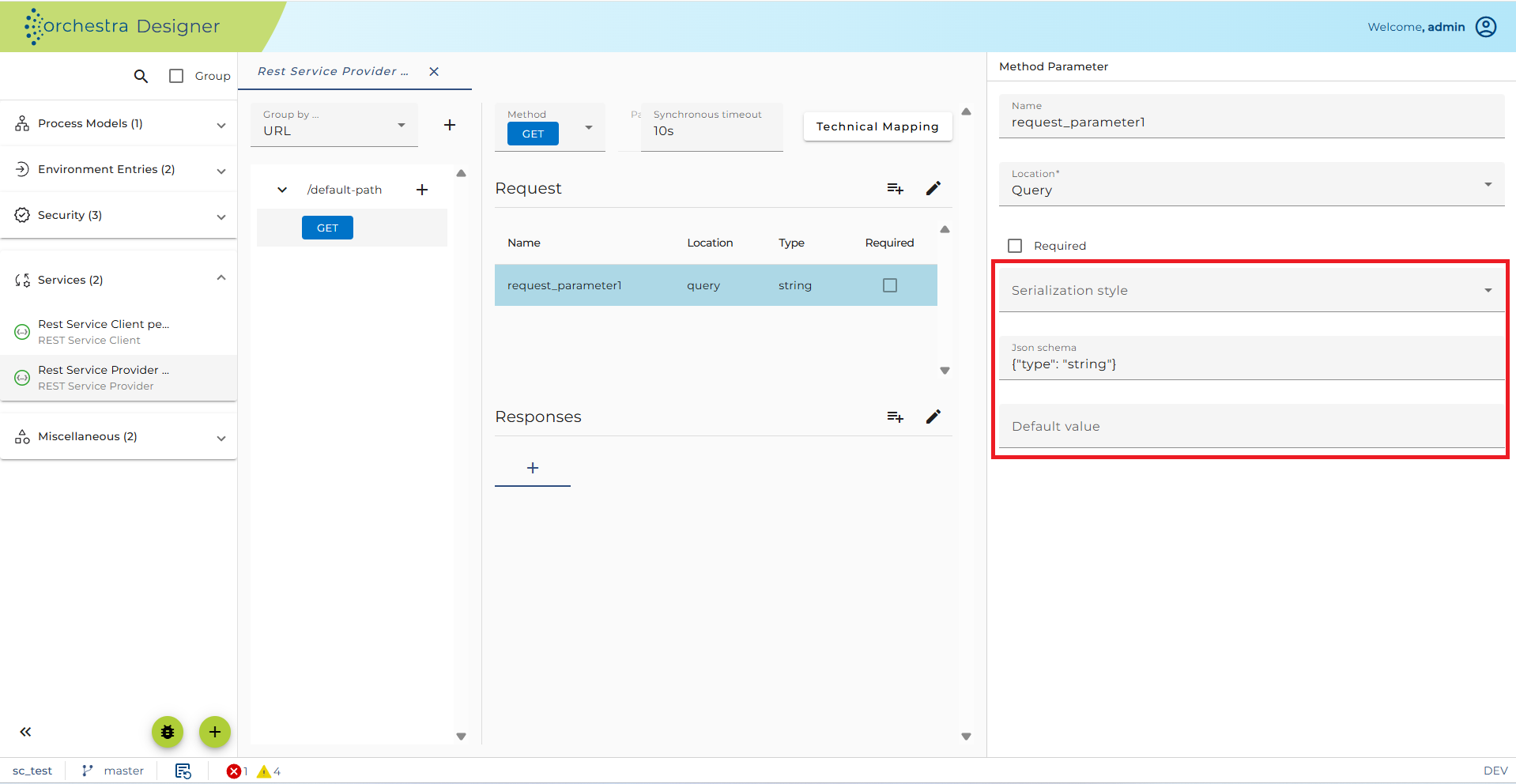
There are two views for the parameter:
-
The simple view, showing the three basic properties: Sequence, Type, and Format.
-
The JSON schema view. These two views are synchronized. If the JSON schema contains more properties than the basic properties, the simple view becomes non-editable.
If you set the property Sequence, the type is changed to an array of values. For a query parameter, values can be serialized in two ways:
-
If Explode is set, values are repeated (e.g.,
value=1&value=2). -
If Explode is not set, values are written comma-separated (e.g.,
value=1,2).If a parameter is defined as a Sequence of values, Orchestra will deliver a sequence of values. In previous versions of Orchestra, the REST service provider created a string containing a JSON array of values. Starting from Orchestra 4.15.0.0, the REST service provider creates a JSON message containing an array of values. E.g., if you have a parameter
IDwhose type is a sequence, a message containing the JSON value[42,45]might be delivered to the process model. You can then use JSON path or a JSON mapping to work with such complex values.
-
-
If you have selected the media type
multipart/form-dataand the parameter style is query, you will typically define a more complicated schema resembling the structure of the form-data part. In many cases, this will be a reference to a JSON schema in the corresponding Resource. The content of the form-data part is parsed and packed into an Orchestra message. The parameterfilenamein the Content-Disposition of the form-data part is then set as the value of the message property FILENAME. This is typically used if a file is uploaded to the REST service provider. -
If the checkbox Dynamic query parameters is set, query parameters whose names are not explicitly defined in the parameter list are also delivered to the process model. In this case, the REST service exposes a variable named
DYNAMIC_QUERY_PARAMETERS. Starting from Orchestra 4.15.0.0, the type of this parameter is message, containing JSON content.For example, if the URL contained the variables
&name=M%C3%BCller&given-names=Thomas&given-names=Phillipand name and given-names are not defined as query parameters, but the checkbox Dynamic query parameters is set, the variableDYNAMIC_QUERY_PARAMETERSwould contain the following JSON content:{"name": "Müller","given-names": ["Thomas", "Phillip"]}
-
See also
- Implementing a REST web service
- Method Configuration
- REST Service Provider Configuration