File Operations
Description
A File operations Channel is an adapter to read and write files as well as to execute file related commands on a directory. Local directories as well as the network file systems SMB v1, SMB v2, SMB v3 and NFS are supported by this channel. If you would like to use a File operations channel working on a network share , you will necessarily require a user credential having the access rights to the respective Network share.
Creation
To create a File Operations Channel follow the steps described in the general description of Channel.md
Configuration
The configuration of the adapter is done in 3 locations:
- The main channel configuration properties (title, description, label, parameter definitions)
- A list of commands to execute configured in the big content area in the middle (used to add, remove or change the order of commands).
- The command detail configuration
The dialog to configure the File Operations looks like:
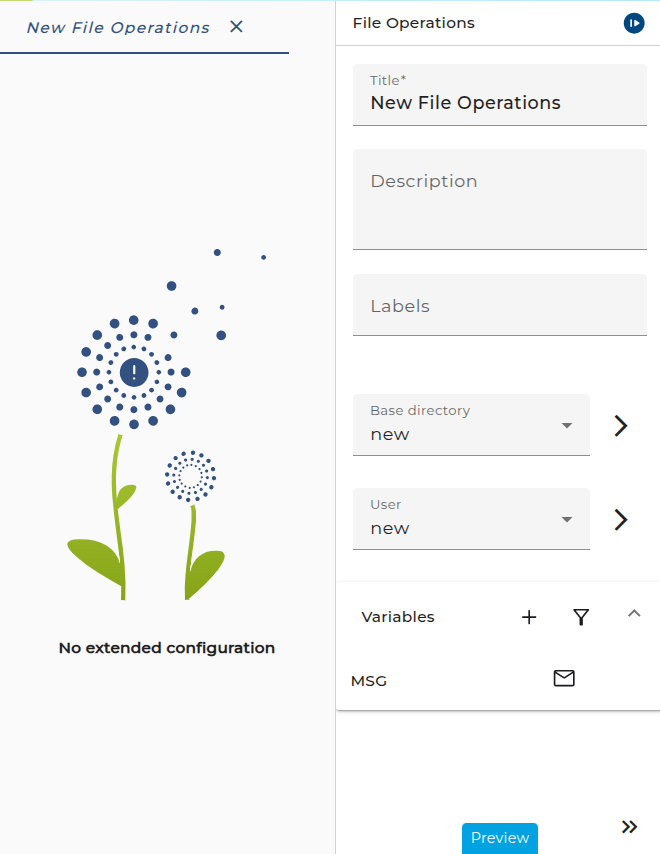
Main channel configuration
- Base directory Environment entry for the directory connection.
- User The credential containing the authentication data for the network share.
- Parameter definitions: Parameters used in the channel (can be selected in the command later)
Command add/remove/reorder in middle section
To add, remove or reorder commands use the drag and drop list in the middle section.
To add a command click the plus icon in the top right corner of the middle section. This will add a command of type LIST per default, but you can change the type in the dropdown at the top of the right sidebar configuration, if the command configuration panel is opened.
To remove a command click on the garbage can on the right side of the row, that contains the command, which should be deleted.
To reorder the command sequence drag a command list item and drop it in the new position.
To edit a command configuration, first open the command by left-clicking on the corresponding list element. This opens the command configuration in the right sidebar. Now, you can select the command type at the very top or change the command specific configuration below. Note that some configuration values are dynamic dropdowns for parameters, so if you want to set them, you need to create the parameter with the corresponding type in the parameter definition section before.
Command type
The command type can be selected in a drop-down after selecting a command. The adapter supports the following commands.
| Command | Description |
|---|---|
LIST | List the contents of a directory. Supports regex (.*\.xml) and simple patterns (*.xml). Returns file metadata: timestamp, size, type, group, and owner. |
GET | Read the content of a file from a directory. |
MGET | Read multiple files from a directory as a message list, filtered by filename pattern. |
PUT | Create a file in the current directory and write the message content to it. |
APPEND | Open or create a file and append the message content to it. |
REMOVE | Delete a file in the current directory. |
MOVE | Move a file to another directory. Can be used with MKDIR to ensure the target exists. |
MKDIR | Create a subdirectory. Option to ignore errors if it already exists. |
CHDIR | Change the current working directory. |
RMDIR | Delete a folder in the current directory. |
RENAME | Rename a file in the current directory. |
RENAME_UNIQUE | Rename a file and ensure the name is unique (e.g., File42.txt). |
CHANGE_EXT_UNIQUE | Change a file's suffix and ensure it’s unique (e.g., File42.txt). |
MOVE_CHANGE_EXT | Move a file to another directory with a unique name (e.g., File42.txt). Use MKDIR to ensure target exists. |
Command-specific configuration options
Some string parameters contain a checkbox field above, which can be used to switch whether the value should be used from a string literal set directly in the command or from a parameter, that can be passed into the channel when calling it. We won't mention those Use variable as ... fields specifically in the following, but will only mark them with the note: variable option allowed.
The messages, message lists and corresponding name variables are always parameters.
APPEND
- Input message: Input message containing the data to append to the file
- File name (variable option allowed): The file name to append to
- Serializer: Serializer used to serialize the input message to the file content
CHANGE_EXT_UNIQUE
- File name (variable option allowed): The file name of which to change its extension
- File name extension (variable option allowed): The new file name extension
- Resulting name (variable): The parameter containing the new file name (different to old filename with changed extension, if a file with this name already exists, then with index)
CHDIR
- Path (variable option allowed): The path to change directory into
GET
- File name (variable option allowed): The file name whose content should be read
- Output message: Output message containing the read data of the file
- Deserializer: Deserializer used to deserialize the read file content into a message
LIST
- File name pattern (variable option allowed): The pattern (regex/simple pattern) used to filter the files that are listed.
- Use simple pattern (no regex): Uses a simple pattern instead of a regex for the file name pattern if checked.
- Output message: The message variable, where the command output is written after the command execution.
MGET
- File name pattern (variable option allowed): The pattern (regex/simple pattern) used to filter the files that are read.
- Use simple pattern (no regex): Uses a simple pattern instead of a regex for the file name pattern if checked.
- Message list: The message list variable, where the command output (the content of the read files) is written to after the command execution.
- Deserializer: Deserializer used to deserialize the read file content into a message list
MKDIR
- Directory (variable option allowed): The directory to create
- Throw error if directory exists: Throws an error if the directory already exists
MOVE_CHANGE_EXT
- File name (variable option allowed): The file name of the file to move
- Directory (variable option allowed): The directory to move the file into
- File name extension (variable option allowed): The file name extension of the target file
- Resulting name (variable): The parameter containing the new file name (different to old filename with changed extension, if a file with this name already exists, then with index)
MOVE
- File name (variable option allowed): The file name of the file to move
- Directory (variable option allowed): The directory to move the file into
PUT
- Input message: Input message containing the data to put into the file
- File name (variable option allowed): The file name of the file to write the content to
- Serializer: Serializer used to serialize the input message to the file content
REMOVE
- File name (variable option allowed): The file name of the file to remove
RENAME
- Source file name (variable option allowed): The file name of the file, which should be renamed
- Target file name (variable option allowed): The new file name
RENAME_UNIQUE
- Source file name (variable option allowed): The file name of the file, which should be renamed
- Target file name (variable option allowed): The new file name
- Resulting name (variable): The parameter containing the new file name (different to old filename with changed extension, if a file with this name already exists, then with index)
RMDIR
- Directory (variable option allowed): The directory to remove