Virtual Machine
-
First complete steps 1a to 1e from Hardware licensing (standard).
-
Send the generated request file by email to
licensing@soffico.de.
Important: Inform the soffico licensing team in your email that it is a virtual machine! -
After receiving your email, the soffico licensing team generates a product license (so-called
"Orchestra Virtual Execution Environment") and the corresponding activation key for the product license in addition to the response file. All information will then be forwarded to you by email. -
Upload the response file in the same way as step 4 from Hardware licensing (standard).
-
The product license can then also be activated in the Solution Hub.
:::info Important: The product license needs to be activated using the **activation key. :::
-
Click on "Upload product license"
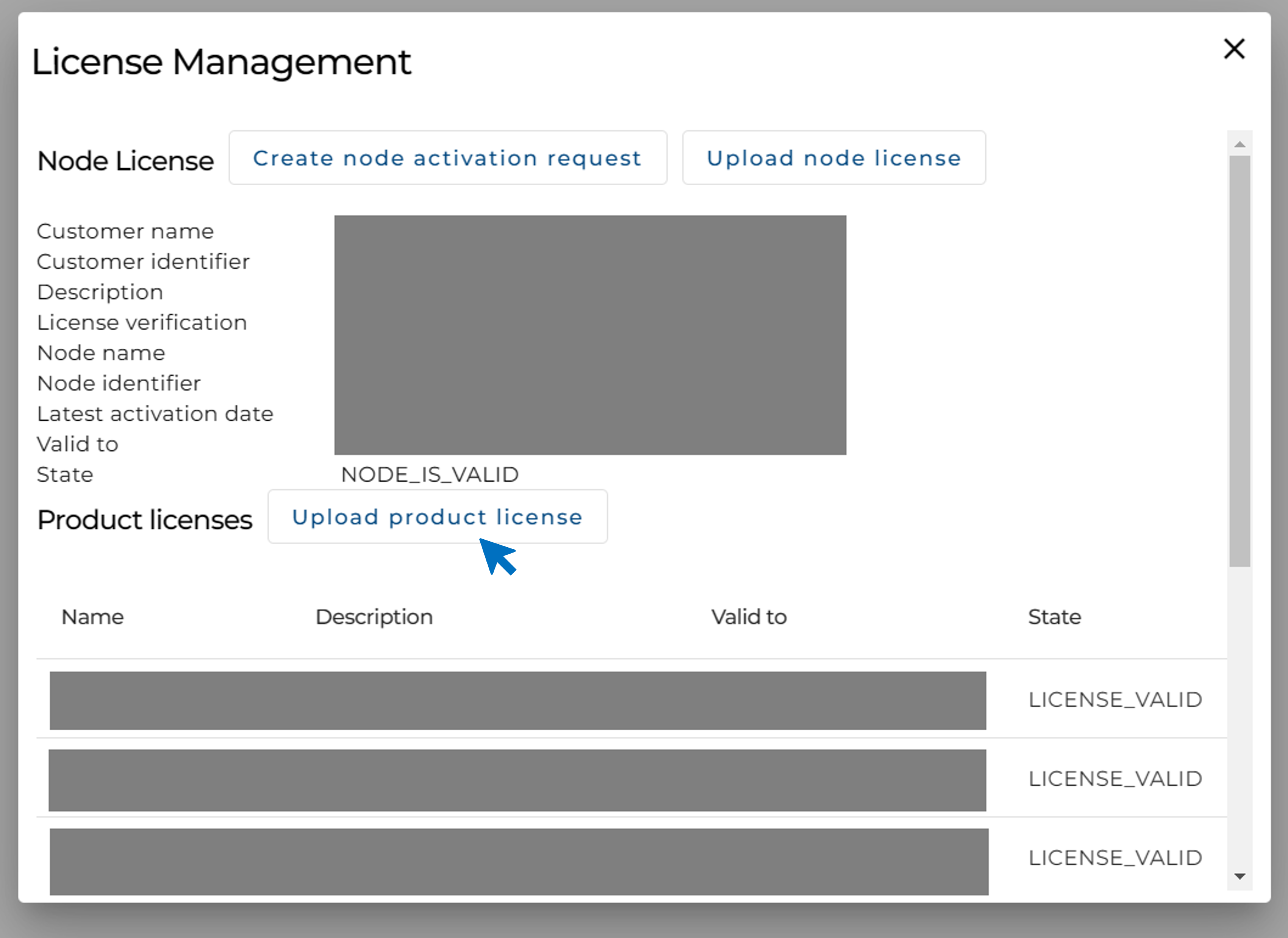
-
Select the
"Orchestra-Virtual-Execution-Environment"file and enter the activation key. -
Click on "Upload".
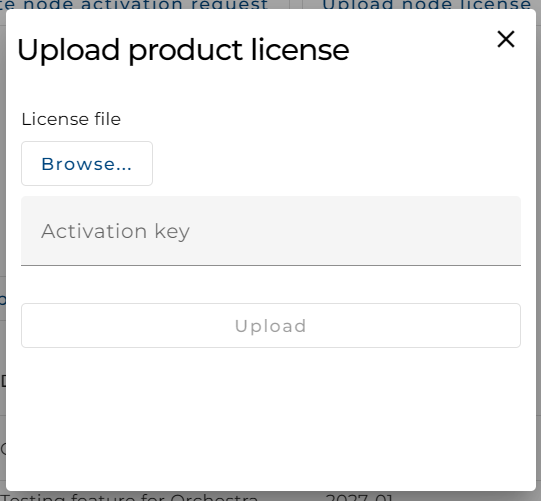
-
-
The Solution Hub has now been successfully licensed.