Servers
The Servers tab is used for managing deployment and synchronization of solutions to existing Orchestra runtime servers. Within the <%APP_NAME%>, a list of servers can be maintained. Each server can be associated with a set of solutions or solution templates. These solutions can then be deployed and synchronized with the referenced server.
The orchestra servers support push/pull mode for scenario related operations.
- Push: If a server is configured in push mode, the solution hub is responsible for actively pushing the configure server configuration to the remote system. In case
- Pull: If a server is configured in pull mode, the orchestra server itself is responsible for obtaining the configuration.
Creation
To create a Server:
-
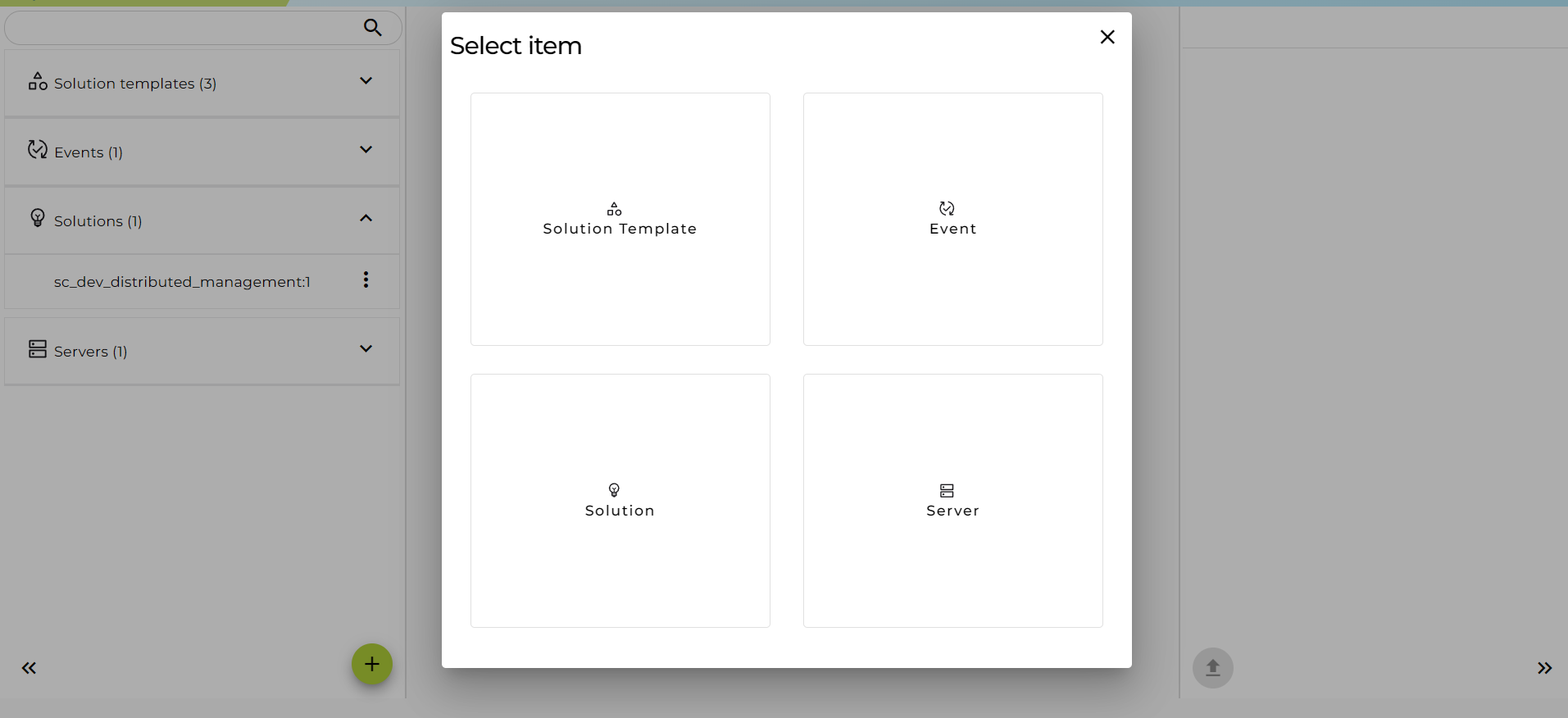
Click on the (+) button and select "Server".
-
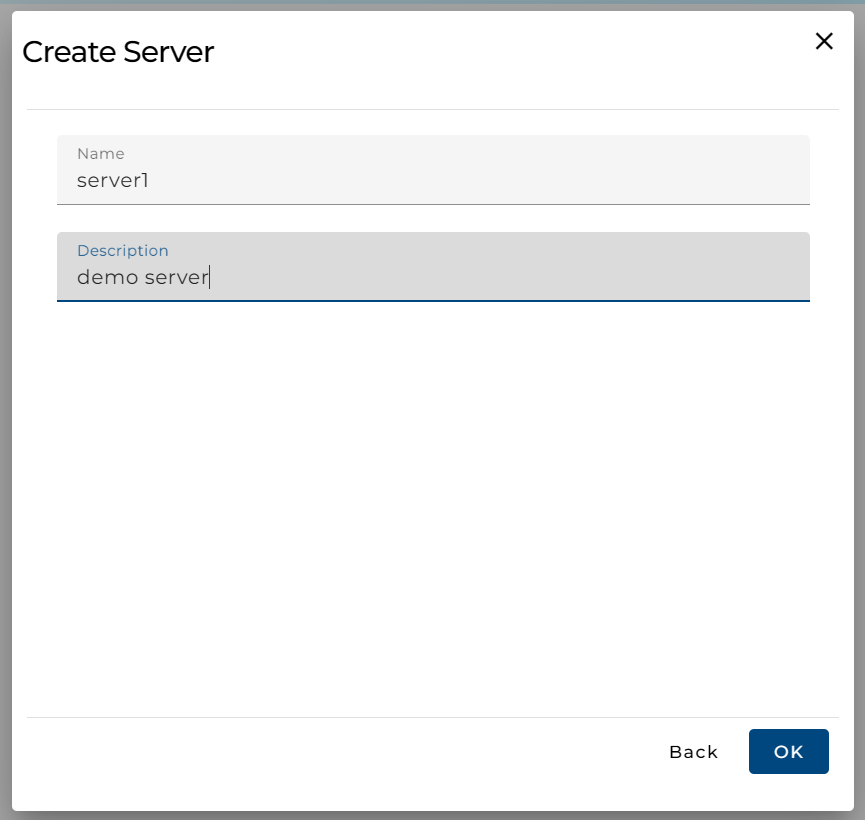
Set the server name and description. Click the "OK" button.
Assign Solutions
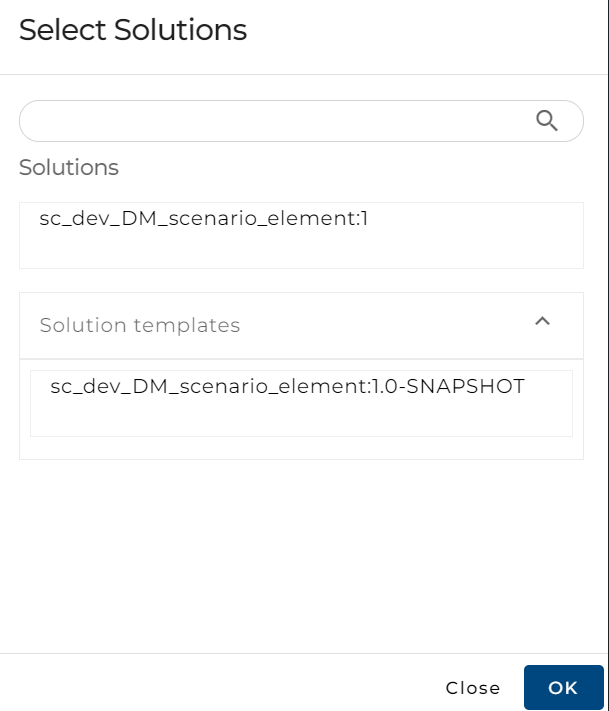
Solutions and Solution Templates can be assigned to a server.
-
Click the "Add" button to select solutions.
-
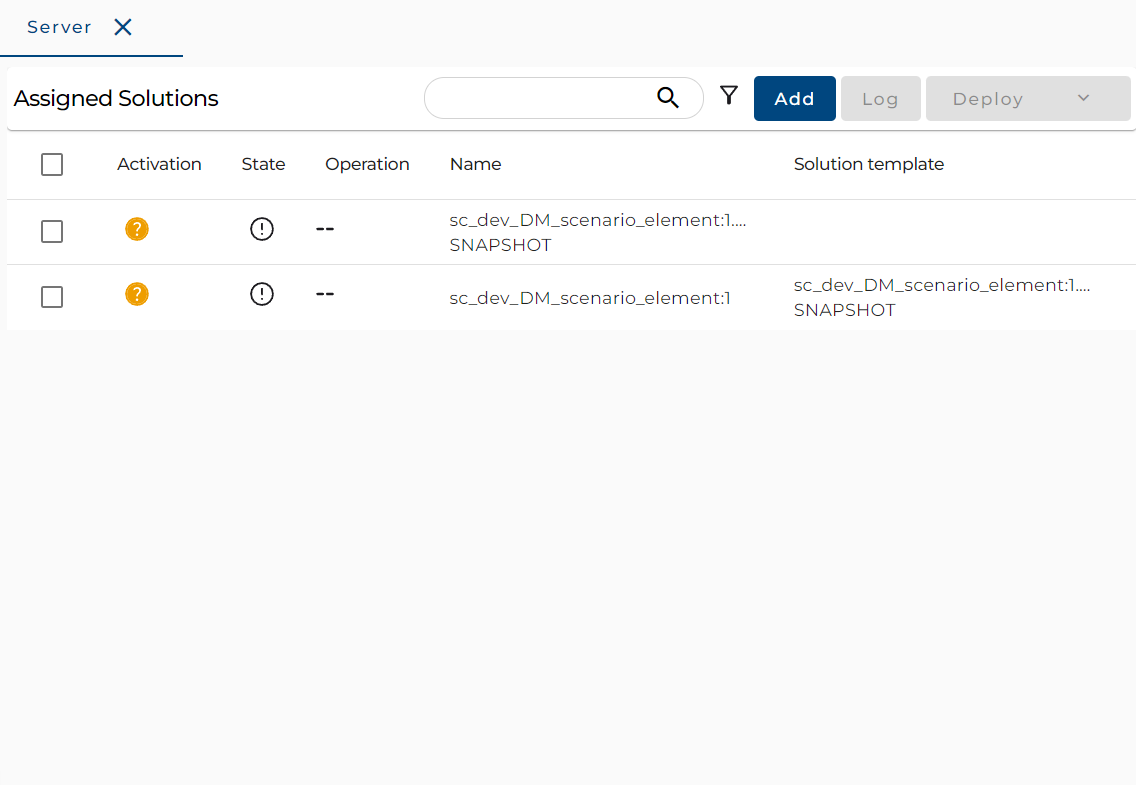
The selected solutions will appear in the Assigned Solutions table.
Enable Remote Pull on a Server
- Go to the Servers tab in Solution Hub.
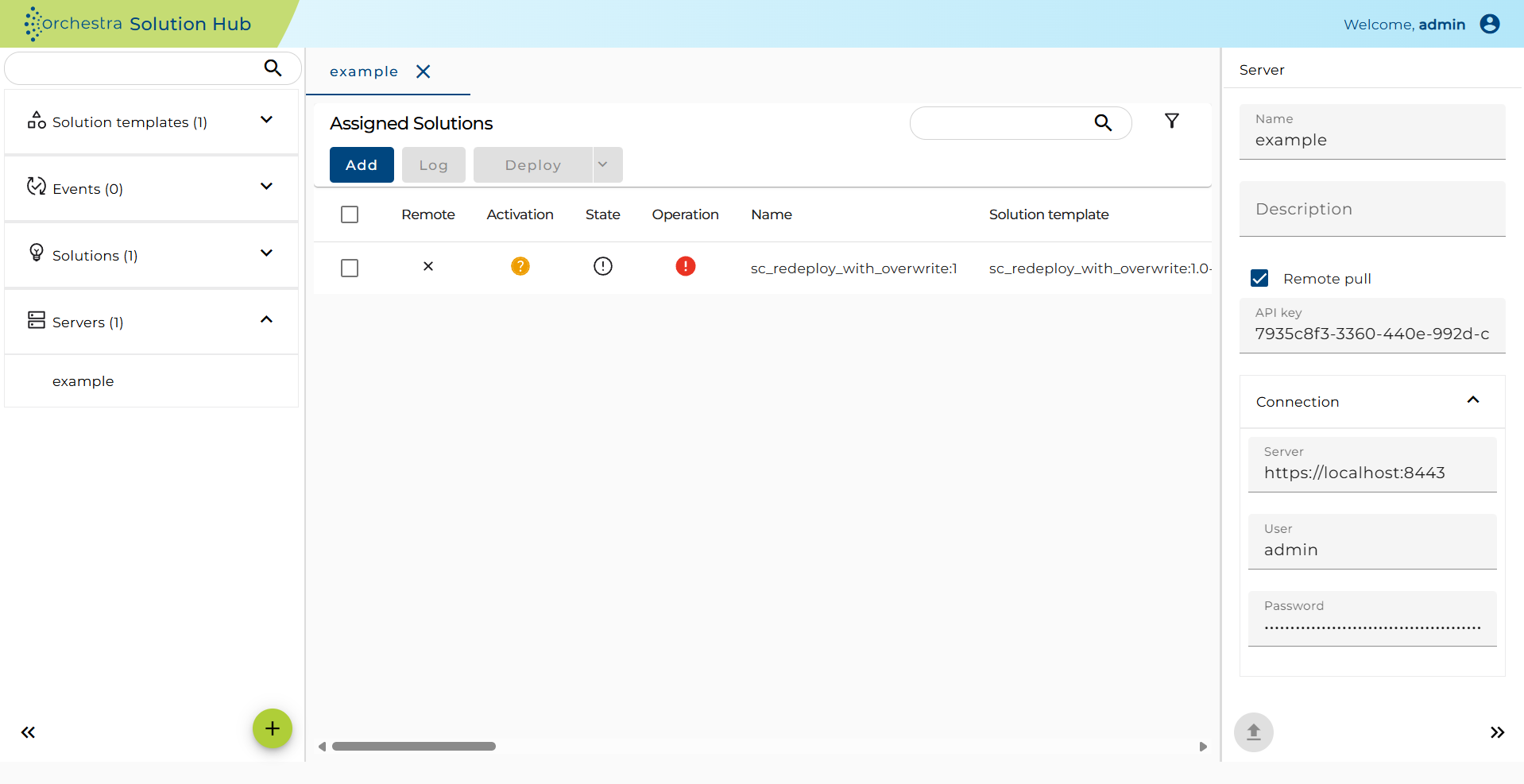
- Click the relevant server. The configuration will appear in the right panel.
- In the Connection Settings panel:
- Check the
Remote Pullcheckbox. - The API Key field will appear automatically.
- Check the
This API Key is used by Orchestra Monitor to authenticate when performing a pull request.
Orchestra Server Configuration: In order to make the pull mode work, the Orchestra Server needs to be configured appropriately. All the relevant configuration settings are found within the Solution Hub group within the orchestra monitor. The following configuration properties are supported, where by the url and the api.key are mandatory to activate the pull mode.
| Parameter | Description |
|---|---|
| url | Defines the solution hub endpoint. (e.g. https://solution-hub:8473) |
| api.key | Defines the API key. The API key is a secret that is used for authentication of the orchestra node against the solution hub. |
| api.key.expiryTime | Defines the expiry time of an api token. Api tokens that are expired will be rejected by the solution hub. A smaller value is recommended. |
| solution.polling | The polling interval for pulling the scenario from Solution Hub |
| solution.event.DelayTime | Defines how often orchestra should report solution hub specific errors to the event system. If a value less ore equal to zero is given, every error will be reported. |
| remote.http.connectTimeout | Defines the timeout that is used to connect to the remote peer. |
| remote.http.readTimeout | Defines the timeout that is used to all socket read operations. |
| remote.http.ciphers | Enforcing specific Cipher Suites to be used in TLS. The cipher suites are added as comma separated values. |
| remote.http.checkValidity | If set, then check if the certificate in an certificate are expired. |
| remote.http.checkCertChain | If set, check if the certificate chain is correctly signed (certificate n is signed by certfificate n + 1) |
| remote.http.checkSignersAgainstTrustStore | If set, then check that the one certificate in the certificate chain (typically the last one) is contained in the trust store. |
| remote.http.trustedServer | The name of an orchestra runtime credential which holds the certificate of the identity provider. This certificate will be used to verify the identity provider. |
| remote.http.trustedSigner | The name of a orchestra runtime credential which holds the certificate of that was used to sign the certificate of the identity provider. This certificate will be used to verify the identity provider. |
Once enabled, this server is treated as a remote-pull node.
Schedule Remote Pull Operations
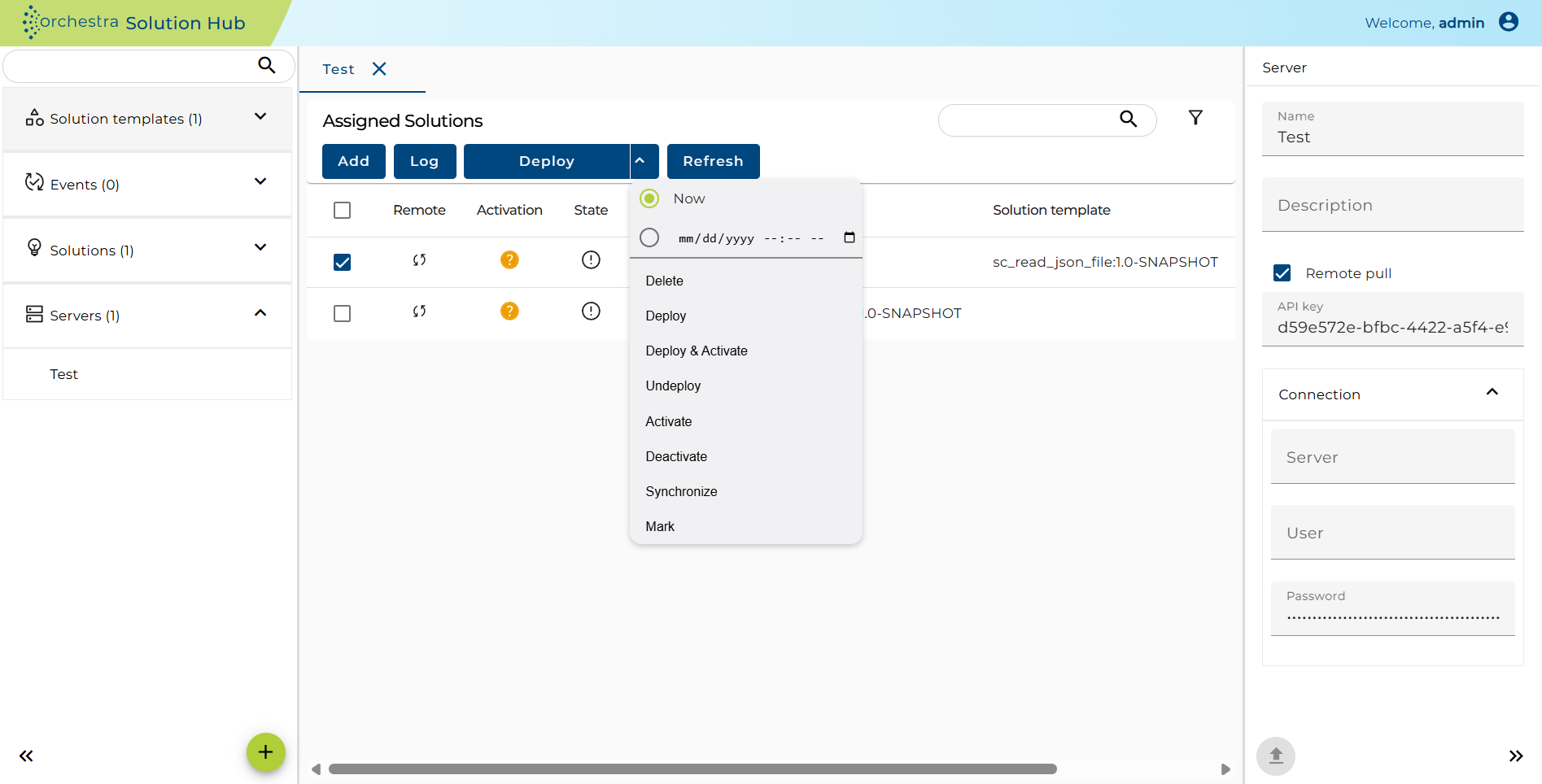
Once solutions are assigned to a remote pull server, you can schedule when and how each scenario is deployed directly from the operations dropdown menu.
| Field / Option | Description |
|---|---|
| Now | Executes the selected operation immediately |
| Date/Time | Executes the selected operation at the specified date and time. |
Only scenarios with a scheduled Deploy will be available for pulling by Orchestra Monitor.
- Assign a scenario to a Remote Pull server.
- Open the Deploy dropdown menu.
- Set the scenario's pull state to Now or schedule it by entering a Date/Time.
Example:
If you set the Date/Time to 08/19/2025 09:00 AM and select Deploy, the scenario will become available for deployment to Orchestra Monitor at exactly that time.
Assigned Solutions Table
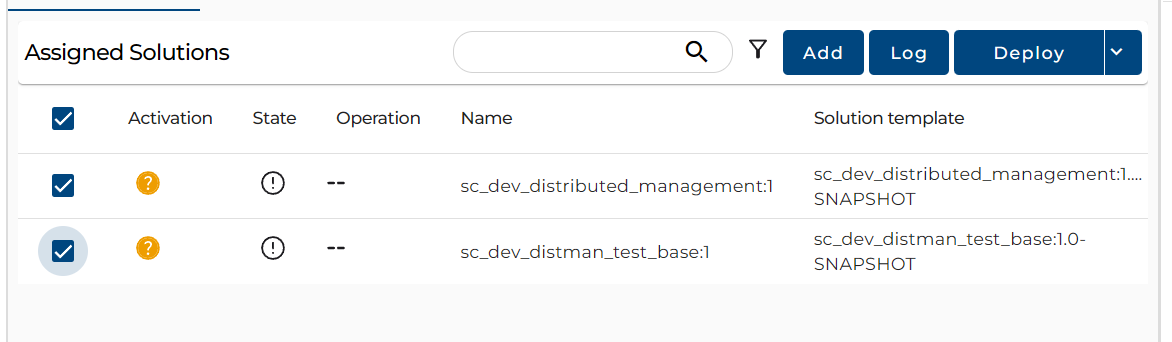
This table displays multiple columns of information about each assigned solution.
Activation (Column)
When hovering over the activation icon, a message indicates the solution’s activation state:
| State | Description |
|---|---|
ACTIVATION_STATE_UNDEFINED | Activation state is unavailable |
ACTIVE | Solution is activated and running |
INACTIVE | Solution is inactivated or stopped |
State (Column)
When hovering over the state icon, a message indicates the solution’s deployment state:
| State | Description |
|---|---|
DEPLOYED_STATE_UNDEFINED | Deployment state is unavailable |
NOT_DEPLOYED | Solution is not deployed on the server |
DEPLOYED_VERSION_IS_IDENTICAL | Solution is deployed and matches server version |
DEPLOYED_LOCAL_VERSION_WAS_CHANGED | Solution deployed but changed locally after deployment |
DEPLOYED_VERSION_IS_DIFFERENT | Solution is deployed but versions differ between local and server |
Operation (Column)
This column indicates the operation being performed:
| Operation | Description |
|---|---|
NOOP | No operation is running |
DEPLOY | <%APP_NAME%> is deploying the solution |
ACTIVATE | <%APP_NAME%> is activating the solution |
DEACTIVATE | <%APP_NAME%> is deactivating the solution |
UNDEPLOY | <%APP_NAME%> is undeploying the solution |
SYNC | <%APP_NAME%> is synchronizing the solution |
SYNC_AND_OVERWRITE_FROM_REMOTE | <%APP_NAME%> is overwriting local with remote |
DELETE | <%APP_NAME%> is deleting the solution |
Other Columns
- Name: Displays the name of the solution
- Solution Template: Displays the template used
- Description: Displays the solution description
- Last Error: Displays the latest error message if any
Solution Operations
You can perform operations such as deploy or undeploy:
-
Select one or more solutions from the table.
-
Click the Server Action button and choose an operation:
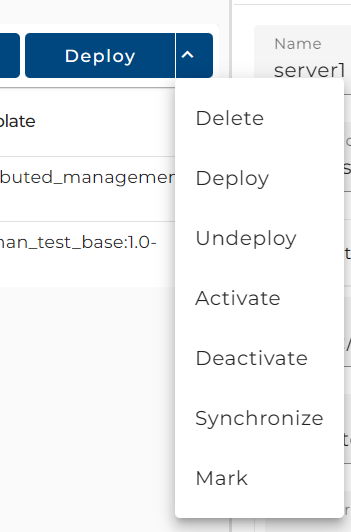
Actions and Their Effect
- Delete: This operation will delete the selected solutions.
- Deploy: This operation will deploy the selected solutions.
- Undeploy: This operation will undeploy the selected solutions.
- Activate: This operation will activate the selected solutions.
- Deactivate: This operation will deactivate the selected solutions.
- Synchronize: Compares the state of the server with assigned solutions. Differences are shown in the State column (e.g.,
DEPLOYED_VERSION_IS_DIFFERENT). - Mark: Overwrites the local version with the server version, marking it as identical.
Deployment log
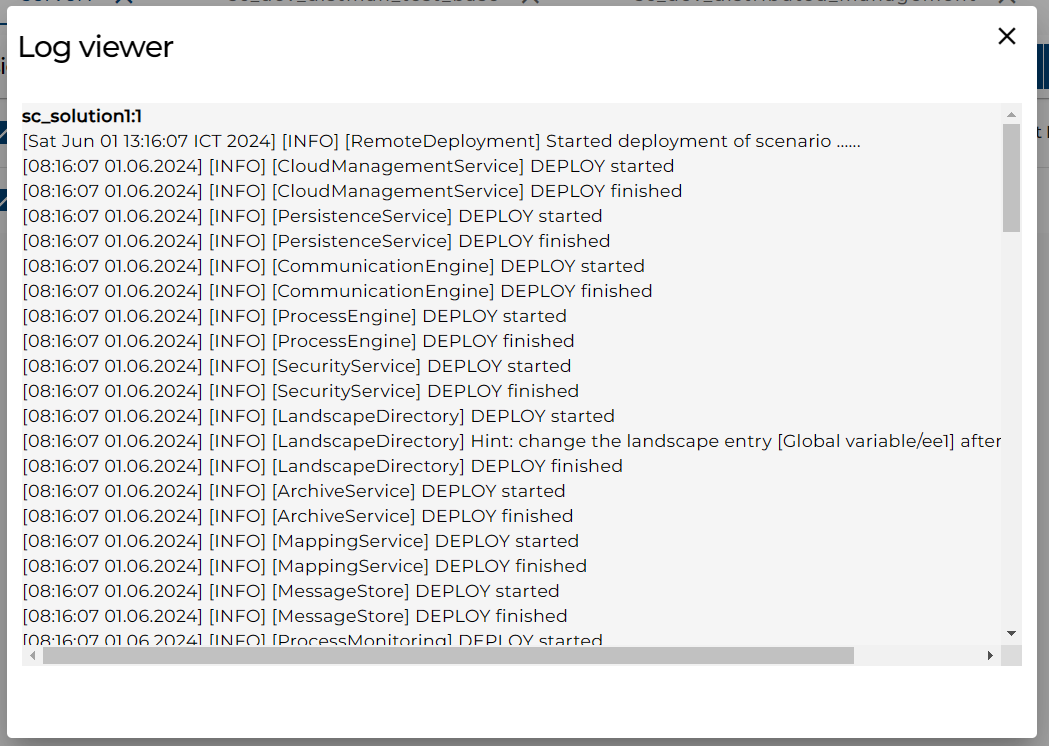
You can also click the 'Log' button to see the detailed logs of the deployed scenario.