Partner-Manager
The Partner Management is a another useful tool that provides opportunities to organize your procedural sequences.
It facilitates the communication between the scenarios created with the Orchestra designer. Abstract examples of use-cases can be the distribution of given information between a sender-scenario and any number of receiver-scenarios or to reunite information given by diverse sender-scenarios to work with in a single receiver-scenario.
The Transmission occurs either by the transfer of business-objects (publisher-subscriber, sender-receiver) or signals.
Prerequisites
That the partner management system can communicate active between the partners, it is necessary that they have a sending and a receiving scenario that are created with the Orchestra designer.
Apart from that, the following is also important:
- The SQL-script for the partner management system has to be run in the database.
- The script partner.cmd has to be existent.
- environment_settings_partner.xml has to be configured for the database access.
Mechanisms
There are different ways to use the Partner Management listed below
Publisher-Subscriber
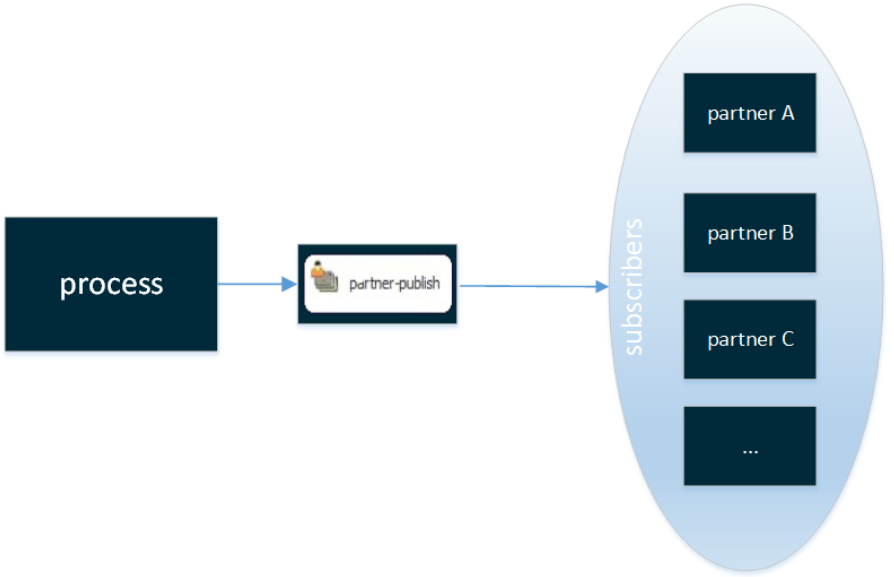
Exemplary use-case: Read information from a single database, create a file and deploy the file on all subscribers FTPs.
Sender-Receiver
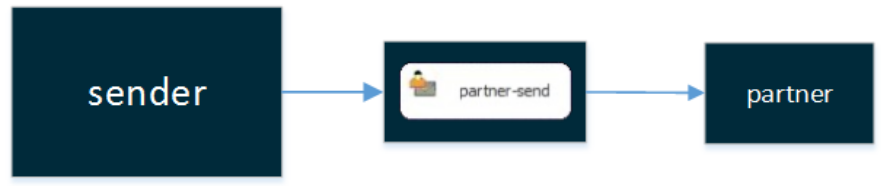
Exemplary use-case: Send information to a specific partner.
Throw-Catch-Signal
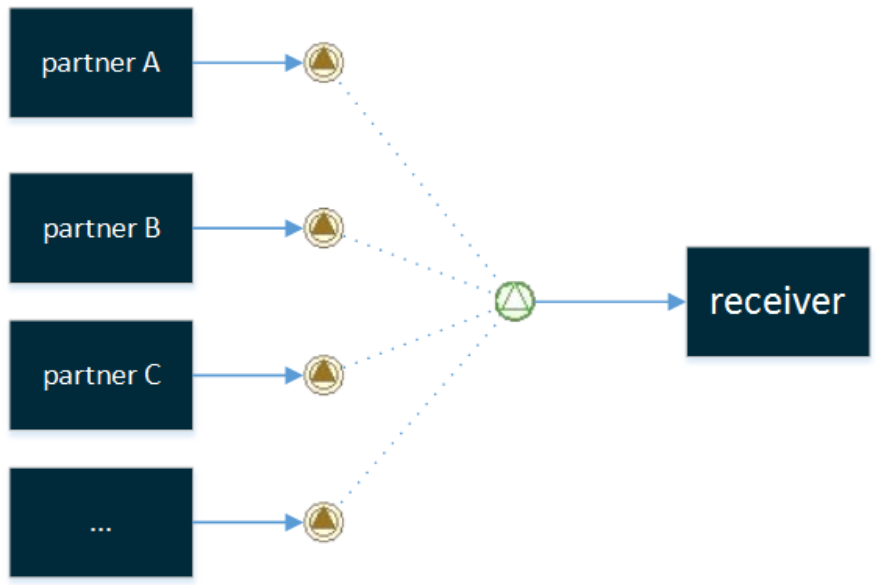
Exemplary use-case: Trigger a scenario in another system.
Partner Types
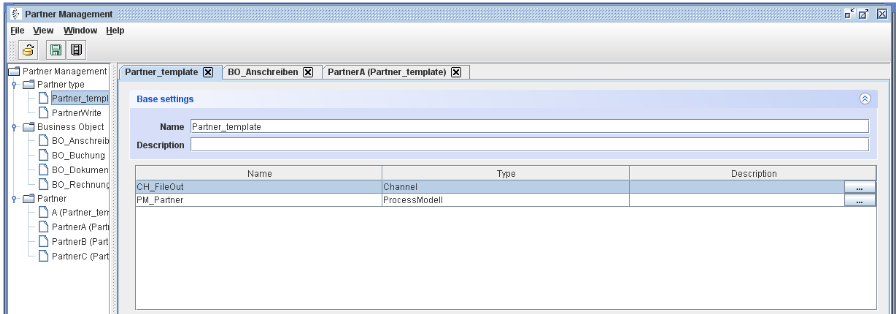
The component Partner Type is the representation of a template-scenario. The Partners you create will follow the structural patterns given by the Partner Types.
Thereby the Partner Management knows the procedures built in the scenarios represented by the processmodels and channels created in Orchestra Designer.
To create a Partner Type you have to do the following steps:
- Open the contextual menu of Partner Type by right-clicking it and choose new Partner Type
- Import a scenario (psc-file) created and exported by the Orchestra Designer
- Configure the added Partner Type for your needs
Business Objects
The component Business Object can be used as a representation for a 'information-carrier' for the transmission between two scenarios. Many different Business Objects can be created for various types of messages. To create a Business Object you have to do the following steps:
- Open the contextual menu of Business Objects by right-clicking it and choosing New Business Object
- Name the new Business Object
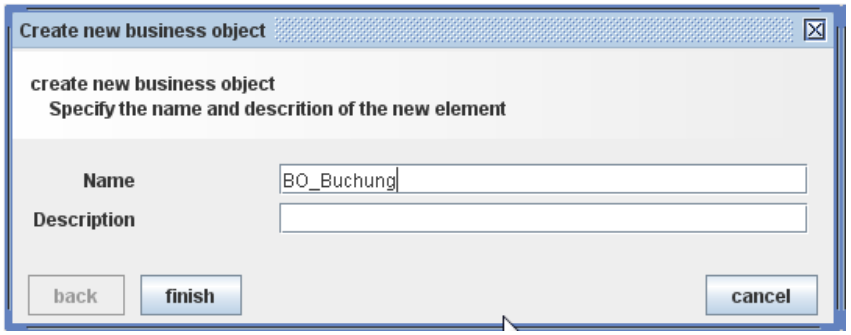
- You can create any amount of objects like this
Partners
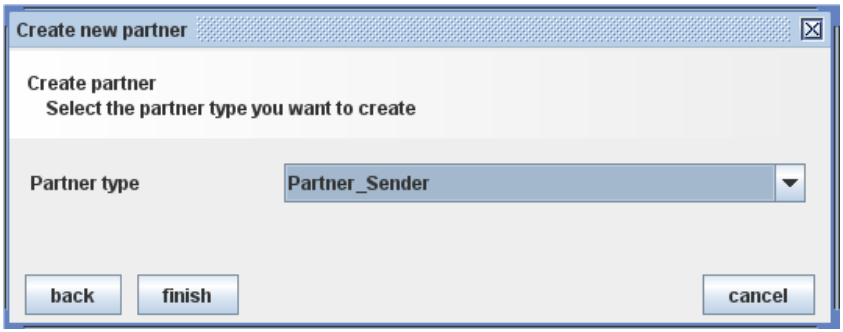
- Open the contextual menu of Partner by right-clicking and choose New Partner from Partner Type.
- Name the Partner and choose the Partner Type.
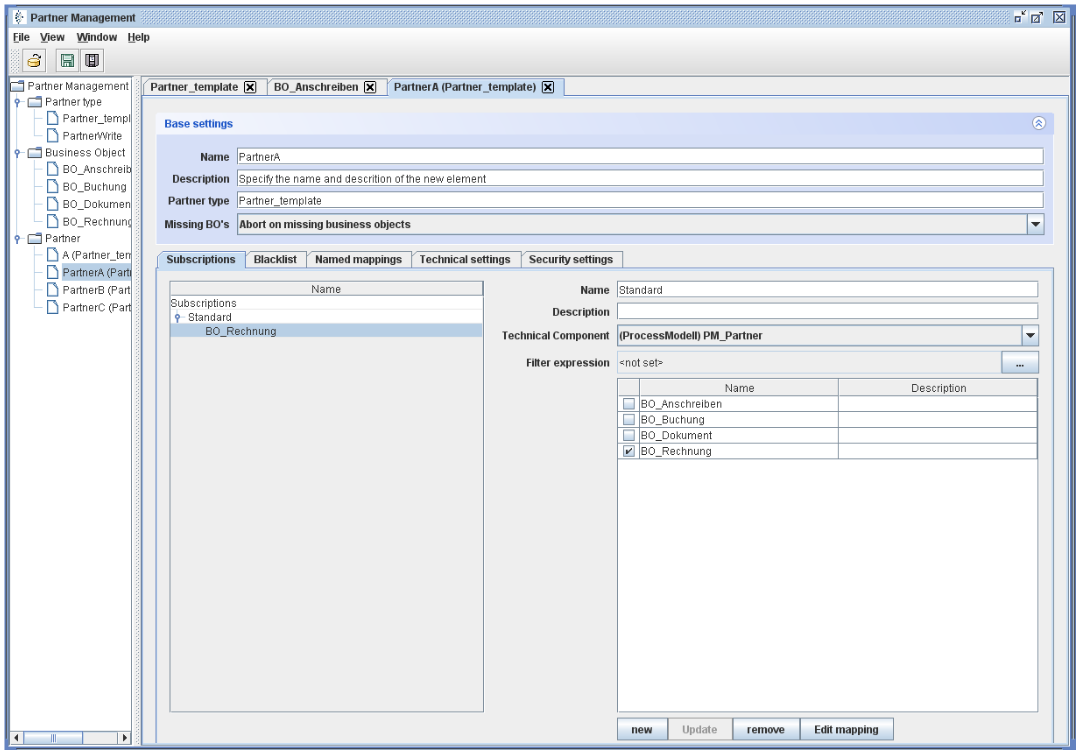
- Click on new to create and name a new Subscription.
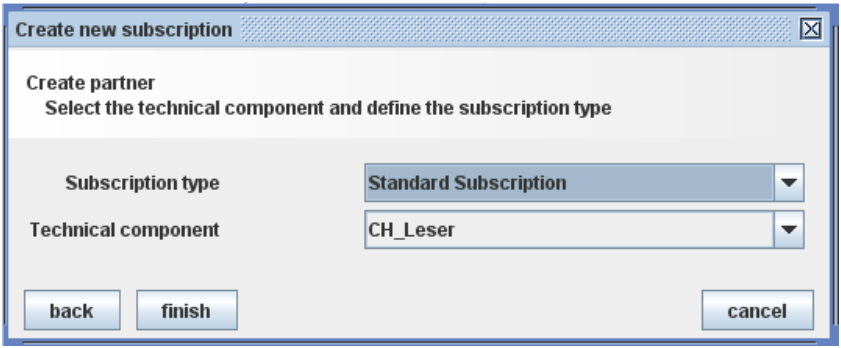 At this Point you are able to choose the Business Objects which the Partner should receive.
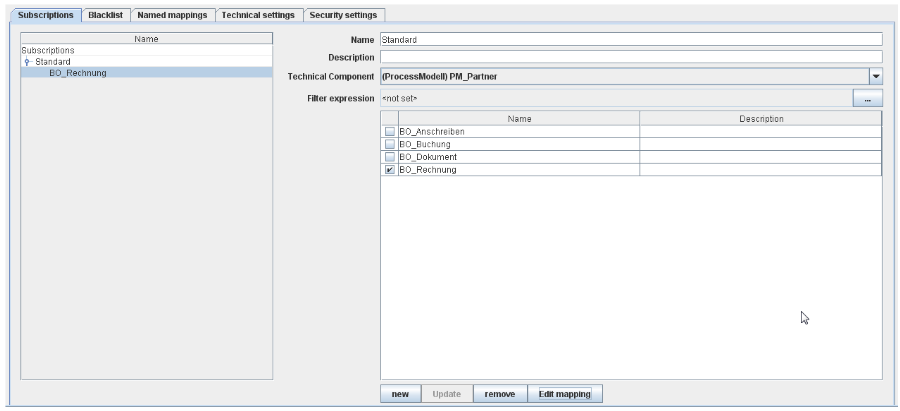
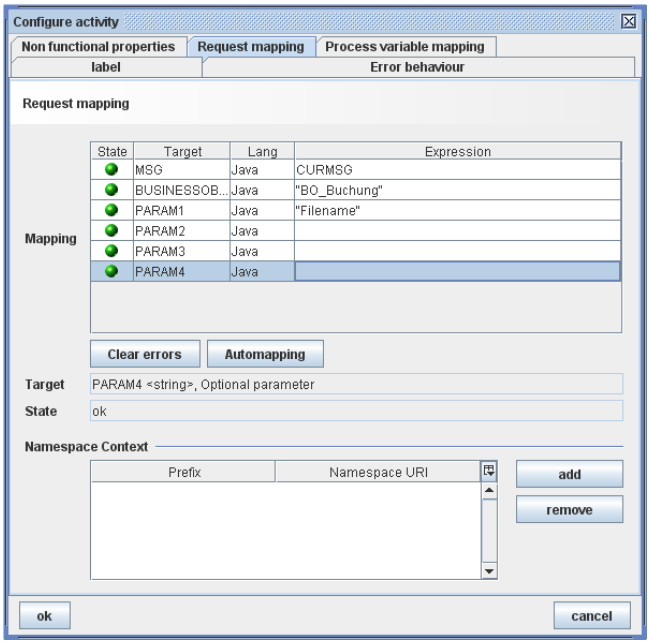
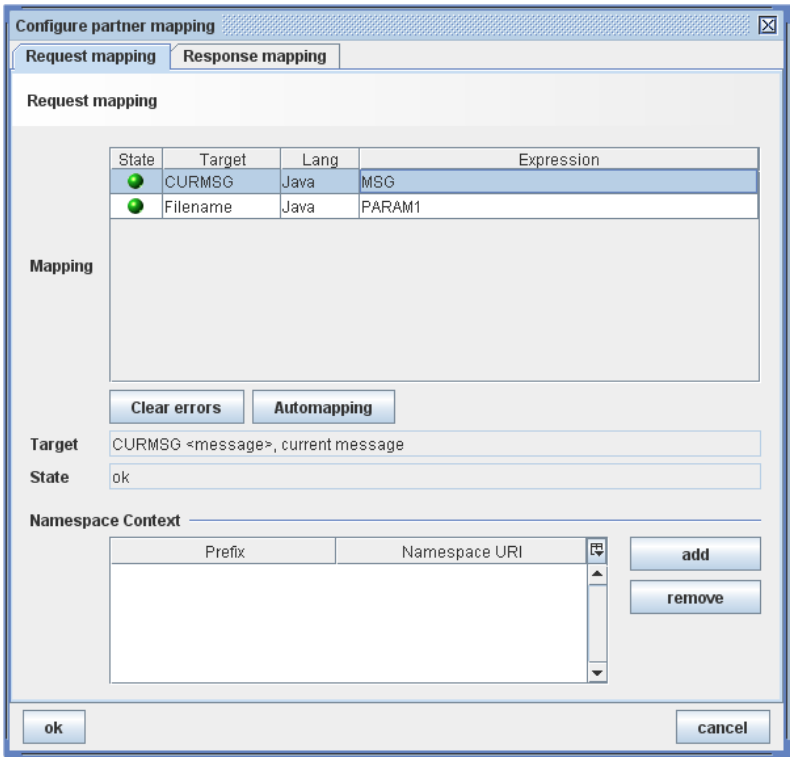
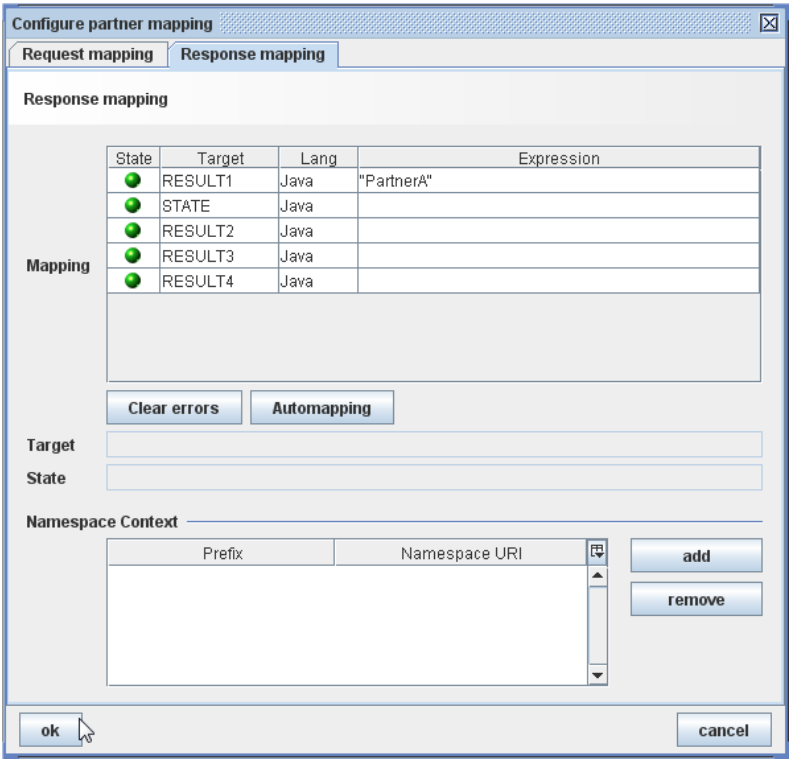
- By clicking on Edit Mapping you are able to change the configurations as you can see in
the graphics below.
- In order to identify the Partner you have to put in its name.
- By blacklisting items you can select Business Objects which should not be received by the Partner
- With the options on the Named Mapping tab you can change the file-name under certain
conditions
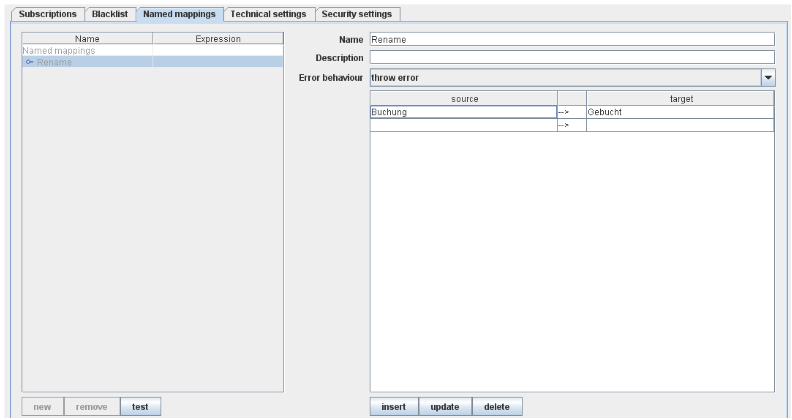
- On the Technical Settings tab you are able to select the path to save the received objects.
Select test to check if the selected path exists.
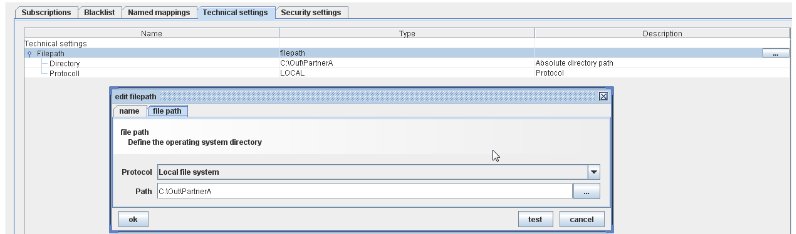
- Save your data and open the contextual menu of the created Partner. After that select deploy and choose a path where you want to store the file.
Don't forget to set up the Business Objects in the sending scenario like it is shown in the next images.