Component Browser
title: Component Browser
The Component Browser is a GUI tool that allows users to add, remove, rename, and configure component instances created with Orchestra's extended component framework.
For each instance, you can edit the component configuration. The group and parameter definitions of the configuration are specified in the file sofxt.component.decl.xml, which is located in the component's JAR file.
Component Tree
To view the tree of currently installed components, select "Component Browser" from the "Settings" category in the menu. The content will depend on your installed components:

If no components have been installed, the "ApplicationPackages" tree will be empty.
For this example:
- HelloWorld is the name of the application package and one of the components.
- IHEActor2 and IHEActor3 are two example components.
- IHEActor is an instance of component IHEActor2.
- Notes is an IBM Notes component.
Right-clicking on one of the component instances (leaf nodes in the tree) will open the following context menu:

You can add a new instance, remove an existing one, or rename it. The copy action is particularly helpful if you wish to create several instances with a similar or identical configuration.
Component Configuration Editor
Clicking on any instance of a component will open the configuration editor for that instance on the right side.
In our example, if you clicked on the HelloWorld instance of the Hello World component, the editor will look like this:
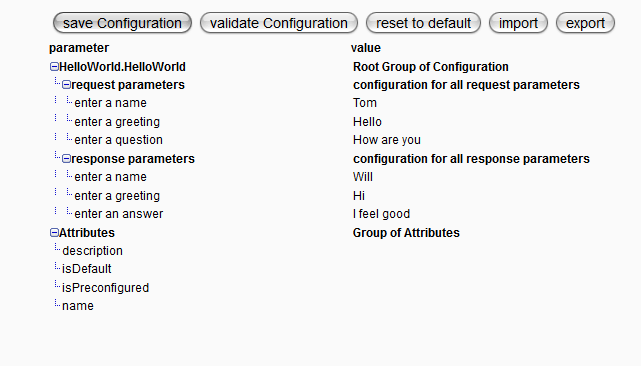
The groups and parameters are defined in the file sofxt.component.decl.xml, which is contained in the component's JAR file.
You may add or remove parameters or edit them here.
There are some predefined parameter types:
| Parameter Type | Java Type used for Validation |
|---|---|
Text | String |
Int | Integer |
Float | Float |
Boolean | Boolean |
PickList (a list of predefined values to choose from) | String/List of Strings |
Encrypted (value will be stored encrypted) | String |
An encrypted parameter will be stored encrypted in the XML configuration file. In the editor, the content of such a parameter will be displayed as a sequence of asterisks.
The editor uses password fields to prevent copying of the content.
A predefined type validator exists for all these types.
You can also program your own custom validation for any parameter in your component.
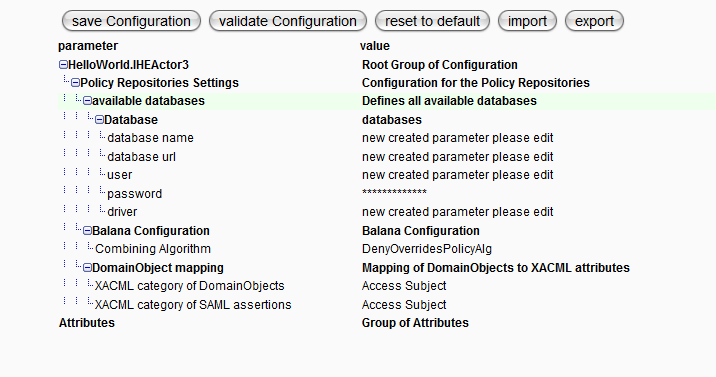
Clicking in the space between the "parameter" and "value" columns will select a single row in the table. The selected row will be highlighted in green, allowing you to add or remove groups or parameters.
In our case, if you clicked on "available databases", you can add another Database group. If you right-click on the row and select the add... menu, the following context menu will open:
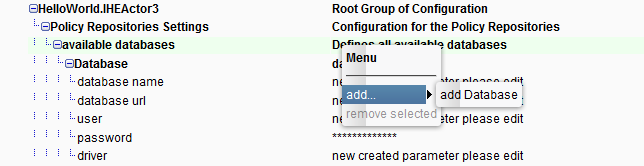
Choosing the command add Database will add a new Database group along with all appropriate child elements (only groups and parameters with a minimum cardinality of >= 1 will be added).
By clicking the validate Configuration button at the top of the panel, a window will be displayed if there are any validation errors or warnings. Otherwise, a simple confirmation dialog will appear.
In our example, changing the value of an integer field to "2a" results in a validation event shown below:
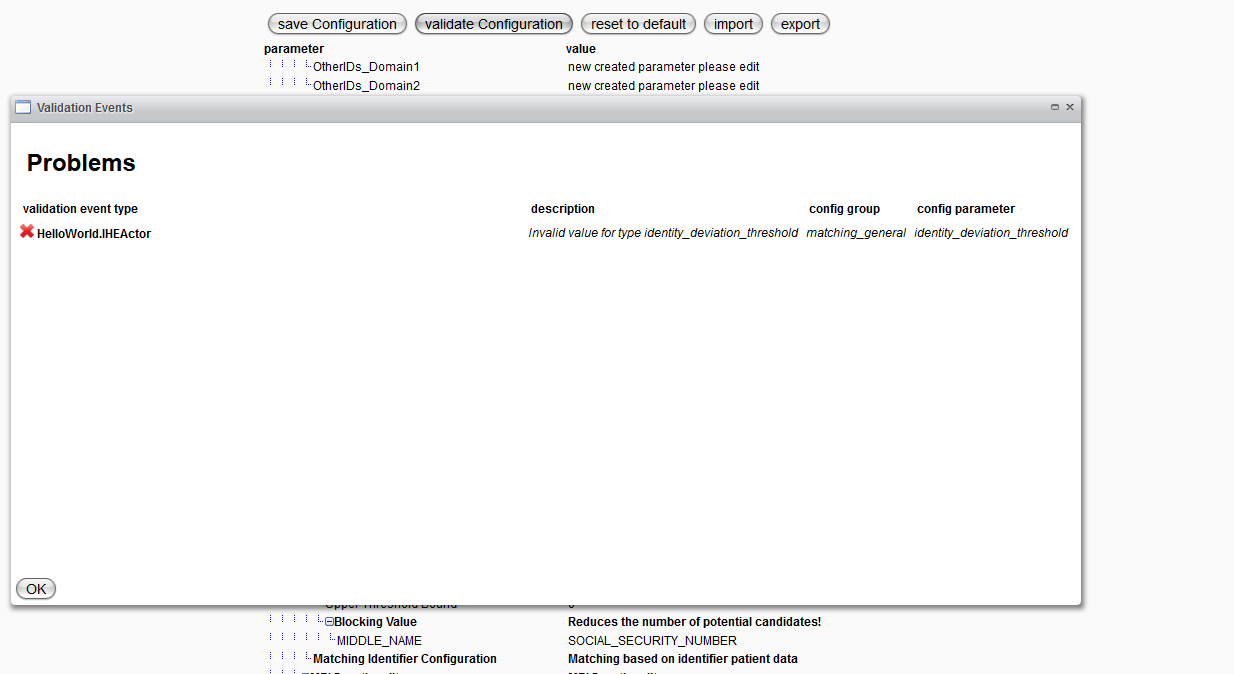
Once you have finished editing, validation will be triggered automatically, and the appropriate results will be displayed immediately in the editor view.
Groups and parameters will be highlighted in red for errors, yellow for warnings, and green for informational events.
