Create a cell connection with automatic configuration
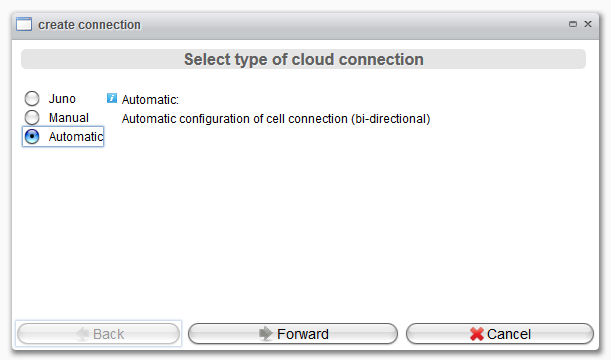
To generate a cell connection, press the Add button below the connection overview table. A wizard dialog will open to assist you in creating a cell connection. Select "Automatic" for automatic setup between two trusted Orchestra servers.
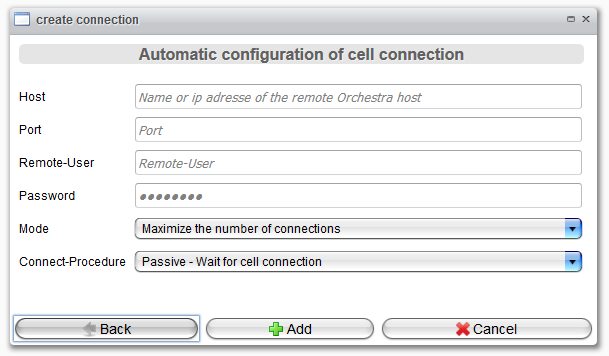
After clicking Forward, the next wizard page will appear. Here, you will configure the basic settings required for the automatic configuration.
| Attribute | Description |
|---|---|
| Host | Host name or IP address of the Orchestra server to be connected to the local Orchestra installation. |
| Port | The port that exposes the remote web-services-api of the Orchestra management interface. |
| Remote-User | The name of the user that will be used to connect to the remote Orchestra. |
| Password | The password used to authenticate the automatic configuration request. |
| Mode | This setting defines the number of connections to be created when the connected cells are set up as an Orchestra cluster. Maximize the number of connections: Orchestra tries to maximize the connections between the related cell nodes. If cell A has n nodes and cell B has m nodes, m * n connections will be created. Minimize the number of connections: Orchestra tries to minimize the connections between the related cell nodes. If cell A has n nodes and cell B has m nodes, the number of connections will be defined by max(n, m). |
| Connect-Procedure | Defines which cell is responsible for initiating the connect procedure. Passive - Wait for cell connection: If this option is selected, the local node will wait for an incoming connection from other cell nodes. Active - Connect to other node: If this option is selected, the local node will be responsible for connecting to the remote cell. |
note
The names of the cell connections are automatically derived from the configuration of the connected cell nodes. The password needed for the cloud connection will be created automatically.
Finally, click the Add button to save the connection.