Starting and Stopping a Scenario
A scenario can have two different states: activated  or
or deactivated  . When a scenario is activated, the corresponding process models can be triggered and executed as intended. Conversely, if a scenario is deactivated, all integrated components will halt execution and cannot be triggered again until the scenario is activated.
The various methods for activating or deactivating a scenario are described in the following chapters.
Using the Context Menu
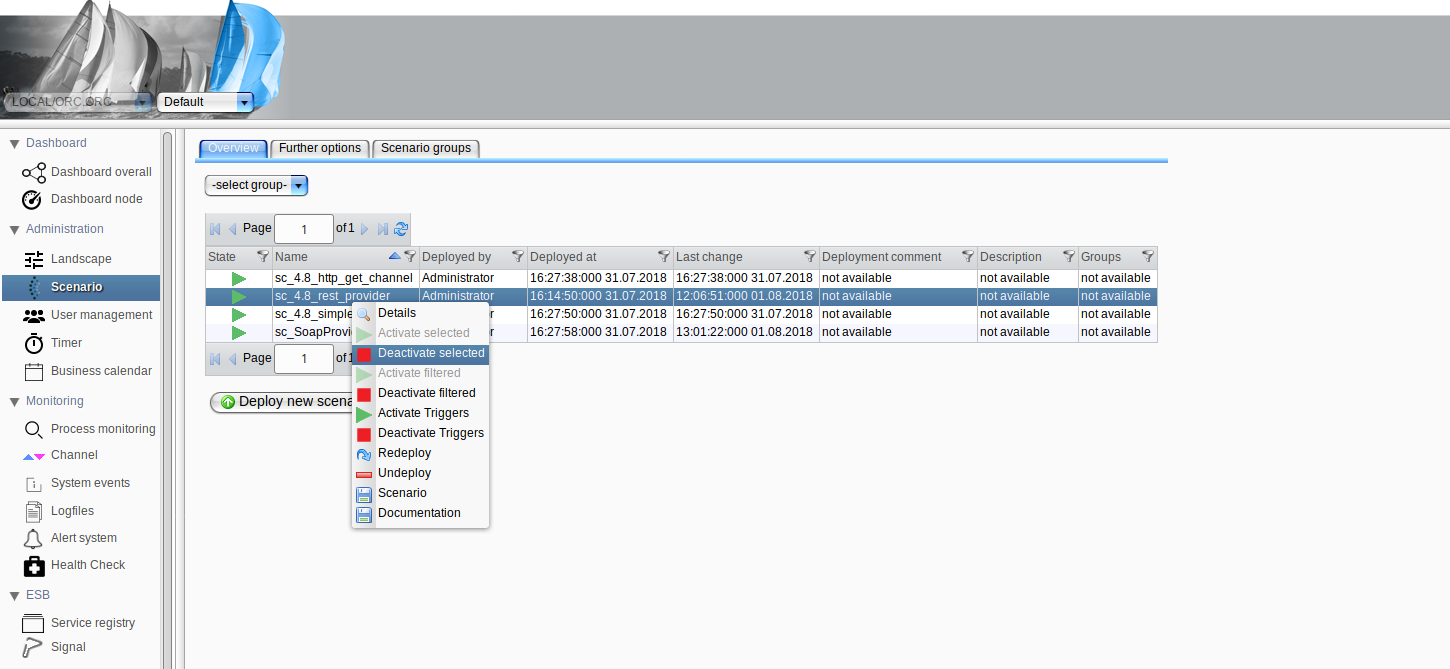
Select one or multiple scenarios in the table and perform a right-click. A context menu will open, providing several options for activating or deactivating scenarios.
-
Activate / Deactivate Selected will activate or deactivate all scenarios currently selected in the table.
-
Activate / Deactivate Filtered will activate or deactivate all scenarios matching your filter criteria.
By default, no filter is applied, but you may create a Scenario Group and use it as a filter to activate or deactivate all scenarios included in that group simultaneously.
Using the Scenario Detail View
Select a single scenario and perform a right-click, or right-click directly on the scenario and select "Details" from the context menu. A dialog will appear, displaying additional details about the scenario. At the bottom of the dialog, you will find the buttons "Activate Scenario" and "Deactivate Scenario," which function according to their labels. Further details can be found in the chapter on Scenario Group.