Version: 5.3.0.0

Remote Monitoring

Orchestra supports remote monitoring of Orchestra nodes, regardless of the run mode configured (Standalone, Cluster, or Cell). You can utilize nearly all functions of monitoring and administration for each connected node.

To start your monitoring session, select a connected node from the dropdown in the upper left corner of the navigation bar.

This quick guide provides the conditions and requirements, as well as a step-by-step process for connecting another node to your Manager.

Step by Step​

  1. Log in to your Orchestra Monitor and enable the user role Remote.Administrator for each node you wish to connect

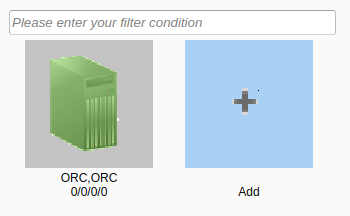
  2. Navigate into the Remote Monitoring-Section in the Sidebar of the Monitor and select the Add button. add node
  3. Choose the type of monitoring connection: either HTTP-Connection or Cell-Connection.
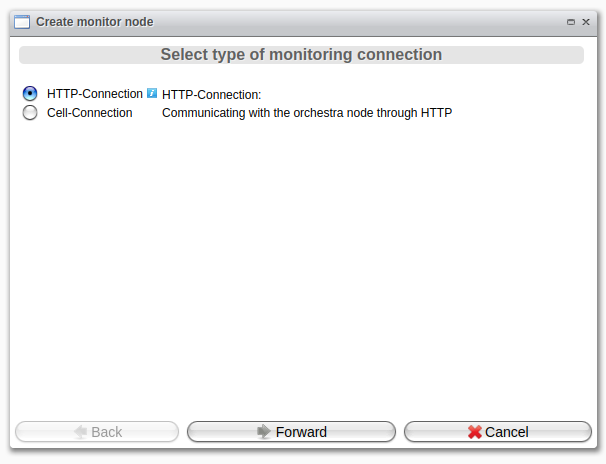
    type selection

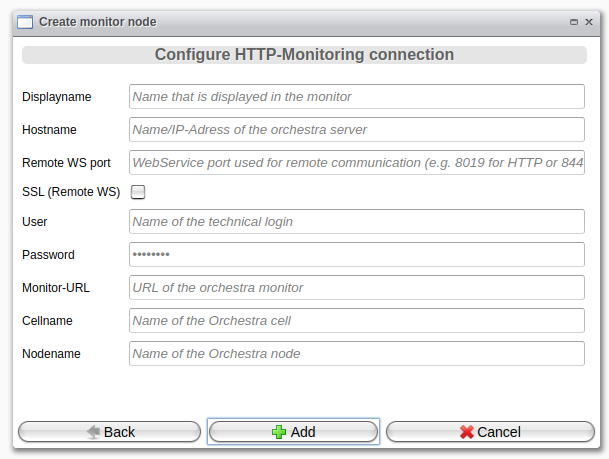
http node
  • Displayname
    Display name for the remote node
  • Hostname
    Hostname of the remote node configured in environment_settings.xml
  • Remote WS port
    WebService port used for remote communication
  • SSL
    Use SSL Connection
  • User
    User authorized to access the remote node
  • Password
    Associated password for the user
  • Monitor-URL
    URL of the Orchestra Monitor
  • Cellname
    Name of the Orchestra Cell
  • Nodename
    Name of the Orchestra Node
  • Button Add
    Add the node to the monitoring list
  • Button Cancel
    Discard any changes made
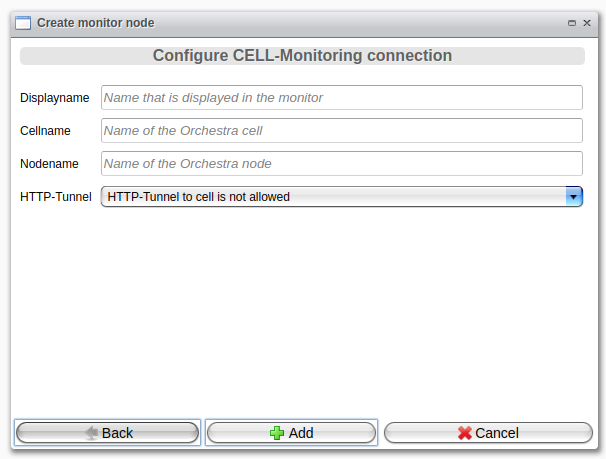
cell node
  • Displayname
    Display name for the remote node
  • Cellname
    Name of the Orchestra Cell
  • Nodename
    Name of the Orchestra Node
  • HTTP-Tunnel
    Enable or disable HTTP tunneling to the cell
  • Confirm your changes by pressing Add or discard them by pressing Cancel.
  • To delete the node, right-click on it and select Delete.