Cluster Configuration
This guide outlines the necessary adjustments for setting up an Orchestra Cluster Environment based on the standard Orchestra installation.
Orchestra Cluster Configuration
-
Navigate to
tomcat_home\webapps\orchestra\WEB_INF\classes\config\or in case of the Standalone Version\base\classes\config. -
Open the file
environment_settings.xmlusing your preferred text editor. -
Scroll down to the section
<General node settings>. -
Change the value of the parameter
modetoCLUSTERNODE. -
Change the value of the parameter
nodeidto define a name for this cluster node. -
To enable the failover function, set the parameter
clusterswitchtoon. -
To enable the load balancing function, set the parameter
loadbalancingtoyes. -
Move to the section
Parameters for cluster environmentbelow. -
Change the value of the parameter
node.ipto define the IP address for this cluster node. -
Change the value of the parameter
node.portto define the port for this cluster node.
The configuration must be completed for both nodes.
<parameter name = "language" 	                value = "en"/>
<parameter name = "mode" 	                value = "STANDALONE"  choice="STANDALONE|CLUSTERNODE"/>
<parameter name = "nodeid" 	                value = "ORC"/>
<parameter name = "node.label" 	                value = "ORC"/>
<parameter name = "cellname" 	                value = "ORC"/>
<parameter name = "deploy.path"	                value = "../../tmp/deploypath"/>
<parameter name = "external.config.dir"	        value = "{basepath}/installation"/>
<!--
| Parameters for cluster environment
| ==================================
| ...
-->
<parameter name = "node.ip" 		        value = "<Insert Node Id here>"/>
<parameter name = "node.port" 		        value = "<Insert Node Port here>"/>
<parameter name = "node.heartbeat" 		value = "30"/>
<parameter name = "loadbalancing" 		value = "yes"/>
<parameter name = "fifoloadbalancing" 	        value = "no"/>
<parameter name = "clusterswitch" 		value = "on"/>
<parameter name = "cluster.timout" 		value = "20000"/>
<parameter name = "processmonitoring.mode"	value = "PERSISTENT" 	choice="PERSISTENT|VOLATILE"/>
<parameter name = "cluster.tcpMode" 		value = "SSL"			choice="SSL|PLAIN"/>
Important Parameters
In addition to the parameters mentioned above, the following parameters are also recommended to be changed if necessary:
| Parameter | Description |
|---|---|
language | Defines the default language of the current Orchestra node. |
mode | Defines the operation mode of the current Orchestra node. |
nodeid | Defines the unique name of this node. Only letters, digits, and '-' are allowed. The maximum length must not exceed 10 characters. |
deploy.path | Temporary directory used during the deployment of scenario elements. |
loadbalancing | Defines the load balancing behavior of Orchestra. Valid only in cluster mode: • yes: Orchestra performs automatic load balancing of processes. • no: Load balancing is disabled. |
fifoloadbalancing | Defines load balancing behavior for FIFO-scheduled processes. If load balancing is disabled, this has no effect. Otherwise, the following settings apply: • yes: Load balancing of FIFO-scheduled processes. • no: Only best effort processes are load balanced. |
clusterswitch | Defines the error behavior when a cluster node crashes: • on: All persistent processes are automatically switched to an available node. • off: Orchestra does not perform cluster switches. |
cluster.timeout | Defines the timeout in milliseconds for TCP communication between cluster nodes. |
maxMemoryUsage | Defines a threshold (in percent) for memory consumption. When memory usage exceeds this value, Orchestra forces subsystems to store newly created objects in the database. Allowed values are 50-100. (Note: The maximum available memory is defined by the global virtual machine settings.) |
node.ip | Defines the IP address of this cluster node. |
node.port | Defines the port used for the inter-cluster node protocol. |
node.heartbeat | Defines the time interval (in seconds) used to monitor cluster nodes. |
Cluster Node States
For each node in the cluster environment, a global state is maintained. This state can be found in the database table ORC_CLUSTER_ENVIRONMENT.
| State | Description |
|---|---|
| ACTIVE | The node is running and can be reached by the cluster heartbeat. |
| INACTIVE | The node is not reachable by the cluster heartbeat. A repeat test of the heartbeat failed. The node is marked as "INACTIVE" due to potential network issues, hardware failures, or Orchestra software crashes. |
| SHUTDOWN | The node is currently shutting down; this was initiated manually by a user. |
| SHUTDOWN.OK | The node is down. The shutdown was manually initiated by a user. |
This state affects the behavior of Orchestra:
| Condition | Orchestra Deployment Behavior |
|---|---|
| All nodes have the state "ACTIVE". | A deployment is allowed without any restrictions. Orchestra ensures that all nodes are synchronized post-deployment. |
| A mixture of "ACTIVE," "SHUTDOWN," or "SHUTDOWN.OK" states. | A deployment is also possible. Nodes in "SHUTDOWN" or "SHUTDOWN.OK" receive their new configuration during startup. |
| One node is in the state "INACTIVE." | A deployment is not possible. This restriction is in place as Orchestra cannot guarantee consistency across all nodes. |
Cluster Switch
When Orchestra detects inactive nodes, an automatic cluster switch occurs when the configuration parameter clusterswitch is set to "on".
During the cluster switch, all persistent processes are transferred from the inactive node to the active node. Volatile processes are not automatically moved. Volatile processes with recovery are restarted on the active cluster node from the start event of the processes.
It requires three invalid cluster heartbeats before a cluster switch is executed.
The time interval between heartbeats can be configured with node.heartbeat
A cluster switch for a request is possible when it has been saved to the database. There is no active replication of memory or connections between the Orchestra nodes.
All requests that were active when the cluster node crashed will be discarded if they have not been permanently written (committed) to the database.
Cluster Heartbeat
To view the current state of the cluster, refer to the table ORC_CLUSTER_ENVIRONMENT.
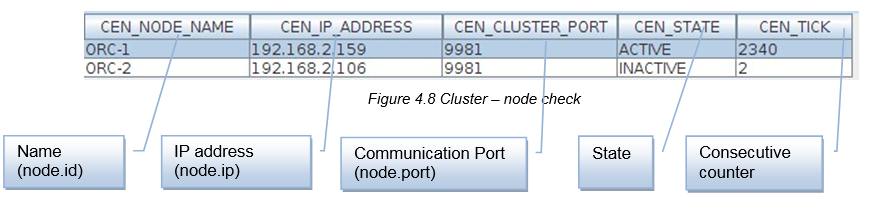
The status INACTIVE will be removed under the following circumstances:
-
When the Orchestra node is restarted, the state changes to
ACTIVE. -
It can be manually changed by an operator (not recommended). Ensure that the Orchestra node is indeed down before changing the state to
SHUTDOWN.OK.
Load Balancing
Load balancing is utilized to ensure a uniform distribution of work across all cluster nodes. The load balancing mechanism of Orchestra distributes the execution of process instances among the cluster nodes. When a process execution is initiated, the local node determines whether to distribute the process to another node. If the decision is affirmative, the process instance is transferred to the target cluster node, which then assumes responsibility for the execution.
The distribution mechanism in Orchestra operates based on a round-robin protocol. This protocol alternates the distribution of processes to the nodes regardless of their load. For example, if Orchestra creates four process instances (P1, P2, P3, P4), the round-robin distribution occurs as follows:
-
P1 - Local node
-
P2 - Remote node
-
P3 - Local node
-
P4 - Remote node
When load balancing is disabled, the processes are executed on the node that originally received the start event for those processes. This setting does not impact the cluster switch. During a cluster switch, all processes are transferred to the active node.
Orchestra does not implement hardware load balancing for different channels, as this is highly dependent on the protocol. For instance, if HTTP load balancing is required, additional software or hardware solutions must be employed.
When using load balancing, ensure at design time that resource conflicts are avoided. To prevent these conflicts, configure the process model for sequential processing (refer to "Scheduling" in the Designer Manual for further details).
For example, if error handling is decoupled from the actual process processing and errors are intended to be logged to a file, both Orchestra nodes may attempt to access the file simultaneously. This scenario can lead to conflicts, which can only be mitigated through the sequential execution of the individual process instances.
Additional Information
-
All configured scenarios are active across all cluster nodes.
-
When a scenario is initiated by a timer trigger, only the Orchestra node activates this trigger. This behavior is essential to prevent multiple executions of the same process. One of the cluster nodes is designated as the master, which is responsible for executing timers.
-
If load balancing is not configured, the timer scenarios are executed solely on the master node.
-
If load balancing is enabled, the timer scenarios are distributed across the nodes.