Activating a License
How to Activate your License
Use the product license response-File that you received from Soffico. If the license upload is successful, the Orchestra core license will be displayed in the Product Licenses table.
-
Click Upload Product License.
-
Click Choose File and select the
response-File. -
Enter the product license key.
-
Click the Upload button.
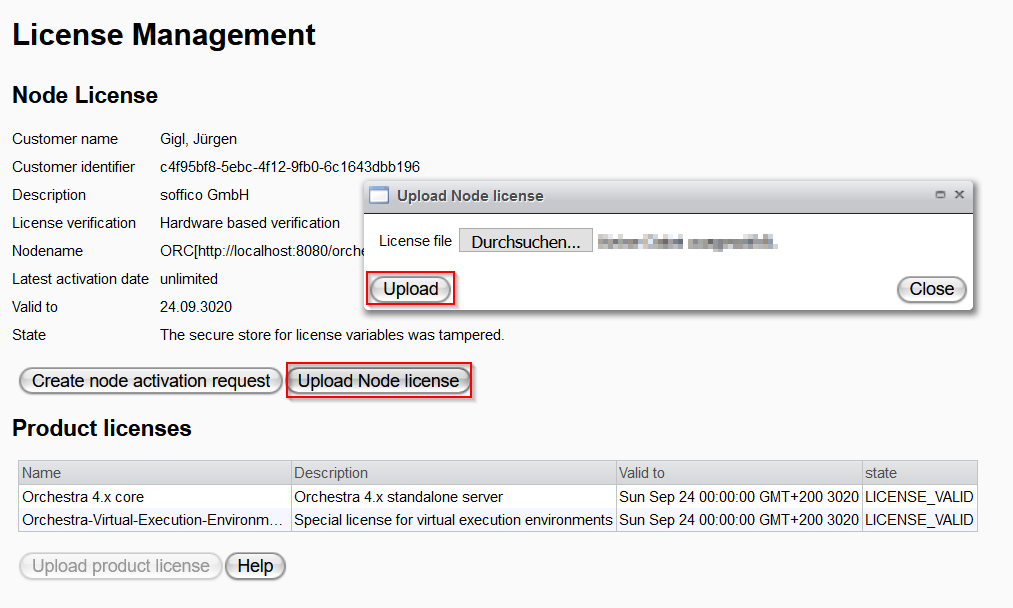
After uploading your license your Node will be fully activated and you can use all of Orchestras features that are bound to your license and specified in your contract.
If you should face any issues during this process please feel free to contact licensing@soffico.de. and we will help you with your request.
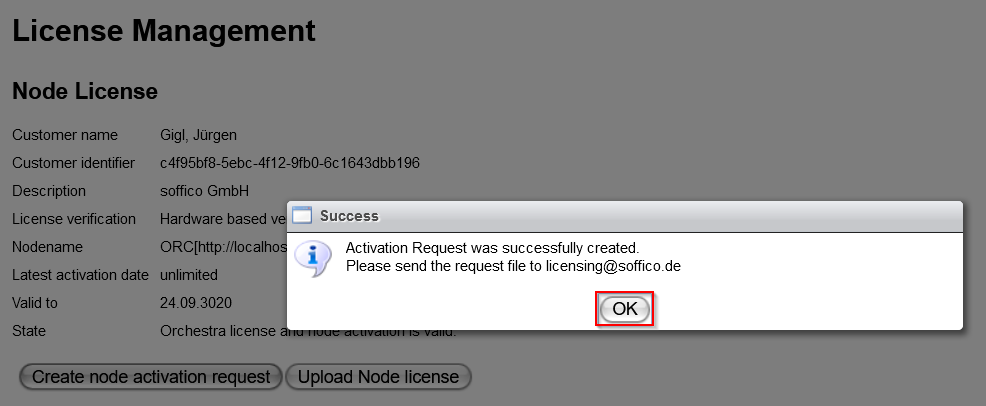
Updating a Product License
-
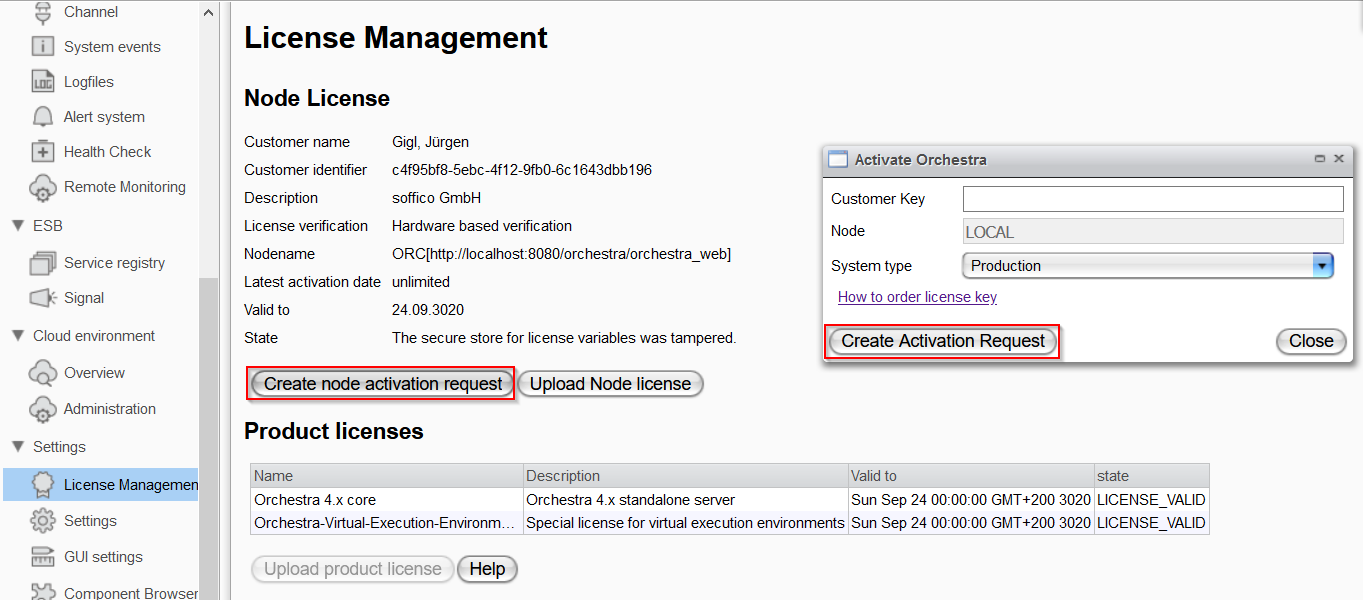
In the "Settings" menu, click on "License Management".
-
Click "Update Node License".
-
Select the appropriate system type.
-
Create an update request file by clicking on "Create update request".
-
Now carry out the above Steps according to your license variant.
-
After you have imported the response file and, if applicable, the corresponding product file, Orchestra is successfully licensed again.