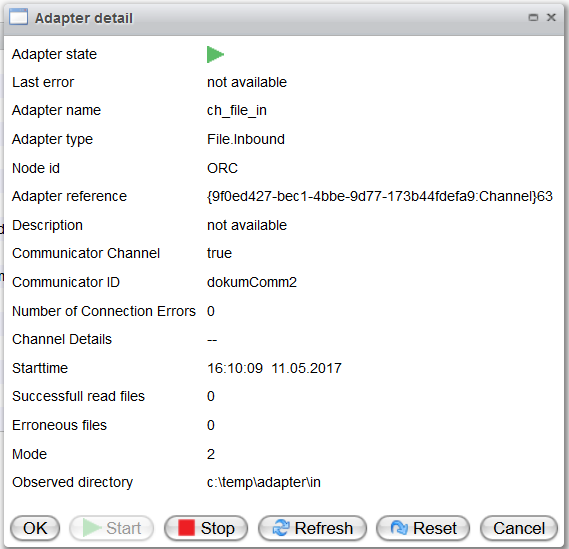
Channel
The status of each channel in a scenario can be monitored separately. You can start, stop, and reset channels independently, which is useful for managing components such as a file channel that should not be used in the runtime environment.
Channel Table
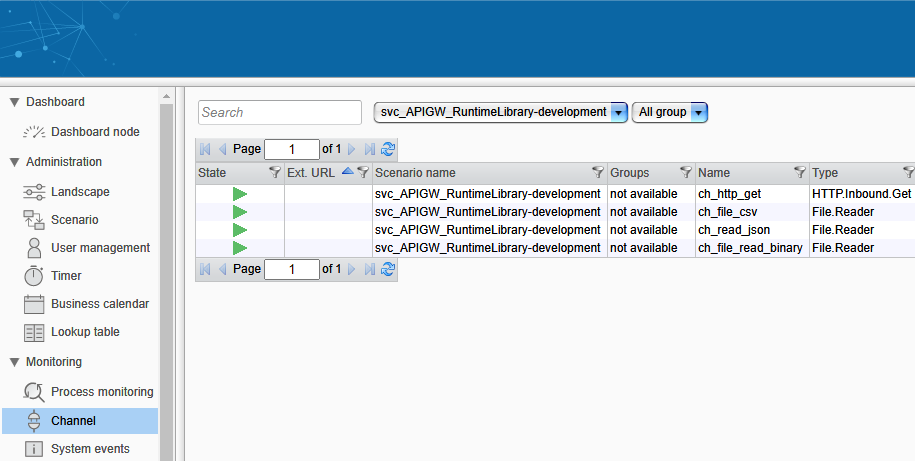
A channel can have one of the following states:
- ⏹️ Stopped
- ▶️ Started
- ❓ Undefined
Right-clicking on a channel in the table will open a context menu with various control options. Among these, an adapter (i.e., channel) may be Stopped, Started, or Reset.
The list column "Location" is specific to the cloud version. It identifies the Orchestra instance on which the channel is running. For further information, see the Cloud Environment section.
Channel Details
Detailed information about a channel will be displayed when you double-click it in the channels table, including URL and the number of ingoing/outgoing messages.
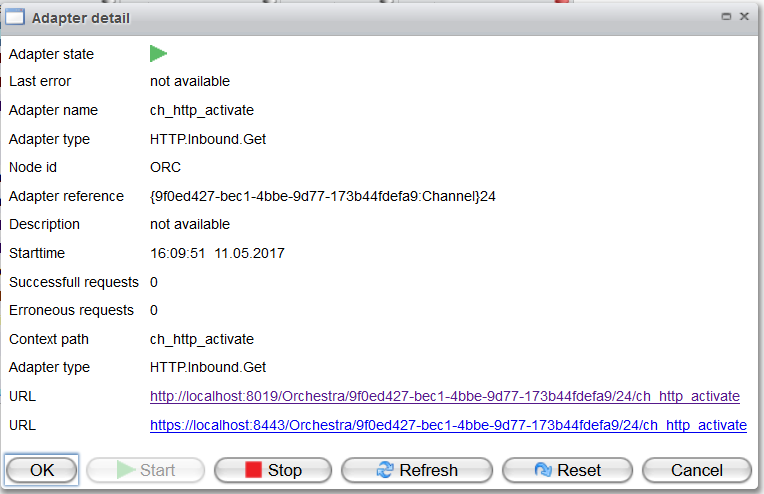
If the channel is running on a Juno instance, additional information will be available, such as details for a file inbound channel: