Process Monitoring
There are two sources of information regarding process instances: the Runtime database, which holds data about current and recently executed process instances, and the Longtime Archive, which stores information about process instances that were executed a long time ago.
Process Overview
Process monitoring allows you to oversee all running and completed processes.
In the Overview table, you can identify whether there have been faulty or broken process instances for a scenario (red light) or if all previous runs completed successfully (green light).
The columns "Finished", "Running", "Aborted", "Warning", and "Paused" indicate the number of process instances in each corresponding state.
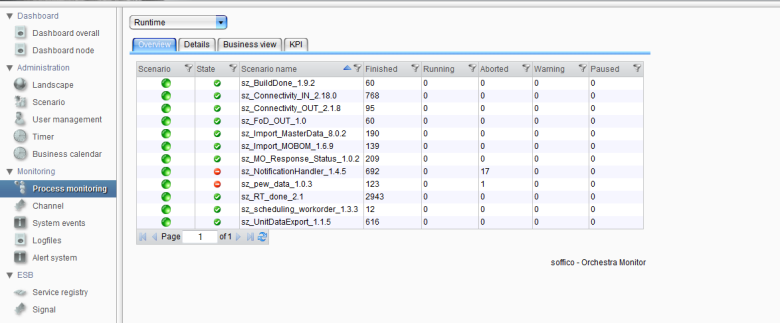
Process monitoring - Overview
If n/a appears instead of the counter of processes per state, you will need to recalculate these counters. For more details, refer to Scenario Further Options
Processes from Long Time Archive
The Long Time Archive serves as long-term storage for Orchestra process information.
Select Archive from the dropdown menu to view entries from the Long Time Archive:

Detailed Process Information for a Specific Scenario
To access more detailed information about process instances, double-click the desired scenario. This will navigate you to the details view, where you can find the name, process start and end time, as well as business-key information for all running processes in their current state.
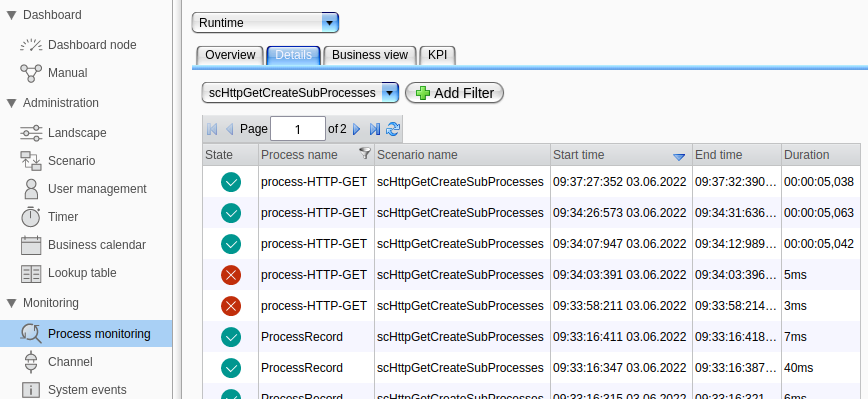
Process monitoring - Scenario Details
A process state will be represented by one of the following symbols:
 Running
 Finished
 Error
Error Warning
Filtering
To narrow down the process selection, you can apply a filter for the displayed processes. The filter can be configured in the detail view.
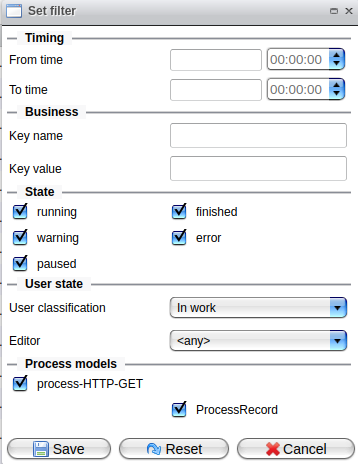
In this section, you can set up the filter according to your desired criteria.
For example, you might filter all process instances where User classification is set to In work.
When searching for a business key, the database table "orc_process_state" will be scanned. Each time a process instance is executed, the business keys (key/value pairs) are stored as strings with a maximum length of 1024 characters.
A more flexible search option is available in the tab "Business view".
Support Maintenance by Using User-defined Process State
Orchestra provides an option to assist the maintenance team in managing failed process instances.
In the settings of the Process Details table, you can add the columns "User classification", "Comment", and "Editor" for display:
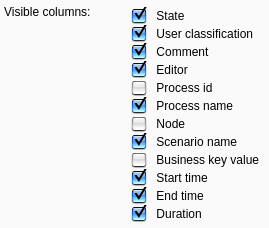
The Process Details table will then appear as follows:
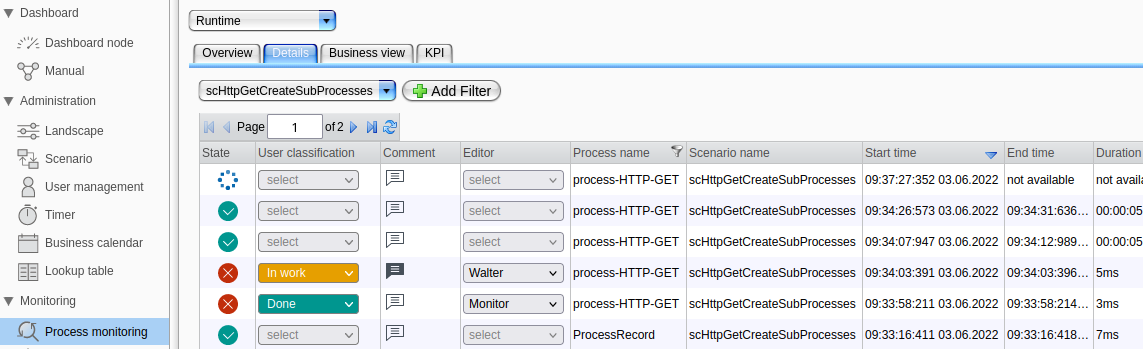
If a user possesses the role "Change.process.user.state", they will be able to select and modify values in the added columns.
By right-clicking on the state symbol of an aborted process, you can indicate whether the process was aborted due to a processing error or due to invalid data.
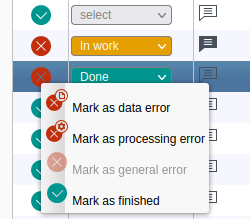
It is even possible to set the state to finished!
In the "Editor" column, you can assign a process instance to a user with the role "Change.process.user.state". Typically, maintenance team members will have this role. For information on assigning roles to users, refer to "Edit User - assign access rights".
In the "User classification" column, you can select from the following values: In work, Not relevant, or Done. If the "Editor" column has no value, the currently logged-in user will be selected automatically.
Clicking on the icon in the "Comment" column opens a dialog where you can add comments about the process instance:
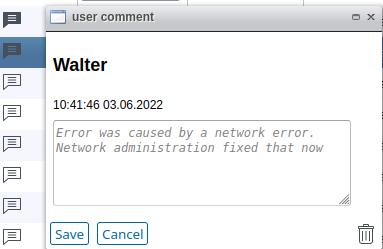
You must have the role "Change.process.user.state" to assign a comment.
Execute Processes Again
You can re-execute Orchestra processes using their initial start parameters. To enable this feature, set the Manual restart option during the design phase of the Process models (see "Process models" in Designer Manual for more information).
After right-clicking on a process in the "Details" tab, the context menu will present three commands to execute the process again:
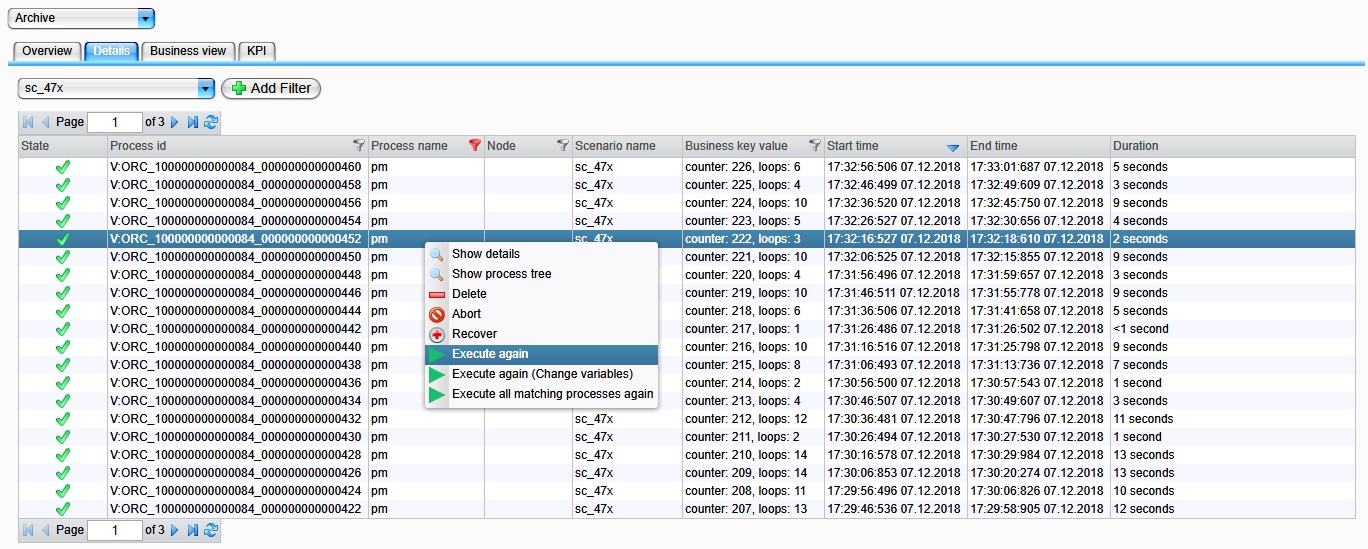
Execute again: Execute the currently selected process again using the original start parameters.Execute again (Change variables): Execute the currently selected process again, allowing the user to modify the start parameters beforehand.Execute all matching processes again: Execute all processes that match the current filter condition.
Delete Processes Manually
To delete processes from the Orchestra Monitor, select them and access the context menu by right-clicking on one of the selected items. Choosing the Delete command will prompt the Monitor to release and delete them whenever possible. Running processes will also be removed.
Once the dialog is closed, the deletion process cannot be canceled!
If an interruption occurs, the system must be restarted.
Be aware that careless handling of the deletion feature can lead to data loss!
If LTA is enabled, the runtime information of manually deleted processes will be moved to the Long Time Archive instead of being deleted. This option helps prevent data loss.
Show Detailed Process Log
You can view the details of a process model by double-clicking a process instance. For more information, see the chapter "Show details process log".
In the detail panel, you may also change the user-defined process state.