Threads & Resources
The ThreadDump Logging feature enables the periodic writing of thread dumps for the Orchestra runtime. They can be enabled in the Settings of the Orchestra Monitor. Settings > Environment Settings > Logging
This feature is useful for diagnosing performance issues, as it provides a snapshot of the state of all threads in the Java Virtual Machine (JVM) at a specific point in time.
You can find the configuration details here.
jVisualVM
jVisualVM is an advanced tool for monitoring and troubleshooting Java applications. It provides a graphical interface to analyze the performance of Java applications, including memory usage, CPU load, and thread activity. With jVisualVM, you can:
- Analyze the memory consumption of the Java Virtual Machine.
- Obtain a Heap Dump.
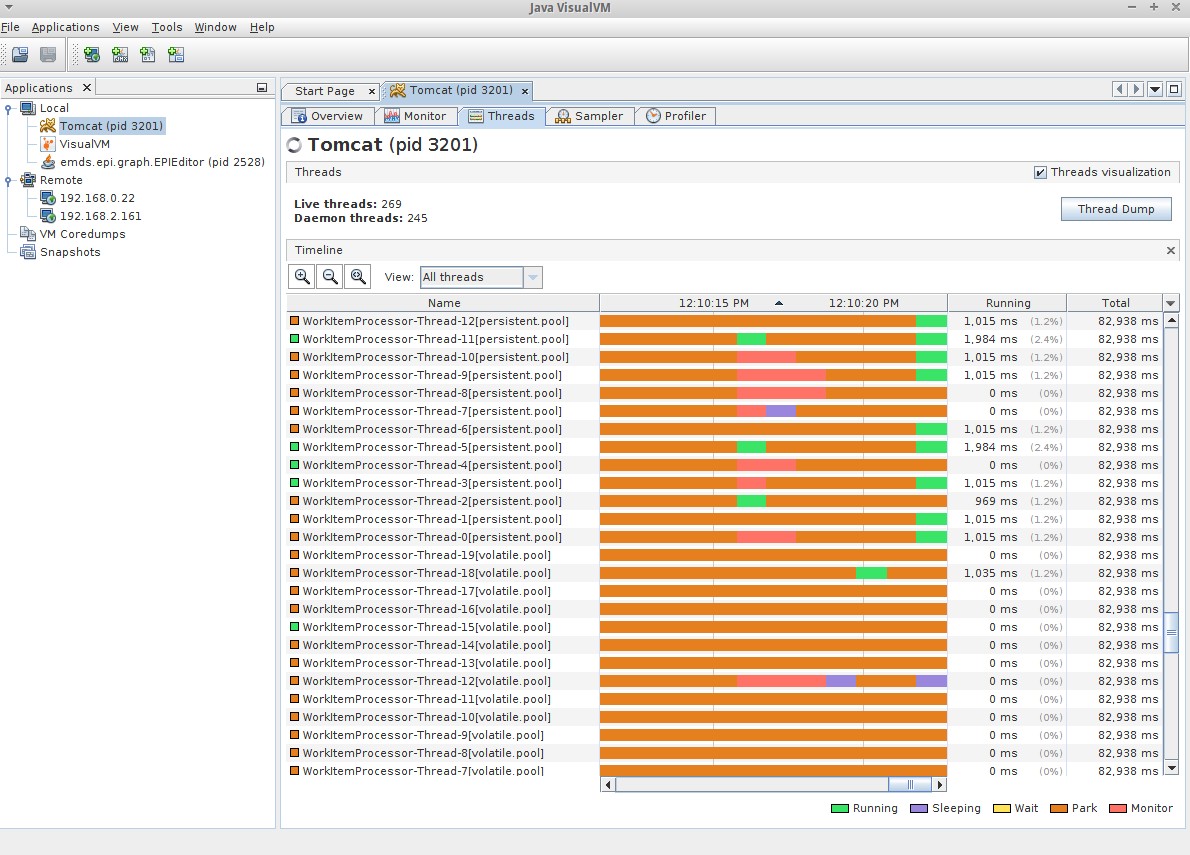
- Analyze the threads.
- View the Thread Dump, which shows the current activity of the threads.
- jVisualVM is only available in the Java Development Kit (JDK).
- The JDK must be the same version or newer than the Java version on which Orchestra is running.
- When a Heap Dump is obtained, the JVM is suspended, and memory is written to a file.
- The size of a Heap Dump depends on the memory consumption of the Orchestra process (e.g., 2 GB, 8 GB).
- The Heap Dump file is stored on the server where Orchestra is running, even when jVisualVM is connected remotely.
Tomcat Configuration
To use jVisualVM, the following parameters must be set in Tomcat:
-Dcom.sun.management.jmxremote.port=9999
-Dcom.sun.management.jmxremote.ssl=false
-Dcom.sun.management.jmxremote.authenticate=false
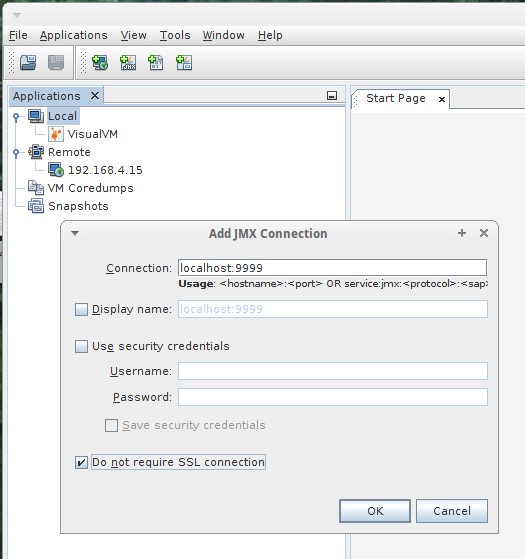
After applying these configurations, you can connect jVisualVM to the computer on port 9999.
If the server has multiple network interfaces, you may need to bind the RMI process to a specific IP address:
-Djava.rmi.server.hostname=192.168.4.15
jVisualVM Local
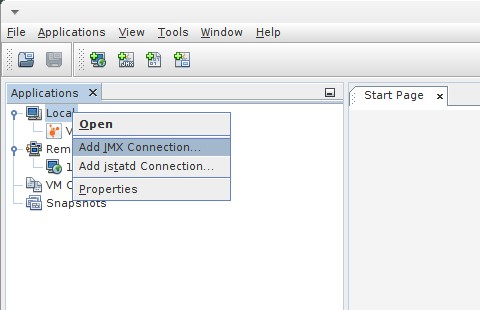
If jVisualVM is launched on the same machine where Orchestra is running, use the context menu on the Local item to add a JMX Connection:
Insert the configured port here:
jVisualVM Remote
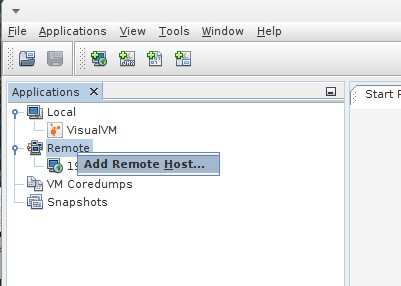
If jVisualVM is started remotely, you must first create the remote host. Access the context menu on the Remote item and select "Add Remote Host...".
Insert the IP address or the hostname:
Next, you need to add a JMX Connection. Access the context menu on the selected remote host, select "Add JMX Connection...", and enter the configured port:
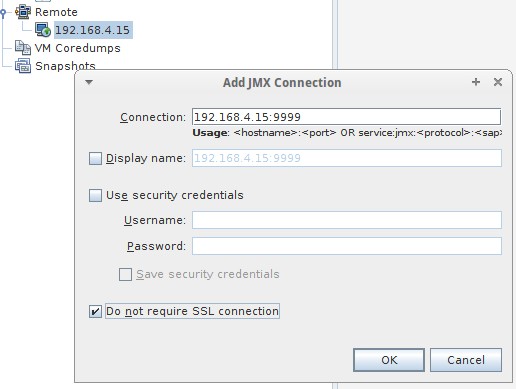
jVisualVM is now configured, and you can double-click to open the connection to the JVM of Orchestra.
Use jVisualVM
The screenshots below illustrate how to use jVisualVM. To obtain a Heap Dump, click the Heap Dump button in the upper right corner of the Monitor tab.
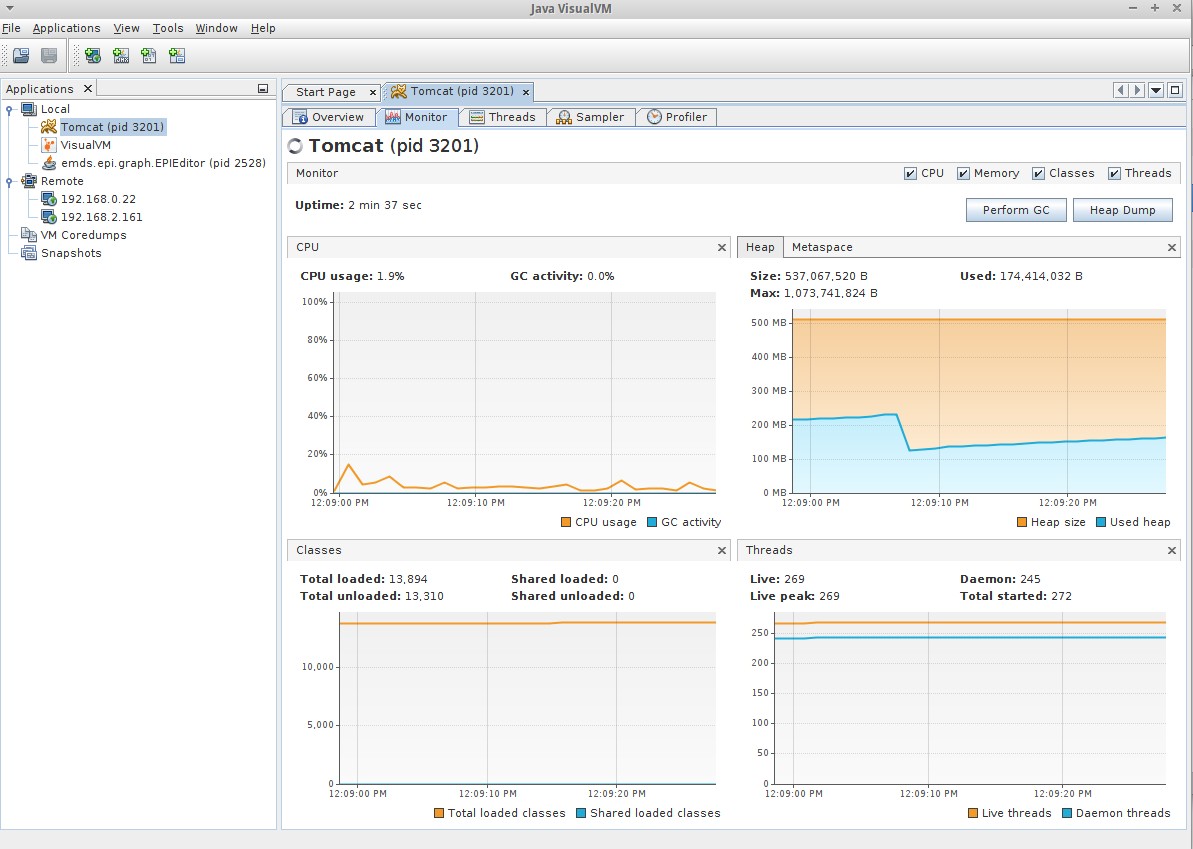
To obtain a Thread Dump, click the Thread Dump button in the upper right corner of the Threads tab.