Password Management
Sensible data, such as passwords and usernames, is always encrypted before being stored in a database, on the file system, or retained in memory. This process makes it significantly more challenging for unauthorized individuals to access and retrieve sensitive information.
Since Orchestra version 4.8.1.0, an improved security mechanism has been implemented, as described in this chapter.
To ensure the security of your system it is highly recommended to use the password manager to set your passwords.
Encryption Mechanism
Orchestra employs a key derivation principle for the encryption of sensitive data. This technique generates multiple cryptographically strong passwords from a master password. Specifically, two additional passwords are generated: an internal password used for encrypting sensitive data stored in the Orchestra memory, and an external password used for encrypting data before it is saved to any persistent storage (such as a database or configuration files).
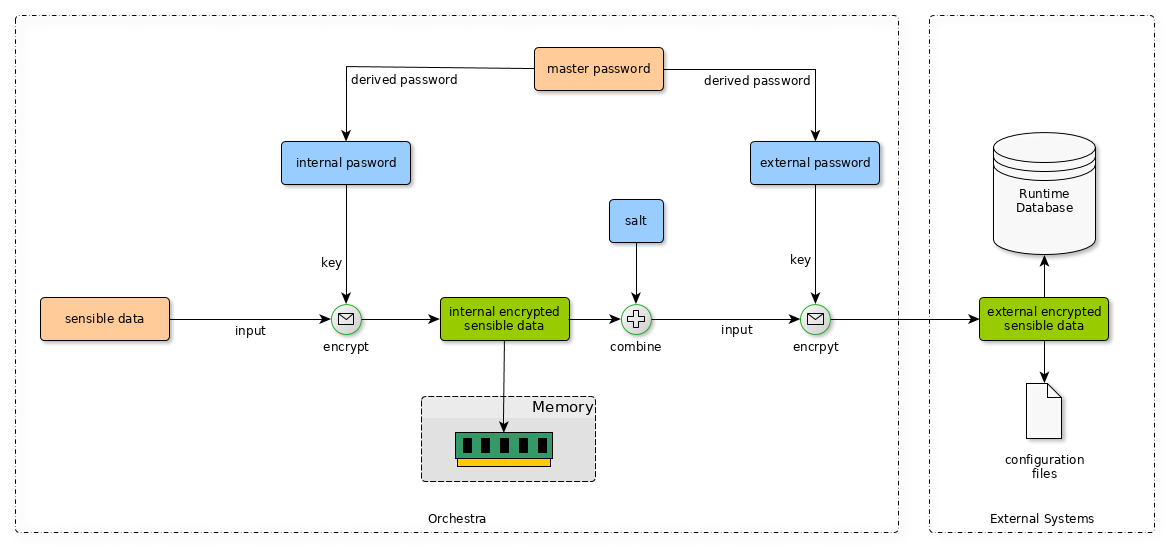
To ensure that encrypting the same content multiple times does not yield identical results, Orchestra uses a salt to obfuscate the original content.
For secure encryption, Orchestra adheres to the following cryptographic standards:
- PBKDF2WithHmacSHA1
- PBKDF2WithHmacSHA512
- AES
Mode: Default Master Password
This mode has been the default in all previous versions of Orchestra. In this mode, a built-in master password is utilized for encryption, rendering it less secure. Consequently, anyone with access to the encrypted content could potentially decrypt it.
Mode: Custom Master Password
This new security mode supports custom master passwords for each Orchestra installation and is the recommended approach for protecting your data from unauthorized access.
Activation
To activate this mode, use the wizard available in the Password Manager. The wizard will guide you through the necessary steps and generate a master secret directly from your entered custom master password. To enable encryption and decryption, you must provide this secret to Orchestra.
Methods for Bypassing the Secret
To bypass a generated secret, you must supply it to Orchestra as a Java property during startup. There are two methods, and depending on your environment, one may be more suitable than the other. There is no technical difference between the two methods.
Bypassing via String
In this method, the secret is provided directly as a string to Orchestra. This approach is straightforward and eliminates concerns about read permissions. To use this method, add the following property to your Java environment:
-Dorchestra.master.secret=<master-secret>
Bypassing via File
This method is similar to bypassing as a string, except the secret is saved to a file, which is then referenced. The file should contain nothing but the secret (no line breaks, newlines, tabs, or any other characters). For this method, you need to add the following property to your Java environment:
-Dorchestra.master.secret.file=<absolute-path-to-the-file>
Example Configurations
For all examples, we used the Password Manager wizard to encrypt everything with our custom master password, which provided us with the secret to bypass to Orchestra. For simplicity, we will bypass the secret as a String by adding this Java property:
Example
-Dorchestra.master.secret=jksryFIDWciMcUm276a5Rk0K/cmq+kUDPdx1DasYAg3Mg34=
Windows with Tomcat as a Service
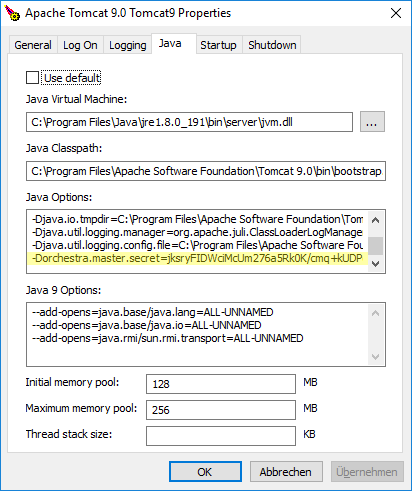
In this example, we are using a Windows 10 installation with Tomcat 9 installed as a Windows service. This approach should also work on all Windows server installations or can be easily adapted. Open the Configure Tomcat App from the Start menu (or Tomcat9w.exe), navigate to the Java tab, and add our property to the Java Options text box. The screenshot below shows the newly added property highlighted in yellow.
Linux with Tomcat as an Application
In this example, we use Tomcat as a simple application, started with the script tomcat/bin/startup.sh and stopped with tomcat/bin/shutdown.sh. In such installations, it is best practice to add Java or Tomcat properties to the tomcat/bin/setenv.sh script. For some installations, you may need to create this file if it does not exist.
If the script is not present, create a new file named tomcat/bin/setenv.sh. To provide additional context, we can include documentation at the top of the file. The final contents will be as follows:
setenv.sh
#!/bin/sh
#
# -----------------------------------------------------------------------------
# Beginning of the documentation cutout from the catalina.sh script
# -----------------------------------------------------------------------------
# Control Script for the CATALINA Server
#
# Environment Variable Prerequisites
#
#   Do not set the variables in this script. Instead put them into a script
#   setenv.sh in CATALINA_BASE/bin to keep your customizations separate.
#
#   CATALINA_OPTS   (Optional) Java runtime options used when the "start",
#                   "run" or "debug" command is executed.
#                   Include here and not in JAVA_OPTS all options, that should
#                   only be used by Tomcat itself, not by the stop process,
#                   the version command, etc.
#                   Examples are heap size, GC logging, JMX ports, etc.
# -----------------------------------------------------------------------------
# End of the documentation cutout from the catalina.sh script
# -----------------------------------------------------------------------------

# The generated secret for Orchestra
ORC_SECRET="jksryFIDWciMcUm276a5Rk0K/cmq+kUDPdx1DasYAg3Mg34="

# Add the property to the CATALINA_OPTS
CATALINA_OPTS="$CATALINA_OPTS -Dorchestra.master.secret=$ORC_SECRET"

# Export the opts as a system variable
export CATALINA_OPTS
``