Firewall Settings
The configuration settings described in this chapter affect only Orchestra itself and do not impact channels operating through network protocols, such as MQTT. For such channels, it may be necessary to open additional ports in the firewall.
1. Accessing the Orchestra Monitor Using a Web Browser
Orchestra runs as an application in a servlet container, typically provided by Apache Tomcat. To enable access to the Orchestra monitor using a web browser, the firewall must permit access to the servlet container.
In the context of Apache Tomcat, the default port is 8080. The port used must be configured in the file /tomcat/conf/server.xml:
...

    <Connector port="8180" protocol="HTTP/1.1"

               connectionTimeout="20000"

               redirectPort="8443" />

...
Access can be tested by using the URL http://<host>:<port>/orchestra/.
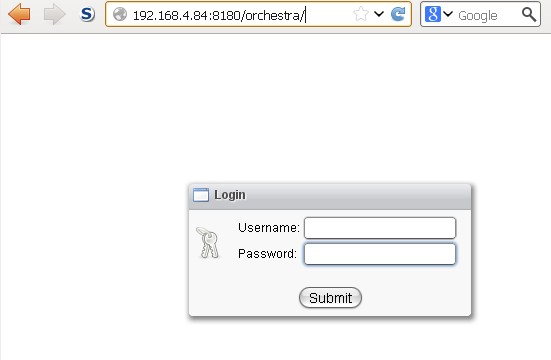
An example invocation might look like http://192.168.4.84:8180/orchestra/.
Afterward, the login screen for the Orchestra monitor should appear:
2. Accessing Orchestra Using Remote Web Services
Orchestra can be controlled and queried externally via remote web services. This requires access to Orchestra's designated port.
The necessary ports must be configured in the group "Http" of the Orchestra configuration file /tomcat/webapps/orchestra/WEB-INF/classes/config/environment_settings.xml:
<group name = "Http" >

    <parameter name = "servlet.port.http"                 value = "8019" />

    <parameter name = "servlet.port.https"         value = "8443" />

    <parameter name = "servlet.port.https.auth"   value = "8444" />
Access can be tested using the URL http://<host>:<port>/OrchestraRemoteService/SystemEventMonitor/Service?wsdl.
Example invocations include:
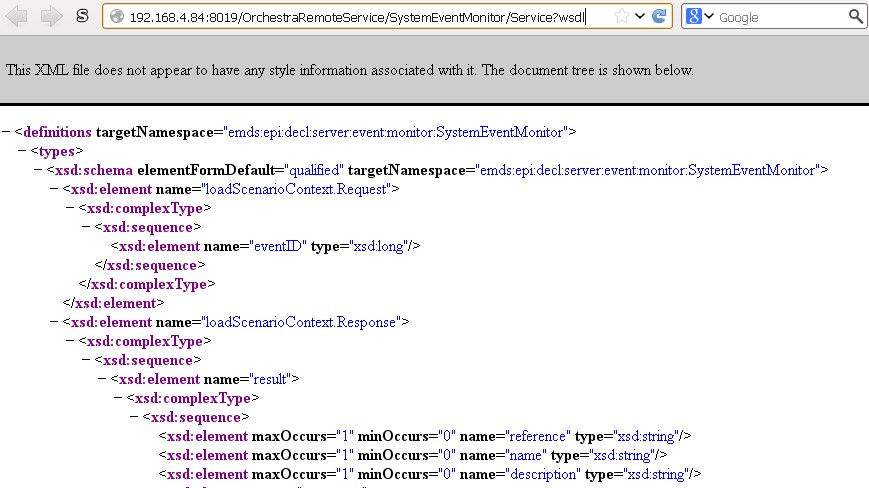
http://192.168.4.84:8019/OrchestraRemoteService/SystemEventMonitor/Service?wsdl
https://192.168.4.84:8443/OrchestraRemoteService/SystemEventMonitor/Service?wsdl
Subsequently, the WSDL (an XML document) for the web service SystemEventMonitor should appear in the browser:
Note: The port 8443 may already be in use by Tomcat.
3. Cell and Cluster Mode
If Orchestra operates in cell or cluster mode, additional ports may need to be opened in the firewall.
The necessary ports should be configured in the group "Runtime" of the Orchestra configuration file /tomcat/webapps/orchestra/WEB-INF/classes/config/environment_settings.xml.
1. Cluster Mode
To ensure that two Orchestra instances can communicate in cluster mode, the port configured under node.port must be opened in the firewall:
<group name = "runtime" >

    <!--

       Parameters for cluster environment

        ==================================

        node.ip         Defines the IP address of this cluster node

        node.port       Defines the port that is used for the inter-cluster node protocol

     -->

    <parameter name = "node.ip"            value = "127.0.0.1"/>
    <parameter name = "node.port"          value = "9981"     />
Confirmation of inter-instance communication can only be observed through the Orchestra log files or in the system events within the Orchestra monitor.
2. Cell Communication
If other Orchestra cells establish a connection to this cell, configuring this cell as an ingoing cell requires the port specified under node.port to be opened in the firewall.
If a cell is designated as outgoing, no firewall configuration is necessary, as the tunnel is open to the remote cell. Communication will work in both directions as long as the connection is established.
<group name = "runtime" >

    <!--

       local.port  Defines the local TCP/IP port where the cell is

                    waiting for incoming requests

        poolsize    Defines the number of worker threads that are

                    responsible for processing cell messages.

     -->

    <parameter name = "local.port"          value = "8894"  />
Note: Confirmation of communication between different cells can only be observed through the Orchestra log files or in the system events within the Orchestra monitor.
4. Default Ports of Orchestra
Tomcat                        8080
Orchestra servlet http        8019
Orchestra servlet https       8443 / 8444
Cluster                       9981
Cells                         8894