Transport Layer Security (TLS) Configuration
Transport Layer Security (TLS), the successor to SSL, ensures trusted and encrypted communication between parties. Orchestra supports TLS communication through the HTTPS protocol, allowing for both client and server authentication.
Creation
TLS configuration is incorporated into the service endpoint definition at the port level within the Service Declaration (refer to "Service Client" in the Designer Manual for further details) and the Service Provider (refer to "Service Provider" in the Designer Manual for further details). Consequently, it cannot be created independently. TLS configuration is utilized either in the service declaration configuration (refer to "SoapBinding" in the Designer Manual for details) by default on the client side, or in the service provider configuration (refer to "SoapBinding" in the Designer Manual for details) on the server side.
Please consult the SoapBinding section (refer to "SoapBinding" in the Designer Manual for further information) for both service declaration and service provider configurations.
Configuration
Prerequisites
Orchestra client authentication (authentication of the Orchestra web service client to an external web service) requires a Technical Login type of credential, while a trusted server certificate must be provided by a Trusted Server type of credential. Authentication of third parties to the Orchestra service necessitates the use of Client Login credential type.
You will need such credentials (refer to "Credentials" in the Designer Manual for more information) to configure TLS properly.
Orchestra as Client Using an HTTPS Connection
At the service declaration level, you can enable client authentication and optionally require server authentication. The following outbound channels and services currently support TLS connections:
- HTTP Post Sender (refer to "HTTP Post Sender" in the Designer Manual for further details)
- HTTP Caller (refer to "HTTP Caller" in the Designer Manual for further details)
- HTTP Sender (Parameter) (refer to "HTTP Sender (Parameter)" in the Designer Manual for further details)
- Orchestra Parameter Sender (refer to "Orchestra Parameter Sender" in the Designer Manual for further details)
- SoapBinding (refer to "SoapBinding" in the Designer Manual for further details)
- REST Service Client (refer to "REST Service Client" in the Designer Manual for further details)
To utilize TLS authentication, ensure that the provided URL begins with "https://". The Certificate Check panel is responsible for configuring the HTTPS settings:
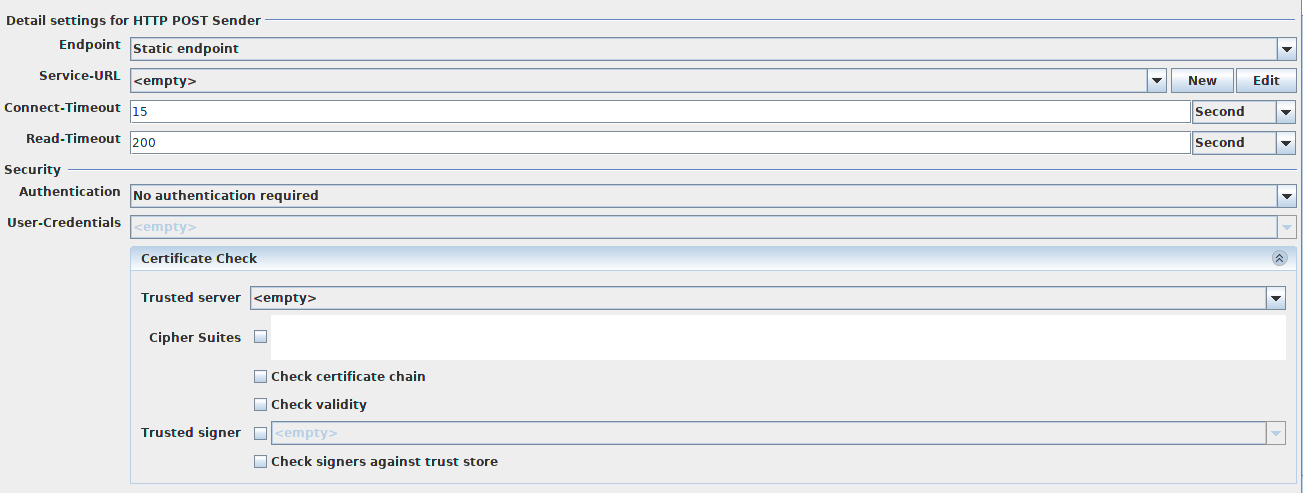
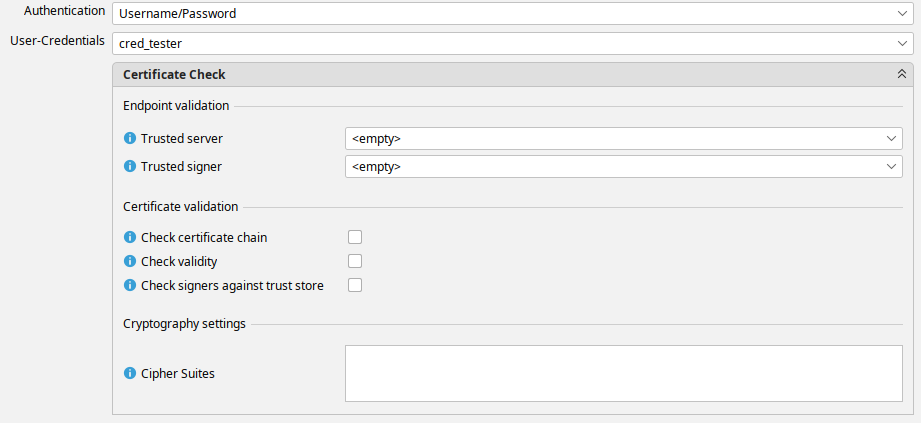
The Certificate Check panel allows you to configure the client-side HTTPS connection details:
-
User Credentials (type=Technical Login): The public/private keypair in PKCS#12 format for authorization.
-
Trusted Server (optional, type=Trusted Server): Enables verification of the server's public key certificate provided during client requests.
-
Trusted Signer (optional, type=Trusted Server): Validates whether the server's certificate has been signed by the specified certificate.
-
Check Certificate Chain (optional): Validates that the certificate chain is correctly signed (certificate n is signed by certificate n + 1).
-
Check Validity (optional): If enabled, checks if the certificate is expired.
-
Check Signers Against Trust Store: If enabled, verifies that a certificate in the chain (typically the last one) is present in the trust store.
-
Cipher Suites (optional): Specifies which Cipher Suites are used in TLS. Add cipher suites as comma-separated values in the text box (e.g., "TLS_ECDH_RSA_WITH_AES_256_CBC_SHA,TLS_ECDHE_RSA_WITH_AES_256_CBC_SHA,TLS_DHE_RSA_WITH_AES_256_CBC_SHA").
These settings configure your web service client for TLS.
Orchestra as Service Provider / Inbound Channel with TLS
Orchestra's HTTP-based channels and services provide the capability to secure communication using TLSv2. The following sections illustrate how to establish HTTPS connections in Orchestra.
By default, Orchestra employs its self-signed public certificate provided from Orchestra's SSL keystore.
The keystore is configured within orchestra_configuration.xml under the "SSLSettings" group.
The server-side SSL authentication utilizes a corresponding private key from the configured keystore.
Ensure that Orchestra.crt is added to the client's trust store for successful TLS connections between the Client and Orchestra.
Simple SSL Connections Without Client Certificate Request
Establishing a basic HTTPS connection from an external client to Orchestra requires no additional configuration. This mirrors the method by which a standard browser accesses a TLS-secured website.
Orchestra supplies its internal self-signed certificate for establishing the HTTPS connection, which the client checks for trust. If the certificate is trusted, a secure connection is established. The port used for this simple SSL connection is the HTTPS port, as displayed in the following screenshot:

SSL Connections With Client-Side TLS Certificates
In addition to simple HTTPS connections, Orchestra allows secure communication by requesting a client certificate. All client certificate-related communication is managed through the HTTPS-Cert port. Connections on this port will function only if the client provides a valid certificate.

Additional Security Features
SSL Connection With Basic Authentication
Enabling basic authentication alongside HTTPS is conducted within the respective channel's or service component panel Authentication and Authorization:
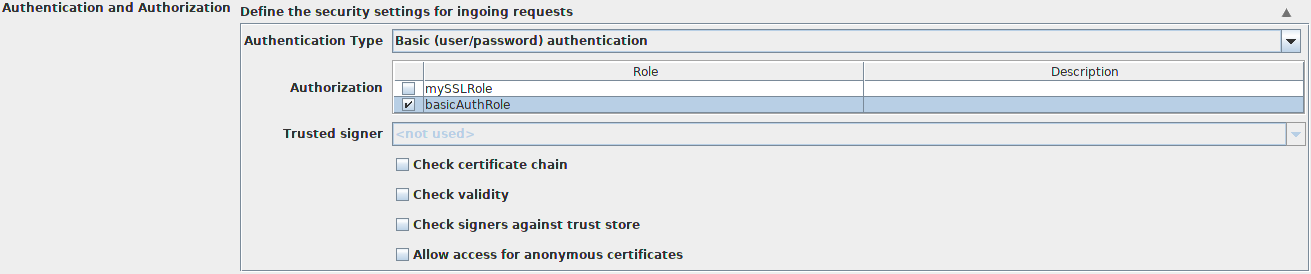
If basic authentication is enabled, a HTTPS connection is established, and the client's request is validated for basic authentication headers. A connection is permitted only if the supplied username/password combination is correct.
To utilize this feature, follow these steps:
-
Create a new credential role under Security → Role → Create.
-
Create a new credential of type Client Login with Authentication type Username/Password and assign this credential to the new role:
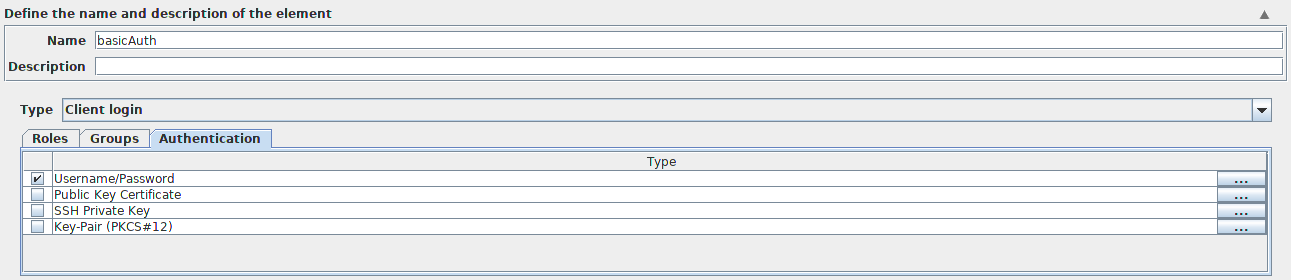
- Within the channel or service, select Authentication Type "Basic (user/password) Authentication" and choose the new role under authorization, as outlined in the Authorization and Authentication screenshot above.
SSL Connection With Digest Authentication
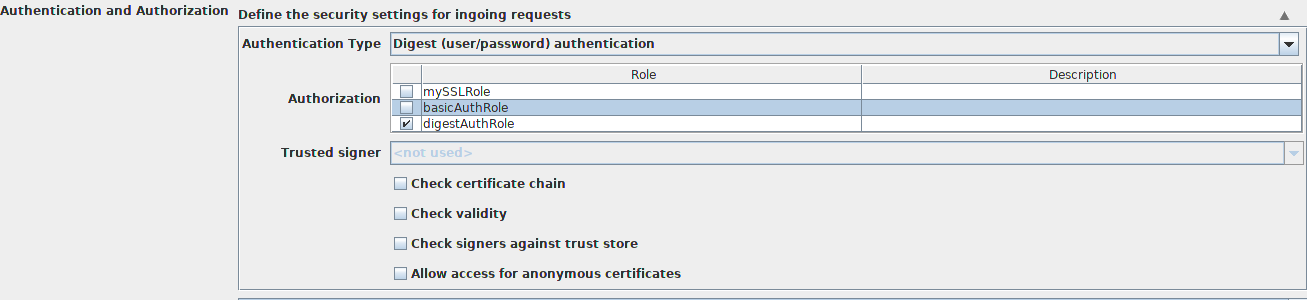
Digest authentication, similar to basic authentication, offers improved security. To implement digest authentication alongside HTTPS, follow these steps:
-
Create a new credential role under Security → Role → Create (only required if the desired role does not yet exist).
-
Create a new credential of type Client Login with Authentication type Username/Password and assign this credential to the new role.
-
Within the channel or service, select Authentication Type "Digest (user/password) Authentication" and choose the created role in the Authorization panel:
SSL Connection With Certificate Authentication
In addition to username/password authentication, you can configure detailed handling of the client certificate requested by Orchestra by selecting Authentication Type "Certificate Authentication."
To employ this feature, follow these steps:
-
Create a new credential role under Security → Role → Create (only necessary if the desired role does not yet exist).
-
Create a new credential of type Client Login with Authentication type "Public Key Certificate" and assign this credential to the new role.
-
Within the channel or service, select Authentication Type "Certificate Authentication" and choose the created role in the Authorization panel:
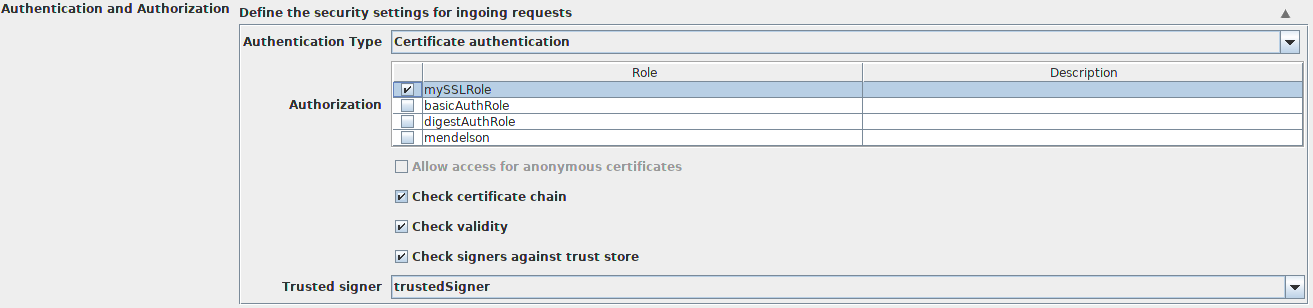
The client typically sends its TLS certificate, which is used for both establishing the HTTPS connection and validating against a Credential of type "Client Login" within Orchestra. The incoming certificate is matched against available credentials, and authorization is granted if a credential with the correct role exists; otherwise, authorization fails.
Allow Access for Anonymous Certificates
In scenarios with numerous clients utilizing certificate authentication, it may be impractical to register a certificate with a corresponding role for each one. The option Allow Access for Anonymous Certificates facilitates this by functioning as an anonymous role, selectable only when no user-defined role is specified in the authorization table. The client certificate is validated solely for its authenticity.
Additional Checks on Certificates
The following additional checks can be applied to certificates:
-
Trusted Signer: This is a certificate credential of type "Trusted Server." The incoming certificate is validated against this certificate; failure to match results in authentication failure and no connection establishment.
-
Check Certificate Chain: This option applies when clients send certificate chains instead of individual certificates. If enabled, the entire certificate chain sent by the client is validated.
-
Check Validity: This option assesses if the certificate's expiration date is valid. If not, no connection is established.
-
Check Signers Against Trust Store: The client certificate chain (or certificate) is validated against Orchestra's trust store. Authentication is granted if any certificate in the client-sent chain is found in the trust store.
Always use the HTTPS protocol for URLs utilized in TLS configurations.
Refer to "Credentials" and "Roles" in the Designer Manual for more information.